Pre-provisioning allows you to prepare screens before they come online. This is useful when deploying many screens at once, sending pre-configured devices to clients, or working with installers.
When a pre-provisioned device connects for the first time, it will automatically link to the account and apply the settings you configured.
Note: You must have enough available licences to pre-provision screens. For example, if you want to pre-provision 10 screens, your account must have at least 10 unused screen licences.
You can bulk pre-provision up to 50 players at a time using the CSV upload tool.
Benefits of Pre-Provisioning
- Bulk deploy devices faster
- Assign playlists and tags before installation
- Simplify onboarding for clients or installers
- No need to manually activate every screen
- Supports Android, WebOS, Tizen, Windows, macOS, Linux and Brightsign
How It Works
- Add your screen’s Serial Number before installation
- Assign a Name, Playlist, and optional Tags
- Ship or install devices
- When the device connects, it auto-registers and applies its settings
Typical Workflow
| Step | Action |
|---|---|
| 1 | Generate or collect device serial numbers |
| 2 | Pre-provision devices |
| 3 | Install screens on-site |
| 4 | Devices auto-link to the account and apply settings |
Adding a Device
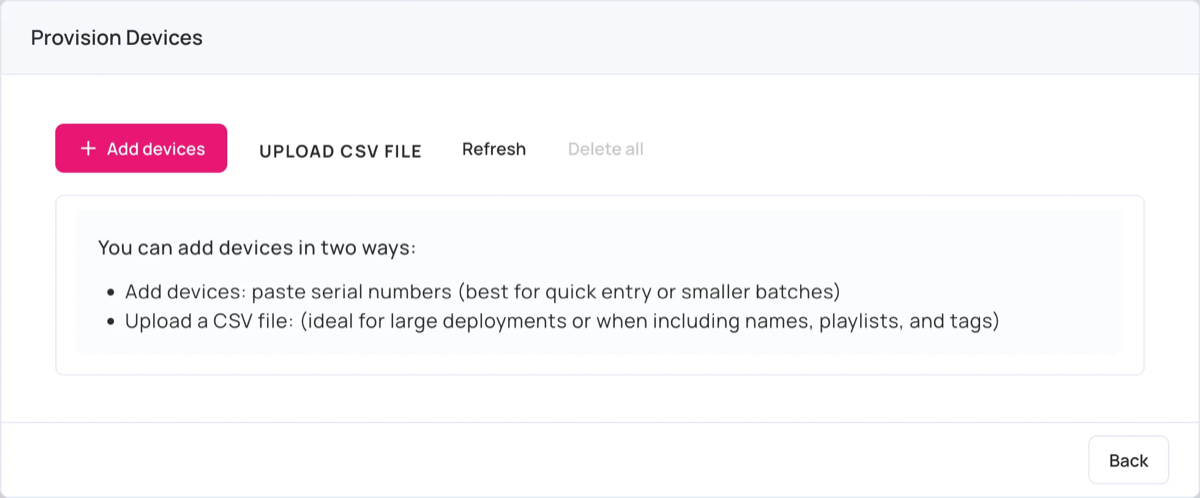
You can add devices in two ways: paste serial numbers, or upload a CSV file. Each provisioned device uses one screen licence, so make sure you have enough free licences.
1. Paste serial numbers
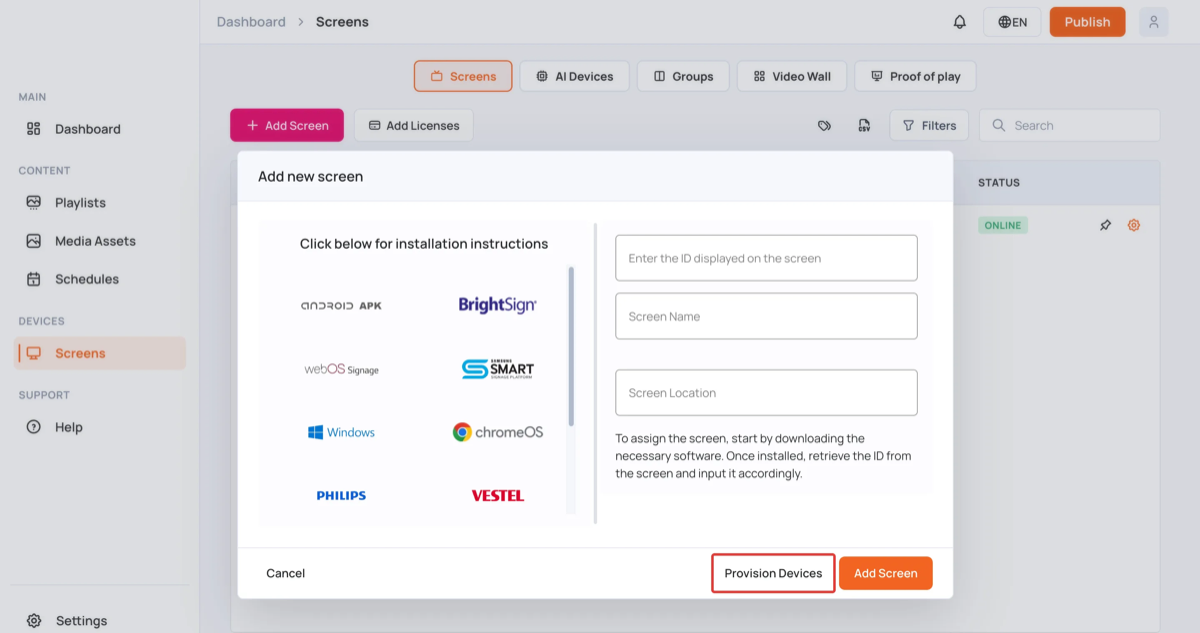
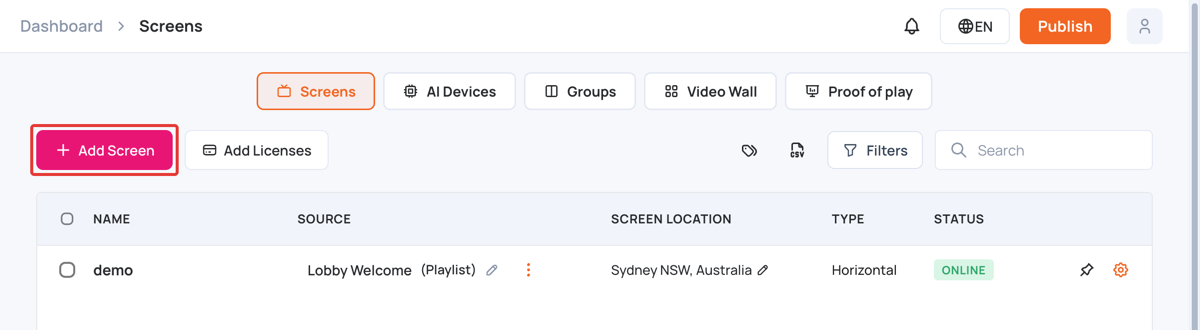
- In the left sidebar, select Screens, then click Add Screen.
- In the Add new screen window, click Provision Devices.
- In Provision Devices, click Add devices.
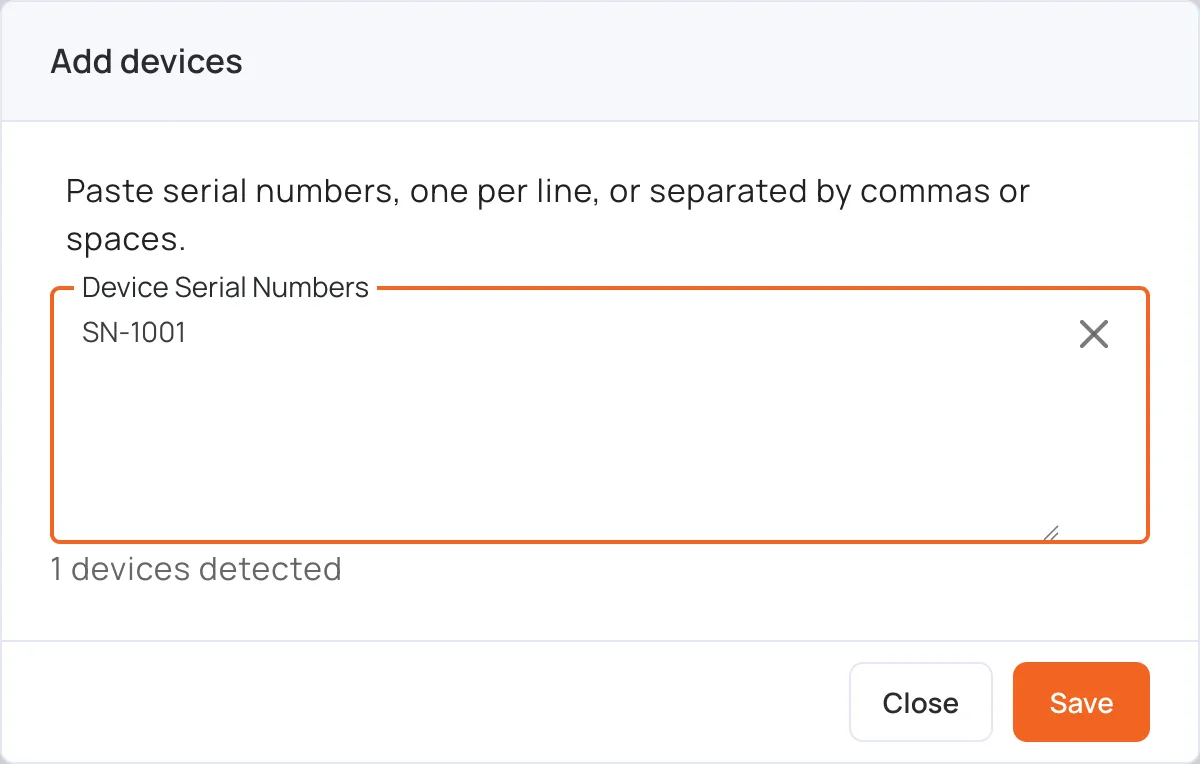
- Paste the serial numbers in Device Serial Numbers, one per line, or separated by commas or spaces. You can add up to 50 at once.
- Click Save.
- In the list of provisioned devices, set the Name, Playlist and Tags for each serial (all optional).
If a serial is already provisioned, it’s skipped. If you don’t have enough free licences, the window says how many are available.
Now, when the device connects, it auto-registers and applies the settings.
2. Bulk Import via CSV
Upload a CSV file to add multiple devices at once.
Maximum 50 devices per CSV upload
CSV Format Example:
serial,name,playlist,tags
SN001,Reception TV,Welcome Playlist,frontdesk;reception
SN002,Menu Board,Menu Playlist,restaurant;menu
Tags support
,or;separators
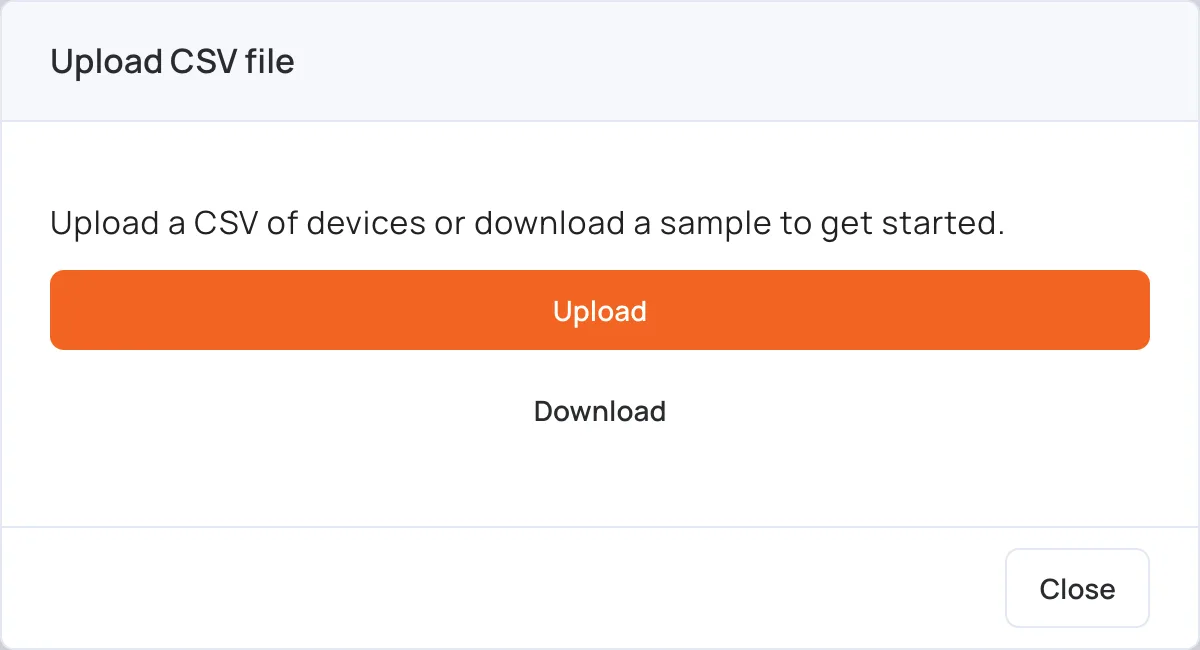
- In Provision Devices, click Upload CSV file.
- To start from an example, click Download to get a sample CSV.
- Click Upload and choose your CSV file.
- Check the preview, then click Confirm to save the devices.
When installed devices connect, they will automatically register and apply the settings.
Tags
Tags help group screens and automate content assignment.
Examples:
receptionmenugymstore-123
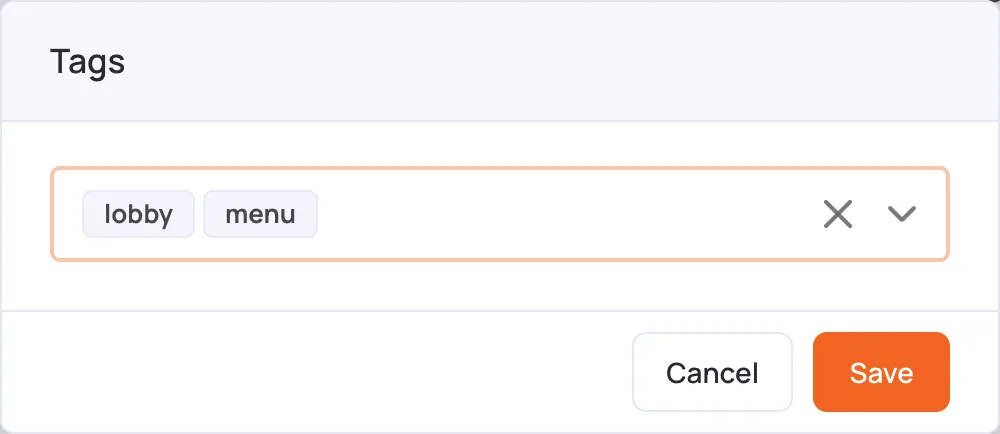
Read more about Tags.
Device Activation
When the device connects for the first time:
- It checks for matching serial number
- Applies assigned Playlist/Tags
- Appears on the Screens page
Tips
- Use CSV for large deployments
- Keep serial numbers consistent (case insensitive)
- Use tags for organization and automation
- Test with one screen before mass rollout
FAQs
| Question | Answer |
|---|---|
| What if a serial number already exists? | The new one will not override an active screen |
| Can I change settings after provision? | Yes, you can edit anytime |
| Do devices need internet? | Yes, for initial activation and updates |
| Can I bulk delete provisions? | Yes via the UI |