Digital signage power management lets you turn screens on and off, by hand or on a weekly schedule. Turning screens off when nobody is watching saves power.
Open power management
- In the left sidebar, select Screens.
- On the screen’s row, click the Screen Details (gear) icon.
- Click Power.
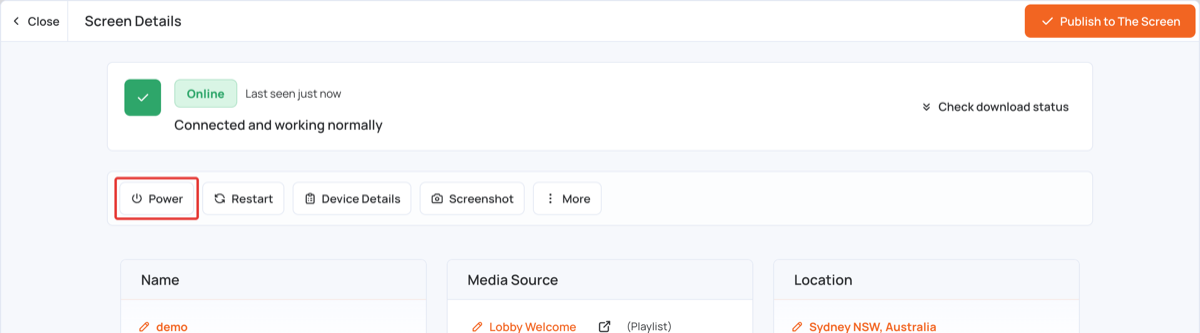
The Power Management window shows whether the screen is on or off next to its title, for example (Screen is on).
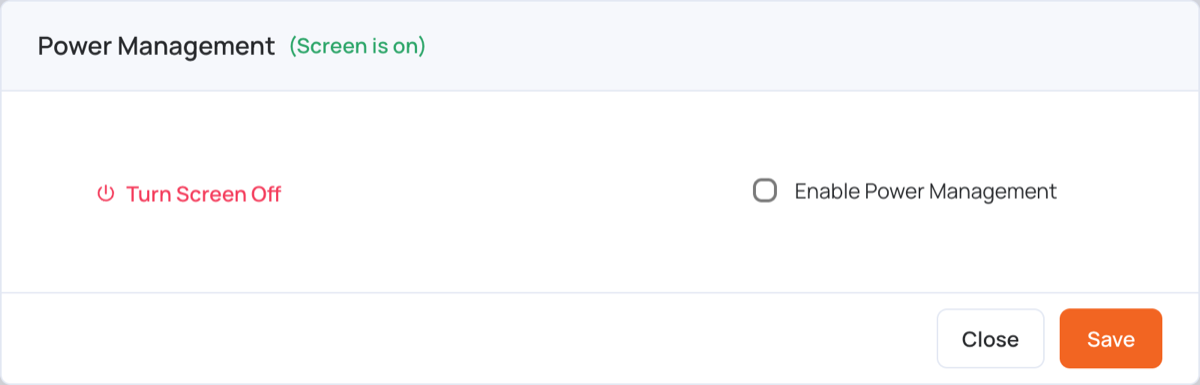
Turn a screen on or off now
- To turn the screen off, click Turn Screen Off.
- To turn it back on, open Power again and click Turn Screen On.
The command is sent to the screen and takes a few seconds to apply.
Set a weekly power schedule
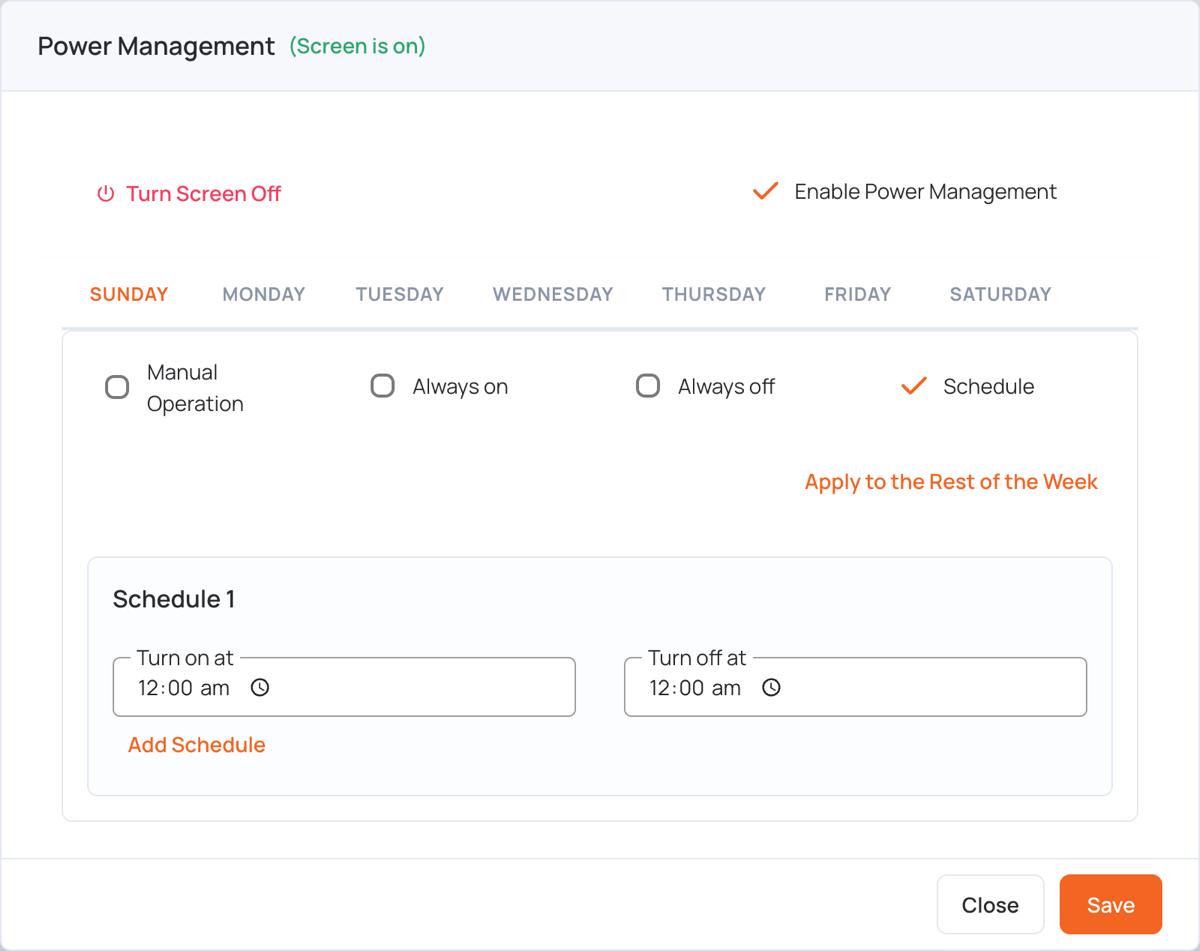
- Select Enable Power Management.
- Click a day of the week, then choose how the screen behaves that day:
- Manual Operation: the screen stays as it is. You turn it on and off yourself.
- Always on: the screen stays on all day.
- Always off: the screen stays off all day.
- Schedule: the screen turns on and off at the times you set.
- For Schedule, set Turn on at and Turn off at. Click Add Schedule to add another time slot that day, up to 3.
- To copy a day’s settings to the days after it, click Apply to the Rest of the Week.
- Repeat for the other days, then click Save.
Supported devices
Power management works on:
- LG webOS displays
- Windows players
- Linux players
- Rooted Android devices
Power management is not available on web players, Samsung Tizen displays, or Android TVs. On those, clicking Power shows Power management is not available for this device.