Live screen location keeps each screen’s location in the management console up to date using the device’s GPS. The location appears in the Screen Location column on the Screens page and in the screen’s Screen Details.
There are 2 main steps to use the Live Screen Location:
1. Configure Location Services on the Device
To configure the Live Screen Location feature, follow these steps:
Step 1: Enable Location Services for the Device
To enable location services, grant the app permission for precise location on Android devices.
Open the device settings.
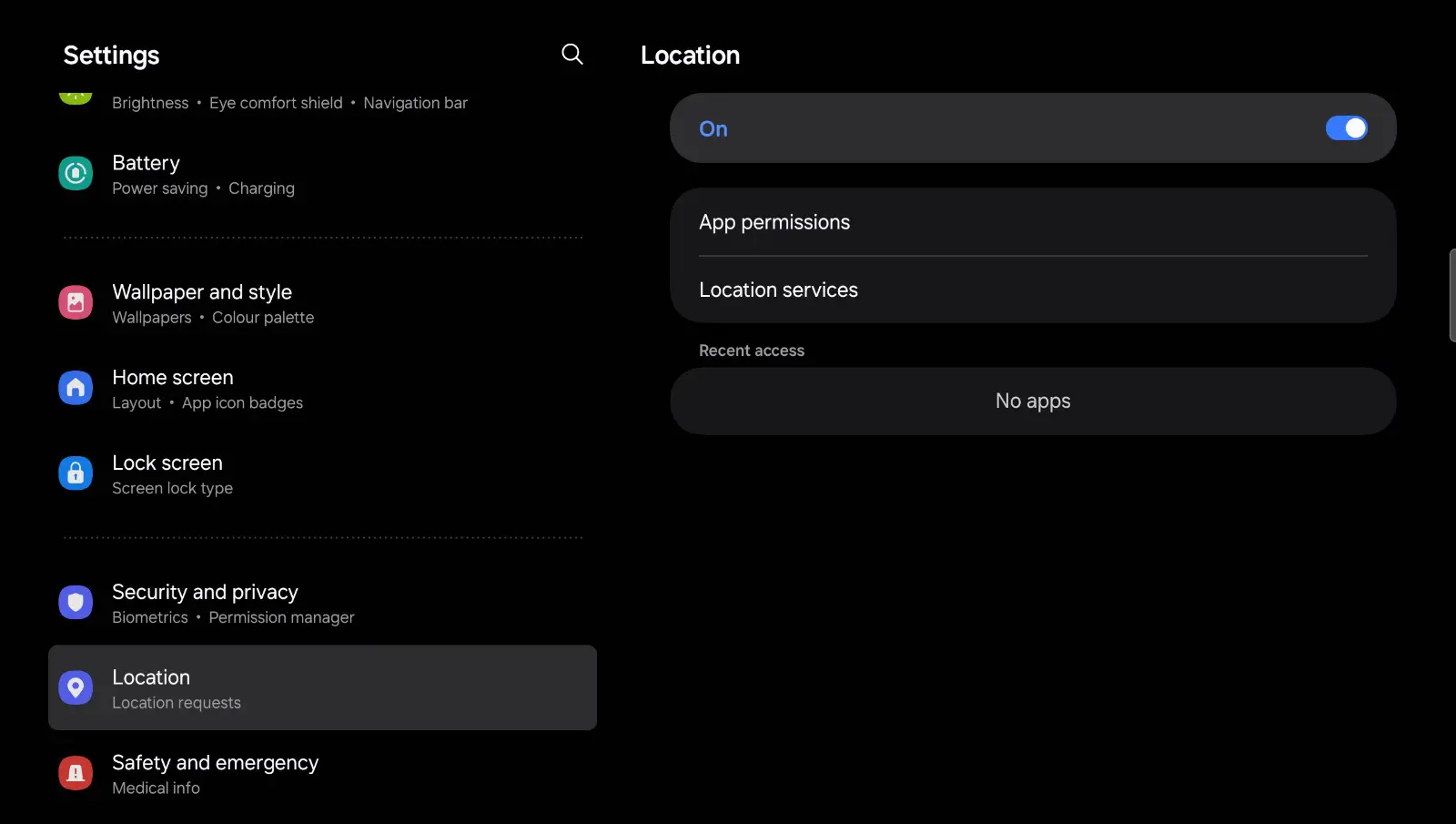
Go to Location Settings. (Scroll down and tap on Location)
Turn on Location Services. If Location is off, tap the switch to turn it on.
Step 2: Enable Precise Location for an App
Open App Permissions:
- Go to Settings > Apps (or Apps and notifications, depending on your Android version).
- Find the app to which you want to grant location permissions and tap on it.
Open Permissions.
Allow Location Access:
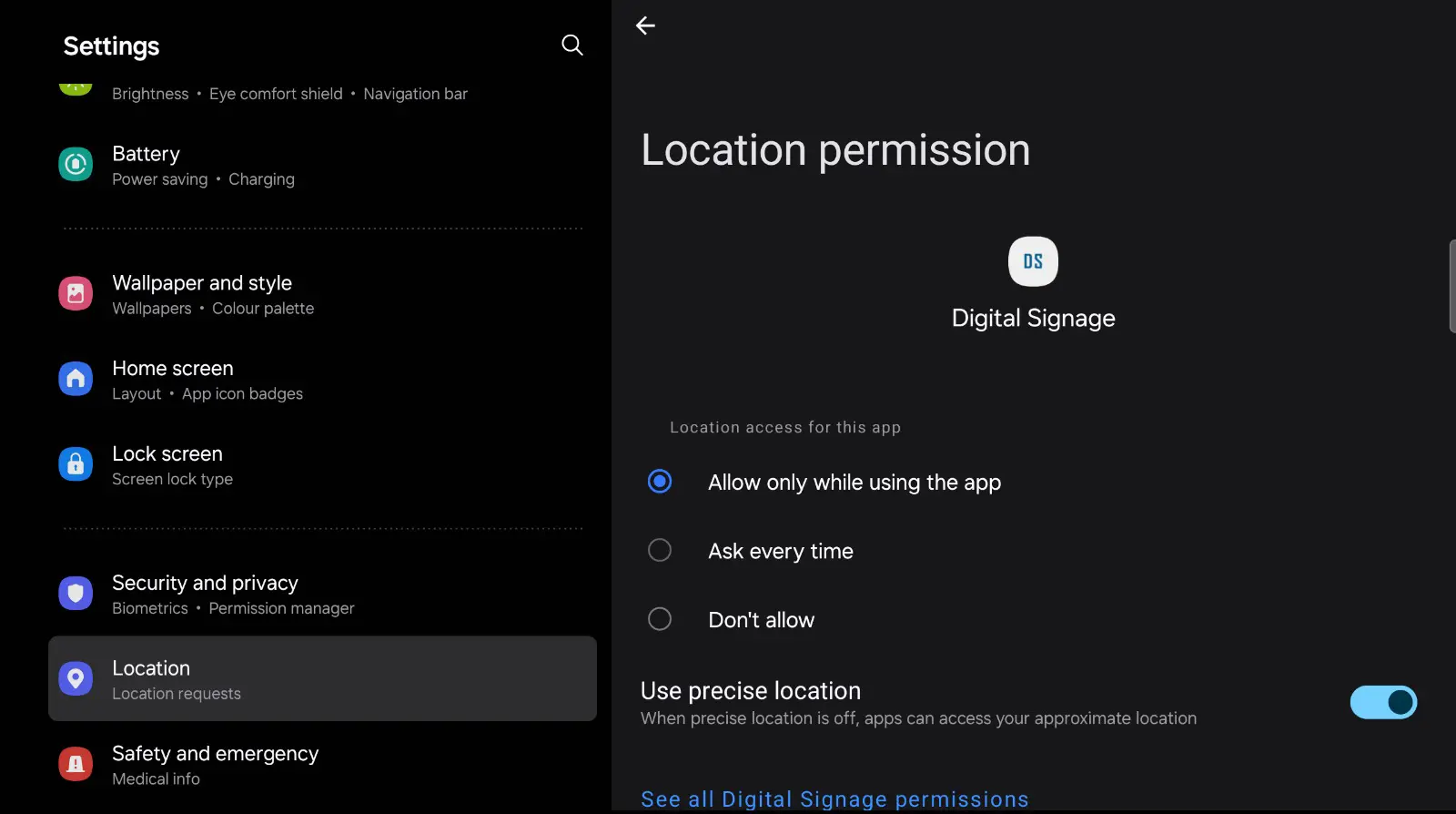
- In the list of permissions, tap on Location.
- Choose Allow all the time or Allow only while using the app, depending on your app’s needs.
Enable Precise Location:
- Ensure that Use precise location is enabled (it allows the app to access GPS data). You will see a toggle next to “Use precise location”; ensure it’s turned on.
Step 3: Check GPS Settings
High Accuracy Mode:
- Go back to Settings > Location.
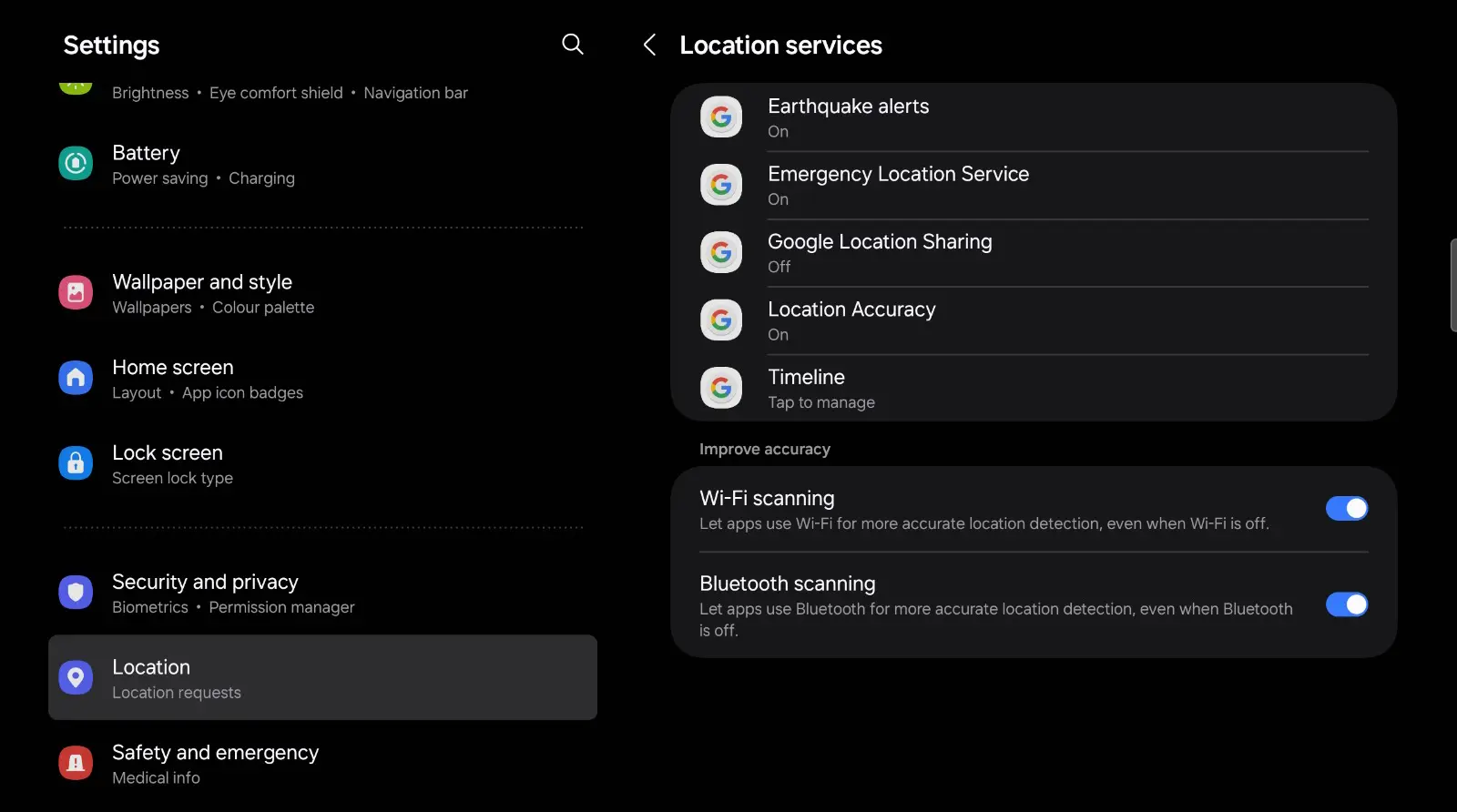
- Tap on Location Mode or Advanced (depending on your Android version), and select High accuracy. This will use GPS, Wi-Fi, and mobile networks for location detection.
After following these steps, your app should be able to access GPS data from a precise location.
2. Set Screen Location on the CMS Portal
After configuring the location services and permissions on your digital signage device, turn on GPS location updates for the screen in the management console.
- In the left sidebar, select Screens.
- In the Screen Location column, click the screen’s location (or Set Location if none is set yet).
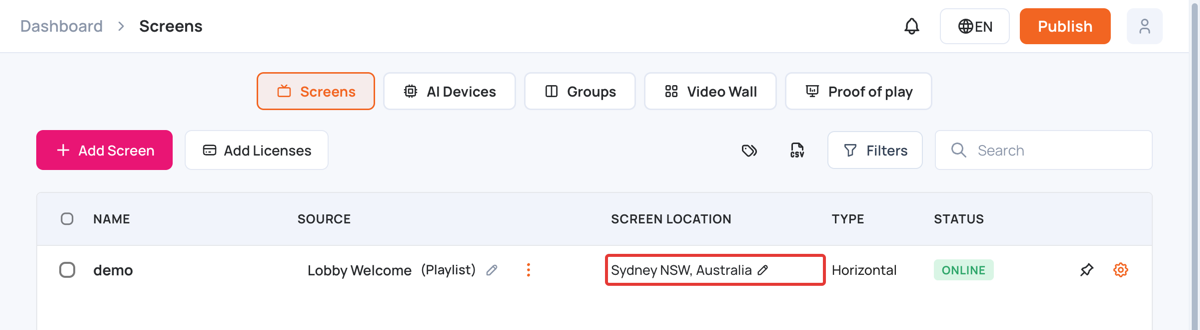
- In the Screen Location window, select Enable auto-update location using the device’s GPS.
- Click Update Location.
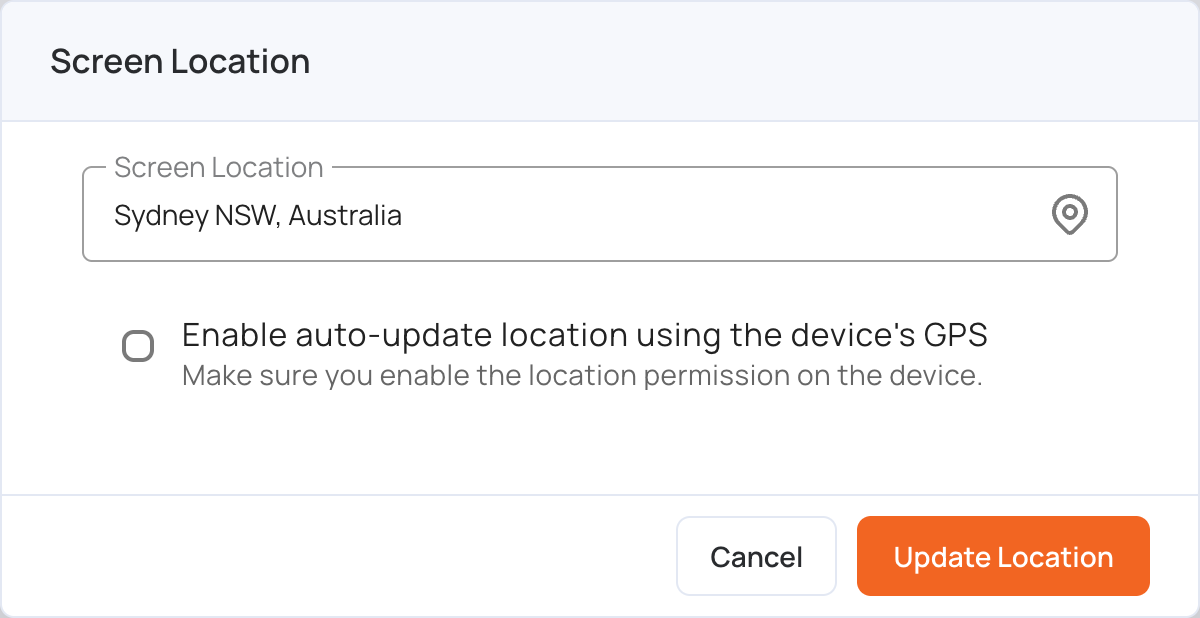
The screen’s location now updates from the device’s GPS. You can also type an address in Screen Location to set it by hand.