IMPORTANT: Before proceeding with the steps below, make sure that you have already installed your player. The process of installing the LED player is the same as the standard player installation. To get detailed instructions on how to install the player, refer to the installation section of this manual and choose the type of player you have.
You can use our digital signage CMS to display content on LED screens and billboards. Proper calculations and configurations are necessary for optimal use.
Step 1: Identify the content area resolution
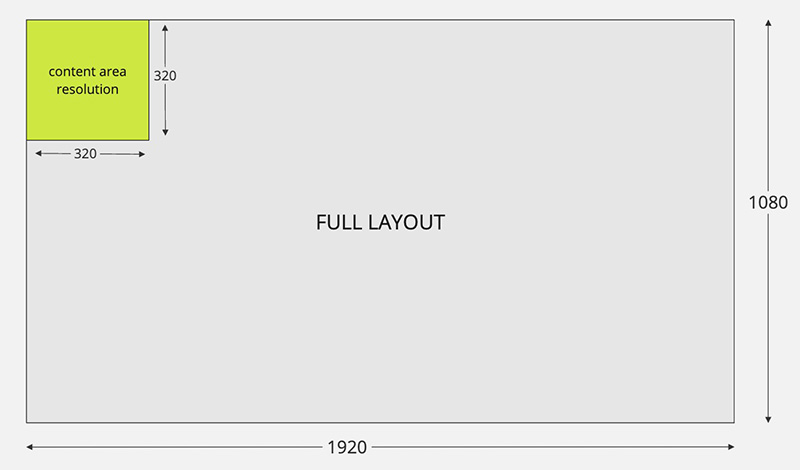
LED displays often have a lower resolution than the expected input resolution, especially large displays. Typically, only the top-left corner of the input is used to display content. In order for a CMS to effectively manage the LED display, it is necessary to obtain its resolution and use it to calculate the appropriate configuration parameters.
Refer to your LED supplier for the content area resolution; in the below example, we will assume the resolution is 320x320px.
Step 2: Create a playlist
- In the left sidebar, select Playlists, then click Add Playlist.
- Enter a Name you can recognise later, for example “LED Board”, and click Save.
- In Choose Layout, choose a layout. For this example, Layout 2.
Step 3: Edit the layout
- On the playlist’s layout page, click Edit Layout.
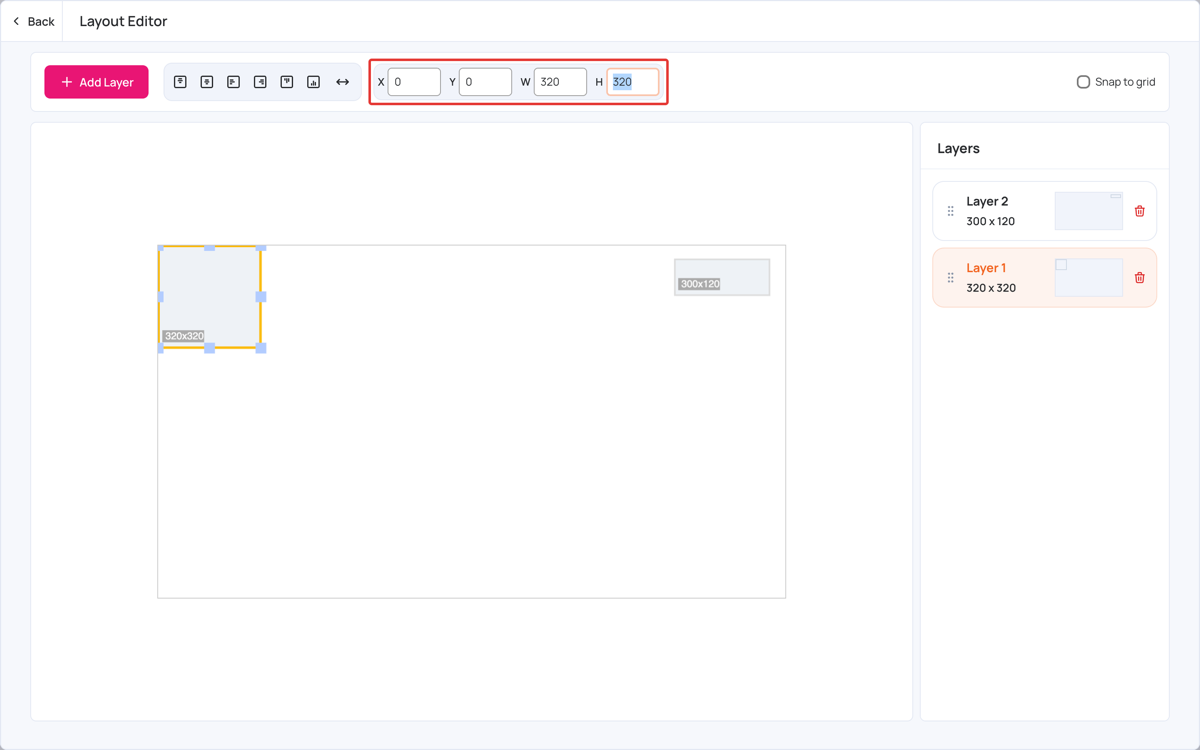
- In the Layout Editor, select Layer 1 in the Layers list.
- Set X to
0and Y to0, so the layer starts at the top-left corner. - Set W and H to the LED resolution, in this example
320and320.
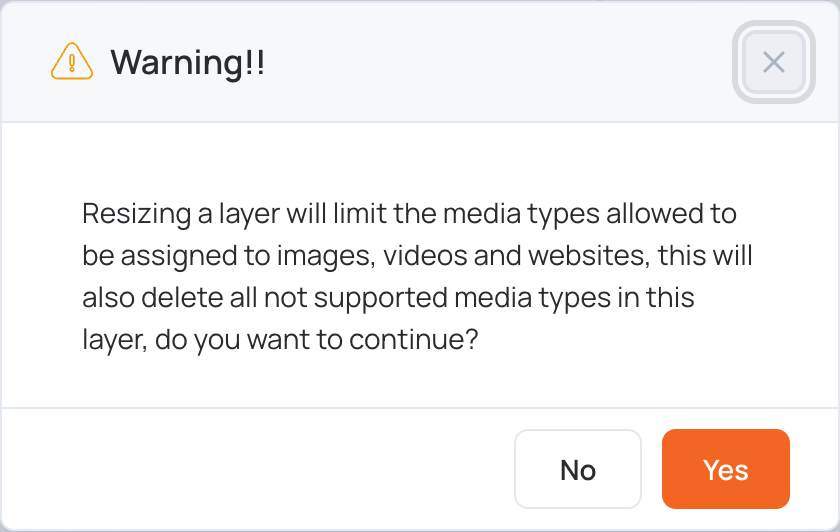
The first time you change a layer’s size, a warning explains that the layer will then only accept images, videos and websites, and that any other media in it will be deleted. Click Yes to continue.
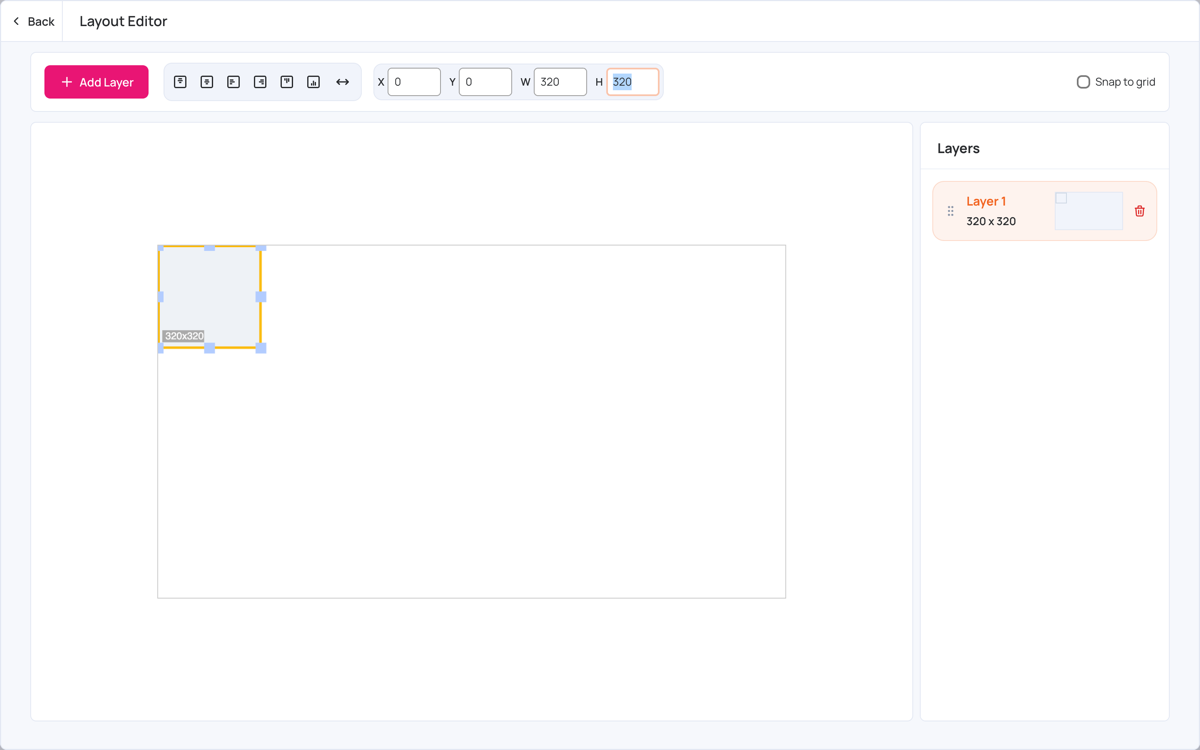
- Delete the layers you don’t need: click the trash icon next to Layer 2, then Yes. This deletes the layer and all the media assigned to it.
The final layout should look like this. The editor saves your changes automatically.
Step 4: Add content
- Click Back, then click the layer you configured.
- Choose where your content comes from, for example Upload media, Media Assets, Canva or Image Libraries. Because the layer was resized, only apps that provide images, videos or websites are listed.
Once you add your content, the layer looks like this:
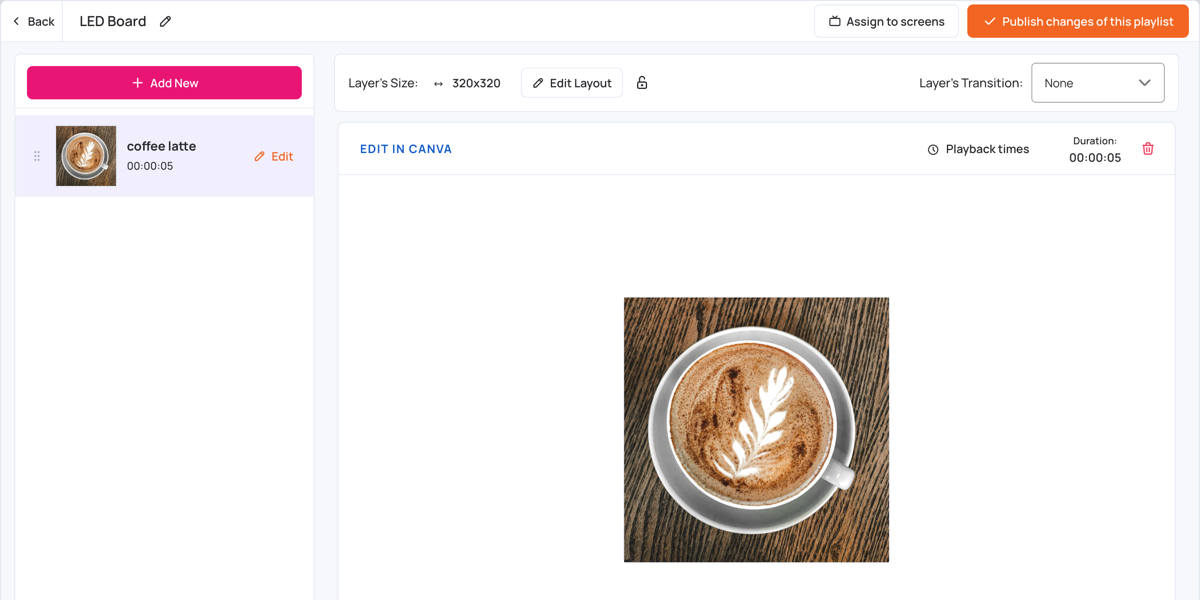
Step 5: Assign the playlist to the LED screen
- In the playlist, click Assign to screens.
- Choose the LED screen under Screens (or choose a Tag).
- Keep Publish now selected, then click Assign.
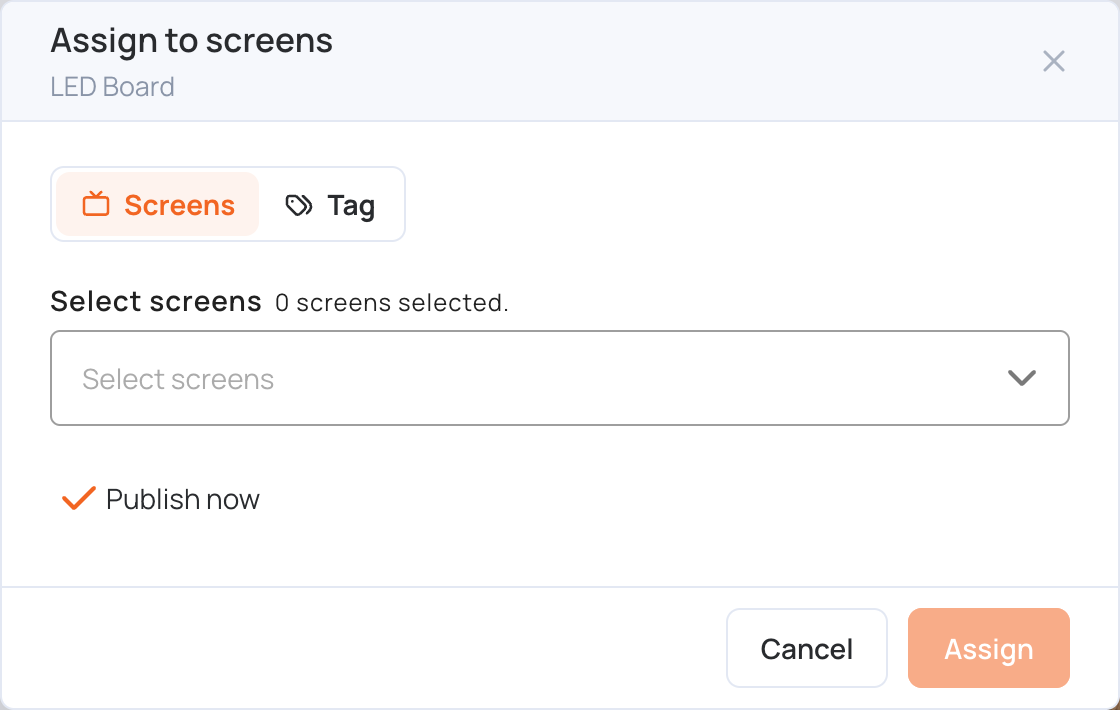
Your content should play on the LED within seconds. You can also assign the playlist from the Screens page; see Set screen content.
Split the LED into two zones
If you want to show different content on parts of your LED, split it into zones by using more than one layer. This is useful when all your LED content comes from one controller but you need to show different content side by side.
For example, to split a 320x320 LED into two 160x320 zones:
- In the Layout Editor, select Layer 1 and set X
0, Y0, W160and H320. - Click Add Layer, then choose a layer from the list. It is added to the Layers list.
- Select the new layer and set X
160, Y0, W160and H320.
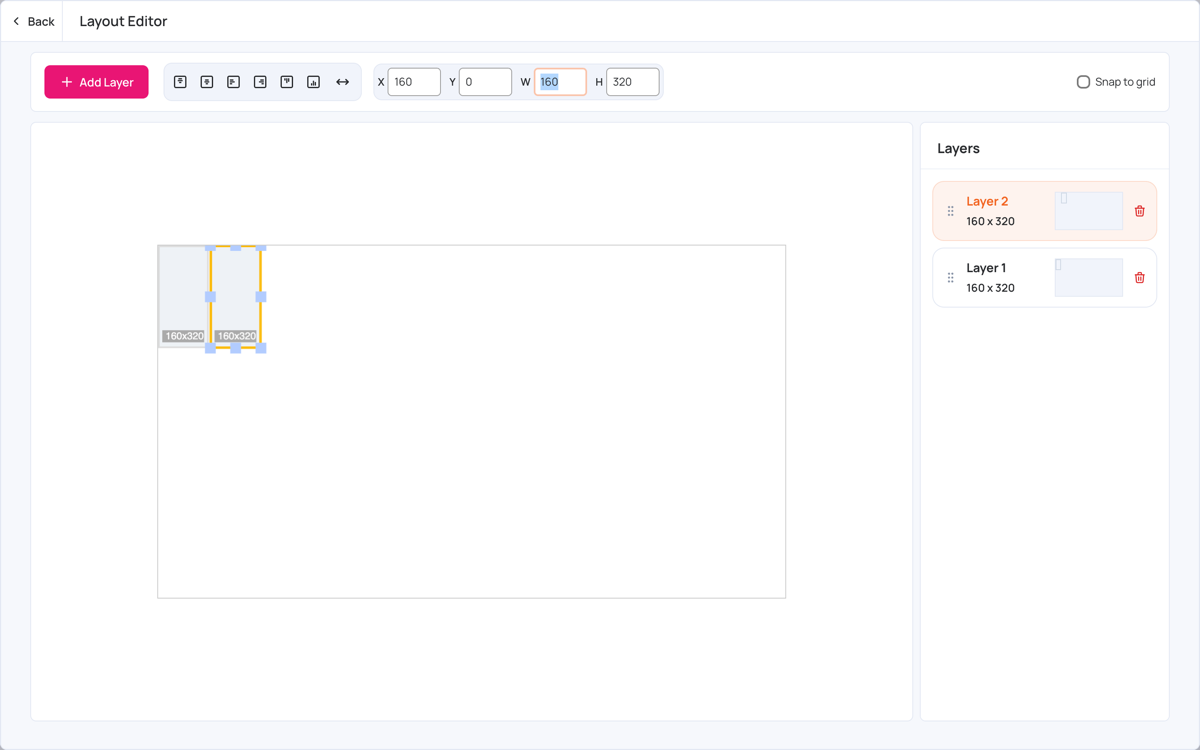
Then add content to each layer, as in Step 4.