A digital signage group lets you show the same content on many screens at once. You set the content on the group, then add screens to it. Change the group’s content and every screen in the group follows.
Create a group
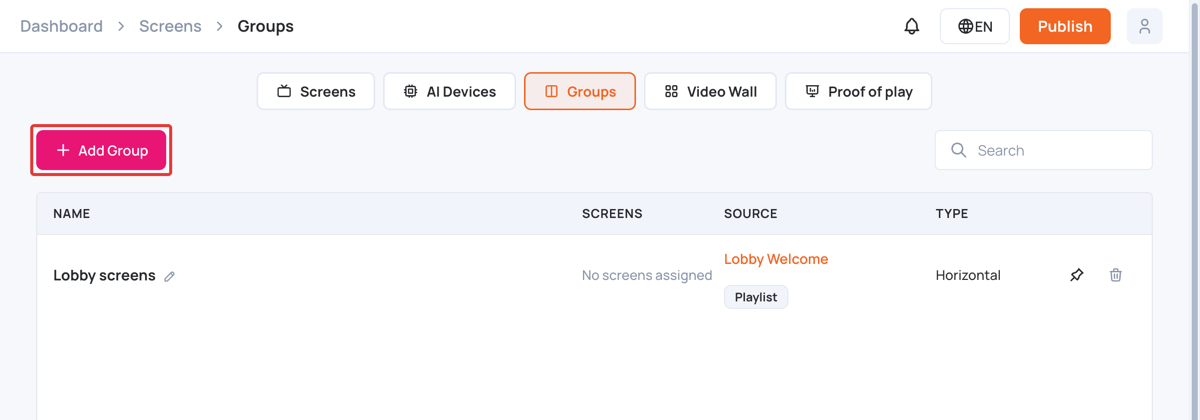
- In the left sidebar, select Screens, then open the Groups tab.
- Click Add Group.
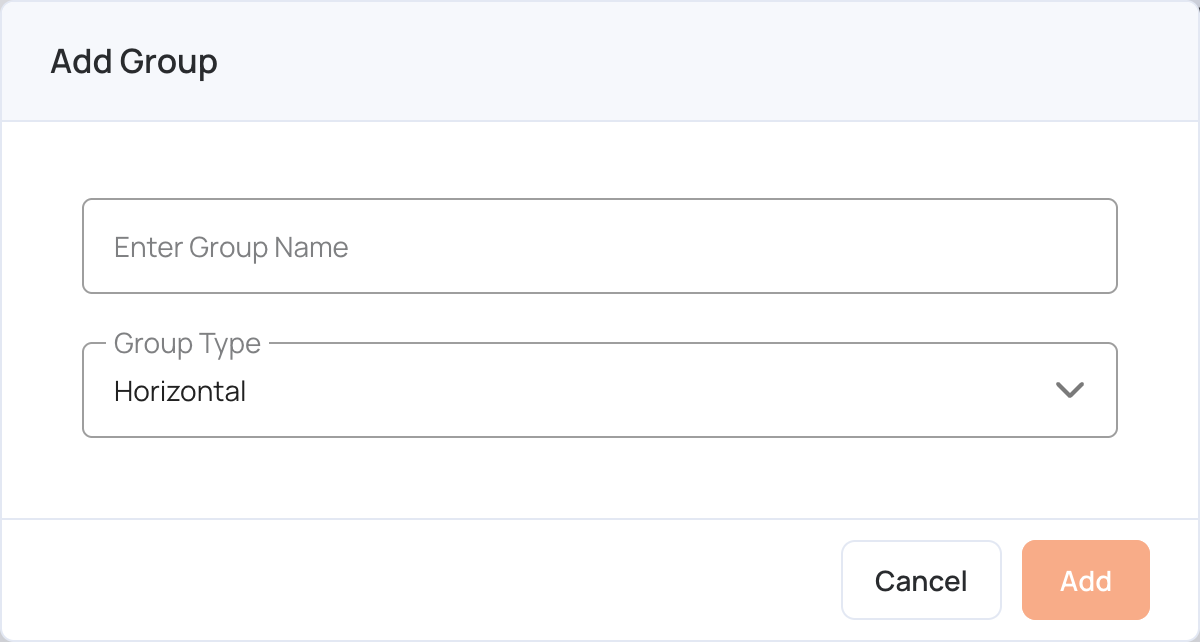
- Enter a name in Enter Group Name.
- Choose the Group Type: Horizontal or Vertical. Only screens of the same type can join the group.
- Click Add.
Set the group’s content
- On the Groups tab, click Set Screen Content (or the group’s current source) on the group’s row.
- Choose a playlist, schedule or channel. Click Change source type to switch between them, and type in Search to filter the list.
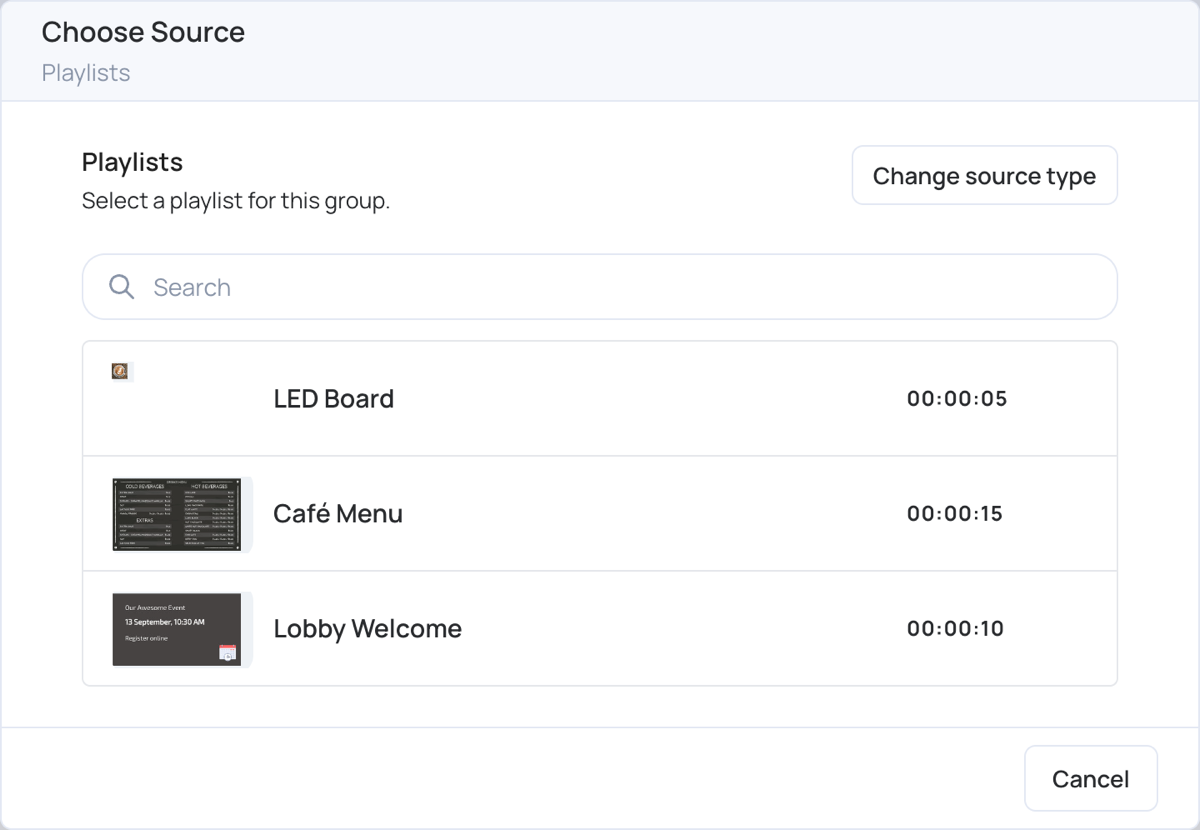
The Source column shows the content and its type, for example Playlist or Schedule.
Add screens to a group
You add a screen to a group from the Screens tab, by setting the group as the screen’s content.
- On the Screens tab, click Set Screen Content (or the current source) on the screen’s row.
- Choose Groups, then click the group.
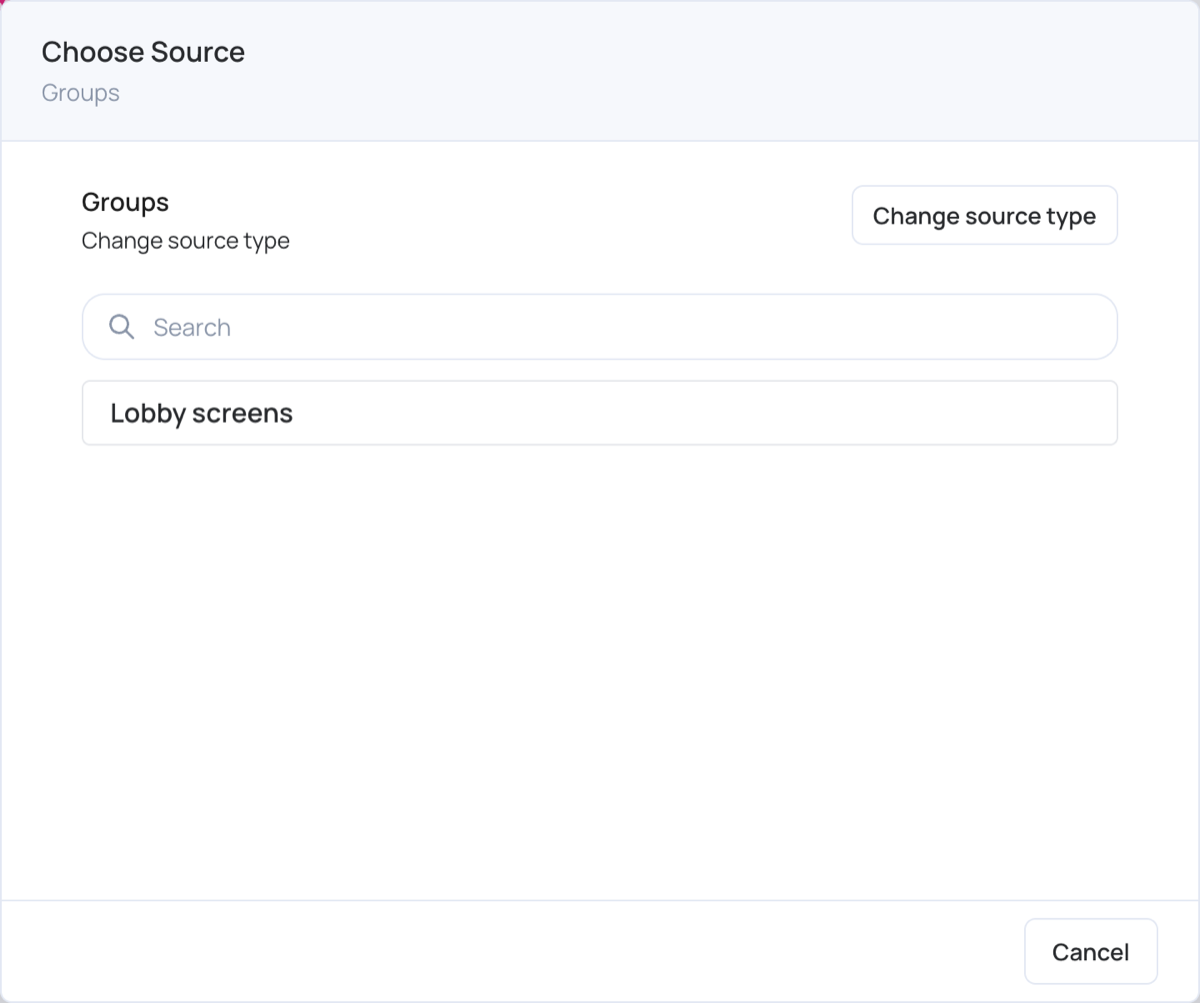
Only groups of the same type as the screen are listed. Repeat for each screen you want in the group.
On the Groups tab, the Screens column shows the screens in each group, or No screens assigned. Click it to see the group’s screens.
Manage groups
- Rename: click the pencil icon next to the group’s name.
- Pin: click the pin icon to keep the group at the top of the list.
- Delete: click the trash icon, then confirm. Deleting a group permanently removes it.
- Search: type in Search to find a group by name.