Digital signage brightness management lets you set a screen’s brightness by hand or on a weekly schedule, to improve visibility and save energy. You can set it for one screen, or set a default for all the screens in your account.
Set brightness for one screen
- In the left sidebar, select Screens.
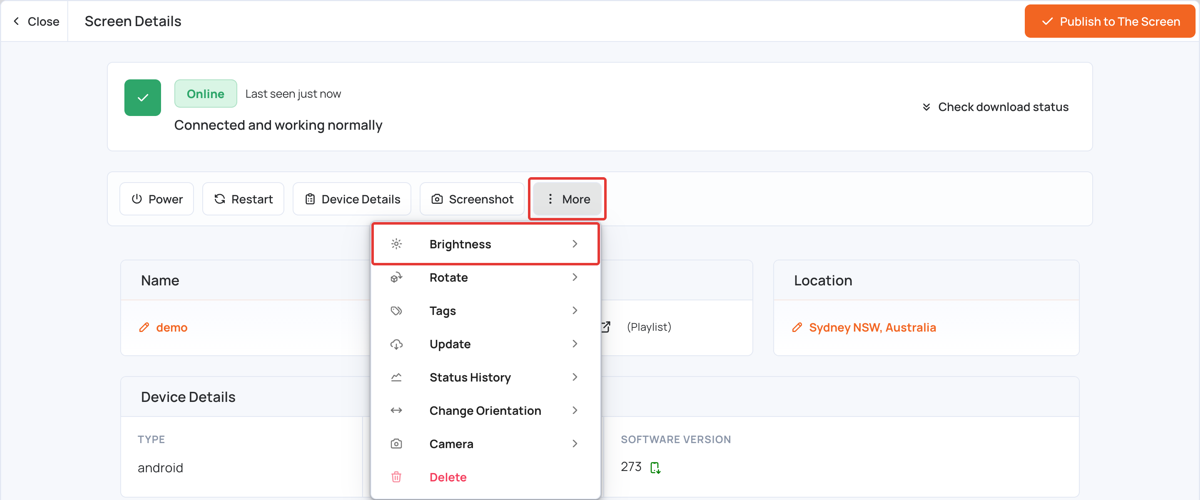
- On the screen’s row, click the Screen Details (gear) icon.
- Click More, and then click Brightness.
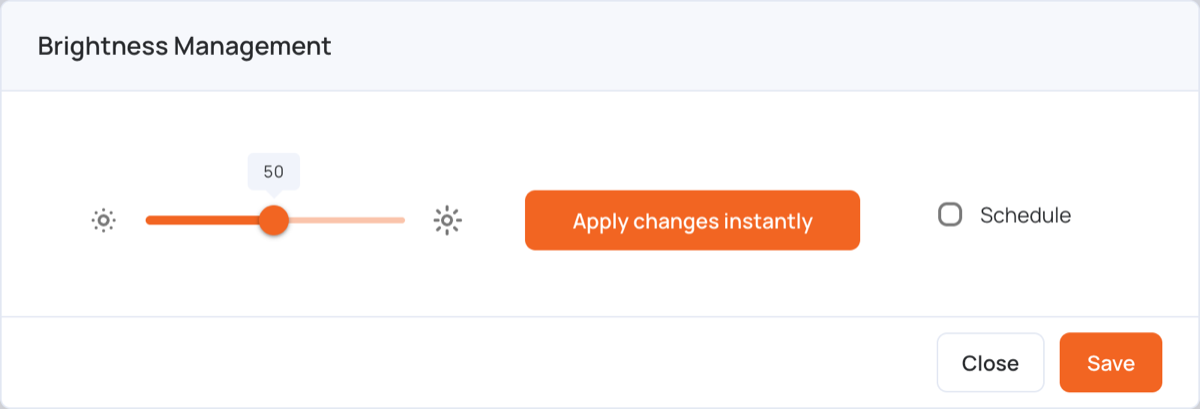
Change brightness now
- Move the slider. 1 is the lowest brightness and 100 the highest.
- Click Apply changes instantly to send the brightness to the screen.
- Click Save to keep the setting.
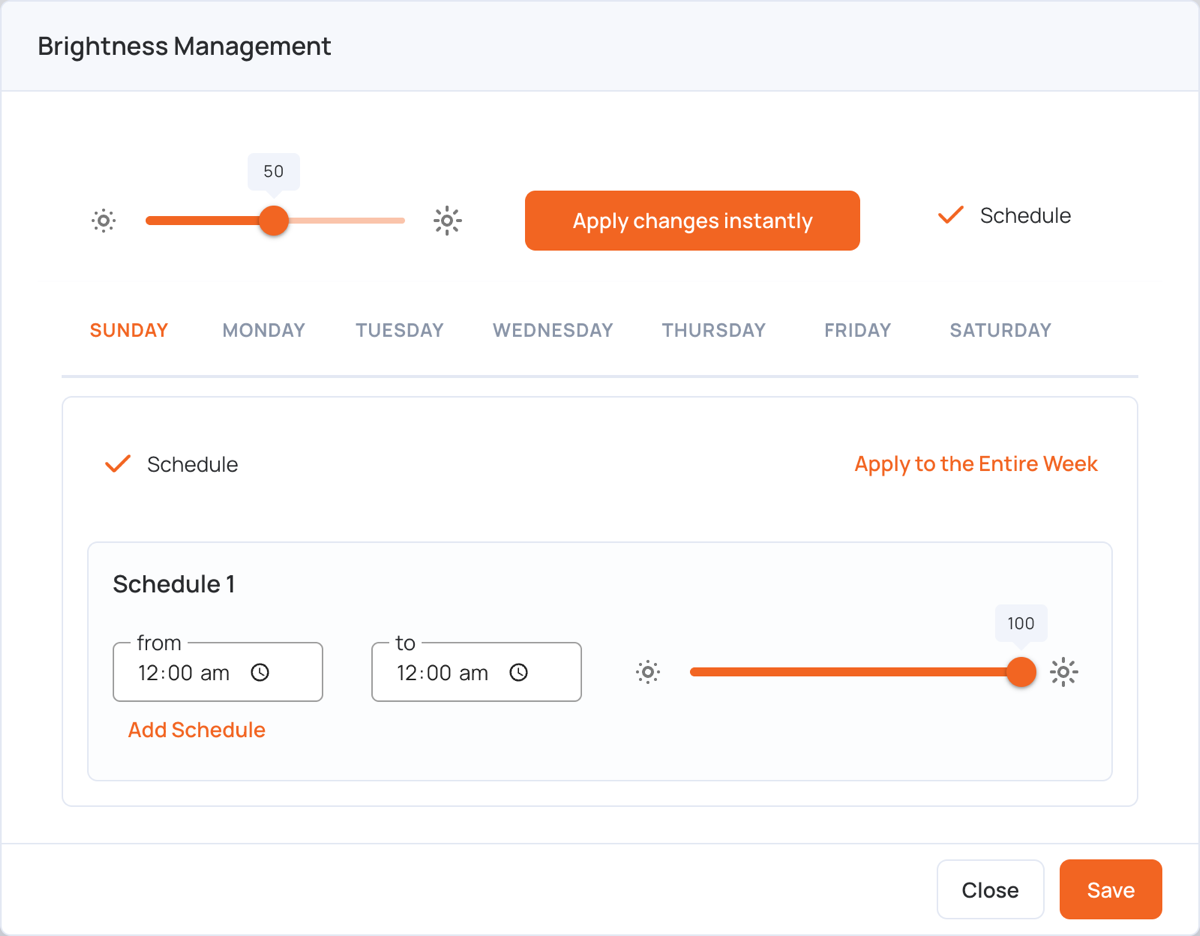
Schedule brightness
- Select Schedule next to the slider.
- Click a day of the week, then select Schedule for that day.
- Under Schedule 1, set from and to, and the brightness for that time.
- Click Add Schedule to add another time slot that day, up to 3.
- To use the same schedule every day, click Apply to the Entire Week.
- Click Save, then click Publish to The Screen in Screen Details to send the schedule to the screen.
Set default brightness for all screens
The default brightness applies to the screens in your account.
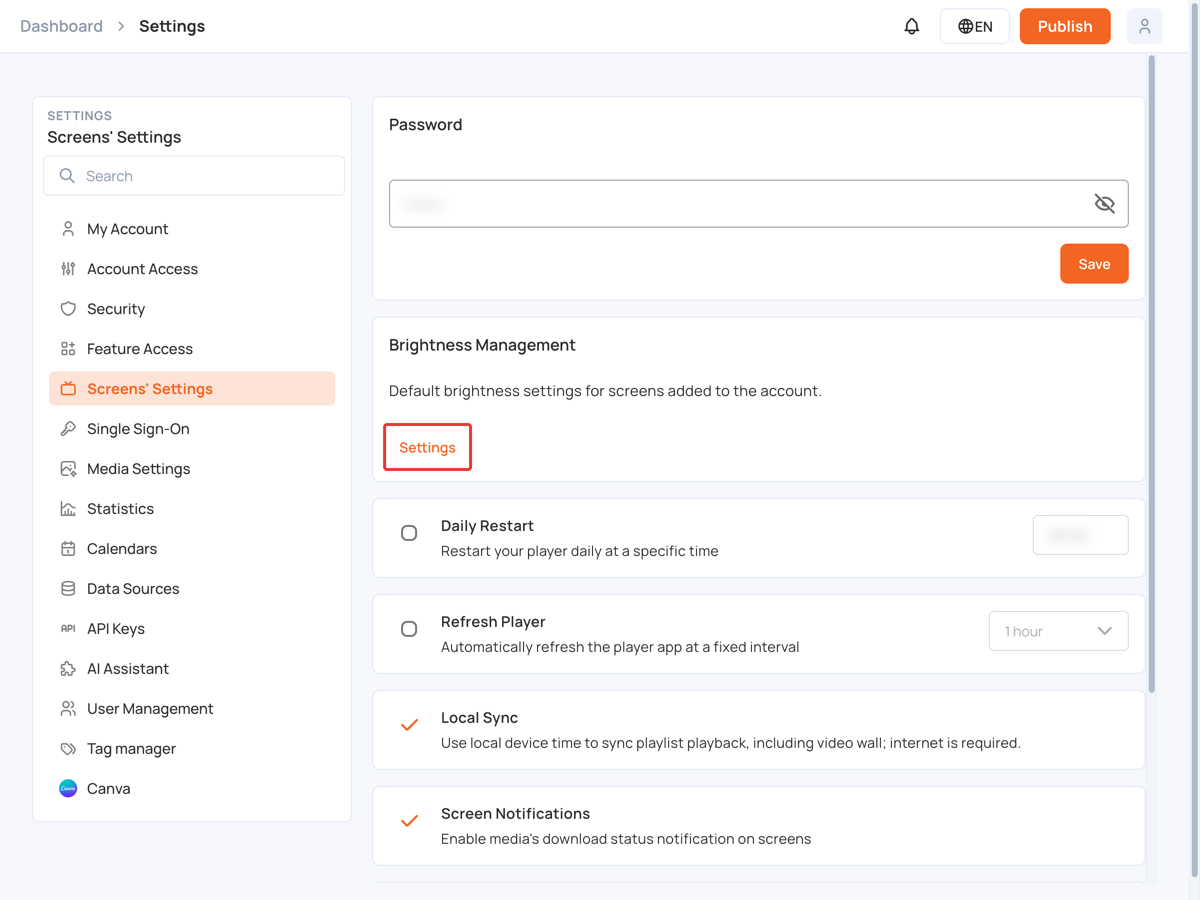
- In the left sidebar, select Settings, then Screens’ Settings.
- Under Brightness Management, click Settings.
- Set the brightness and schedule the same way as for one screen.
- Click Save to keep the default.
- To send it to every screen now, click Apply to all screens, then Yes to confirm. This applies the brightness settings to all screens instantly.
Note:
1. Make sure your screen is set to the correct timezone for the schedule to work properly.
2. The schedule keeps running on the screen even if it goes offline during a network failure, because the device caches it locally.