Sync players’ playlists content playback has never been easier. it works if your players are in one location sharing one local network (wifi/wired) or if they are in different locations with a 3G/4G internet connection.
How to sync playlist playback
- In the left sidebar, select Playlists.
- On the playlist, click the settings (gear) icon.
- Under Synchronization, select Synced Playlist.
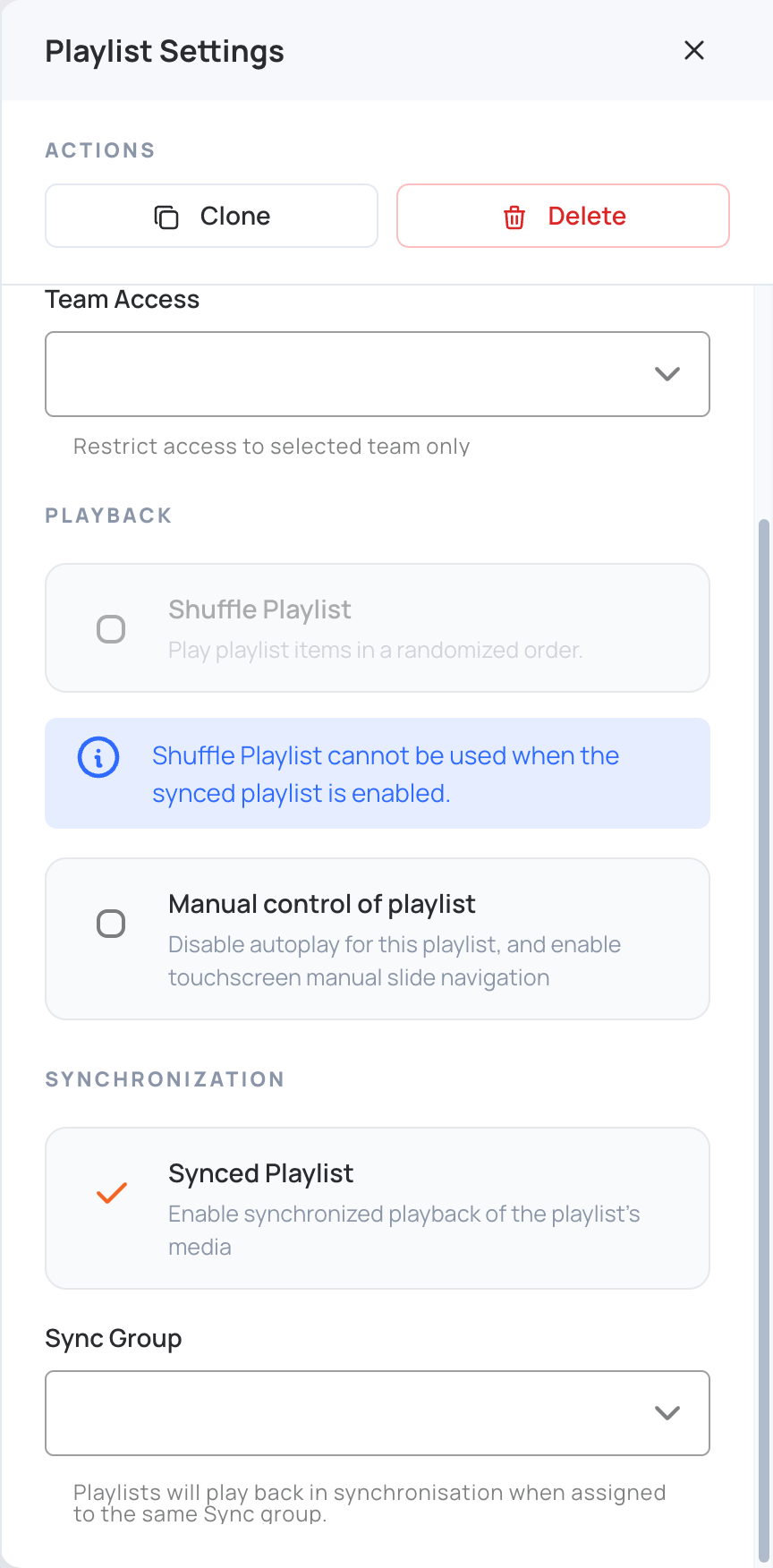
Synced playlist
This is useful when several screens can be seen together in the same area.
- Select Synced Playlist to make all screens that use this playlist play the same content at the same time.
- Shuffle Playlist can’t be used while Synced Playlist is on.
Sync Group
- Playlists in the same Sync Group play back in sync with each other. All screens playing those playlists show the same content order at the same time.
- To add the playlist to a sync group, choose an existing group in Sync Group, or type the name of a new group and press Enter to create it.
- You can sync horizontal and vertical playlists that belong to the same group.
If the playlist has multiple layers, only the last layer (last from top to base) is synced. This feature is for syncing a background layer between multiple screens.
Note:
When syncing multiple playlists, all media items in each playlist, whether images or videos, must use the same resolution. Use a consistent resolution across all screens for synced playback to work properly.
Local Sync
Synced screens always talk to each other over the internet, so every screen needs an internet connection.
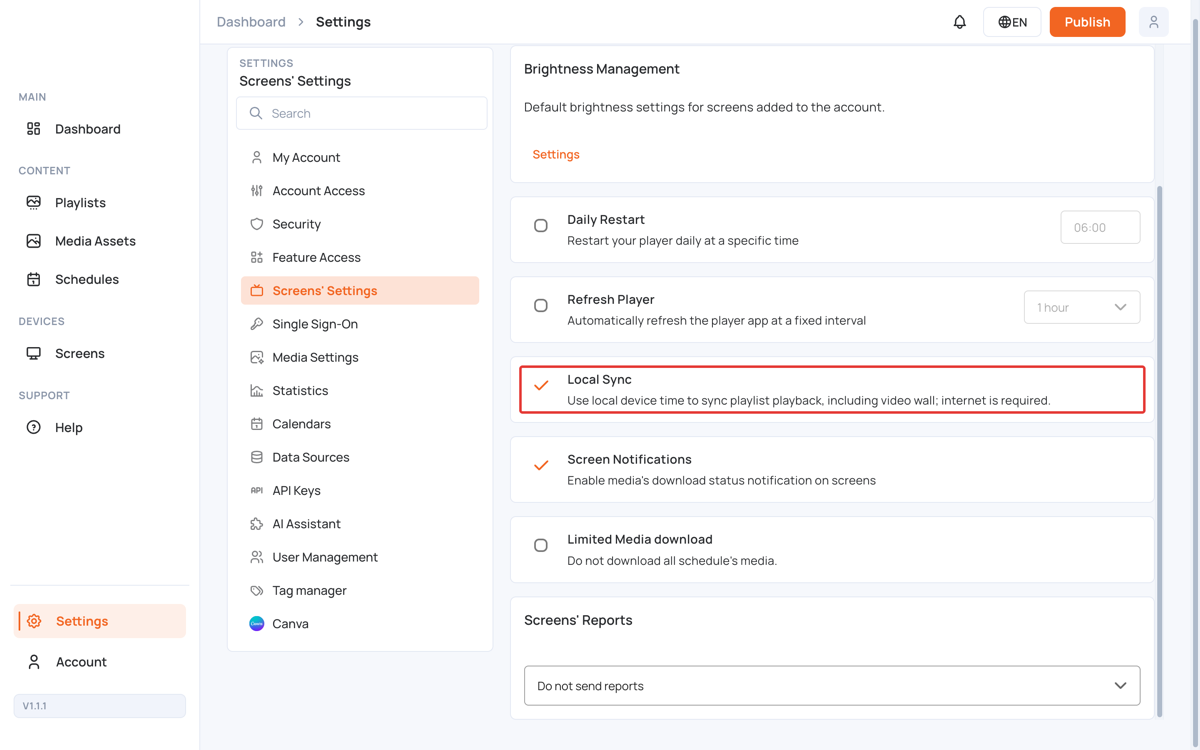
The Local Sync option is in Settings > Screens’ Settings. It decides which screens sync together:
- Local Sync selected: screens only sync with screens at the same location. Screens count as the same location when they have the same screen location, or, if no location is set, when they share the same internet connection (public IP address). Use this when the same playlist plays in several sites and each site should be in sync on its own.
- Local Sync cleared: all screens playing the synced playlist, or the same sync group, sync together wherever they are.
Tip: With Local Sync selected, screens in the same building that use different internet connections won’t sync with each other. Give them the same screen location; see Live Screen Location.