Digital Signage Touchscreen Configuration Guide
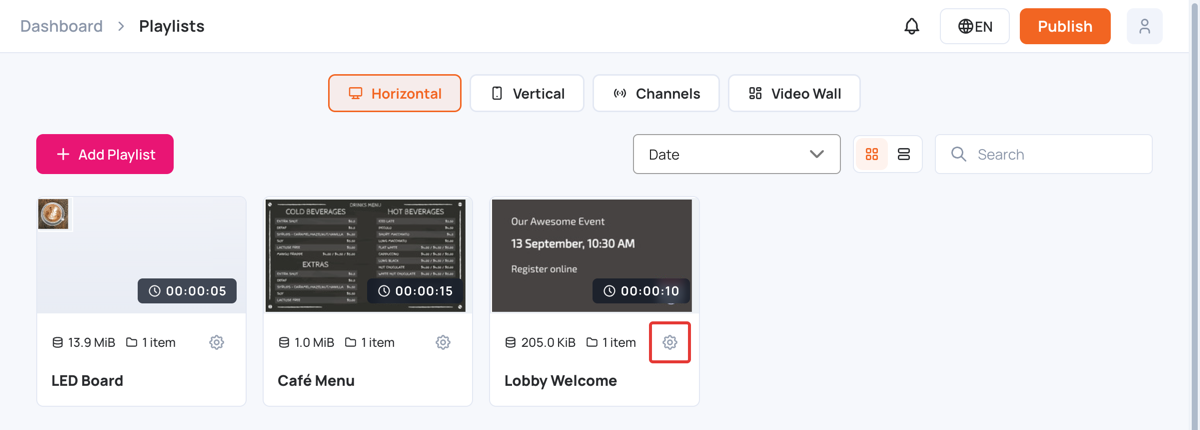
The touchscreen options are in the playlist settings. To open them:
- In the left sidebar, select Playlists.
- On the playlist, click the settings (gear) icon.
Manual control
- Manual control works on touch screens, or with a remote control that has a navigation pad.
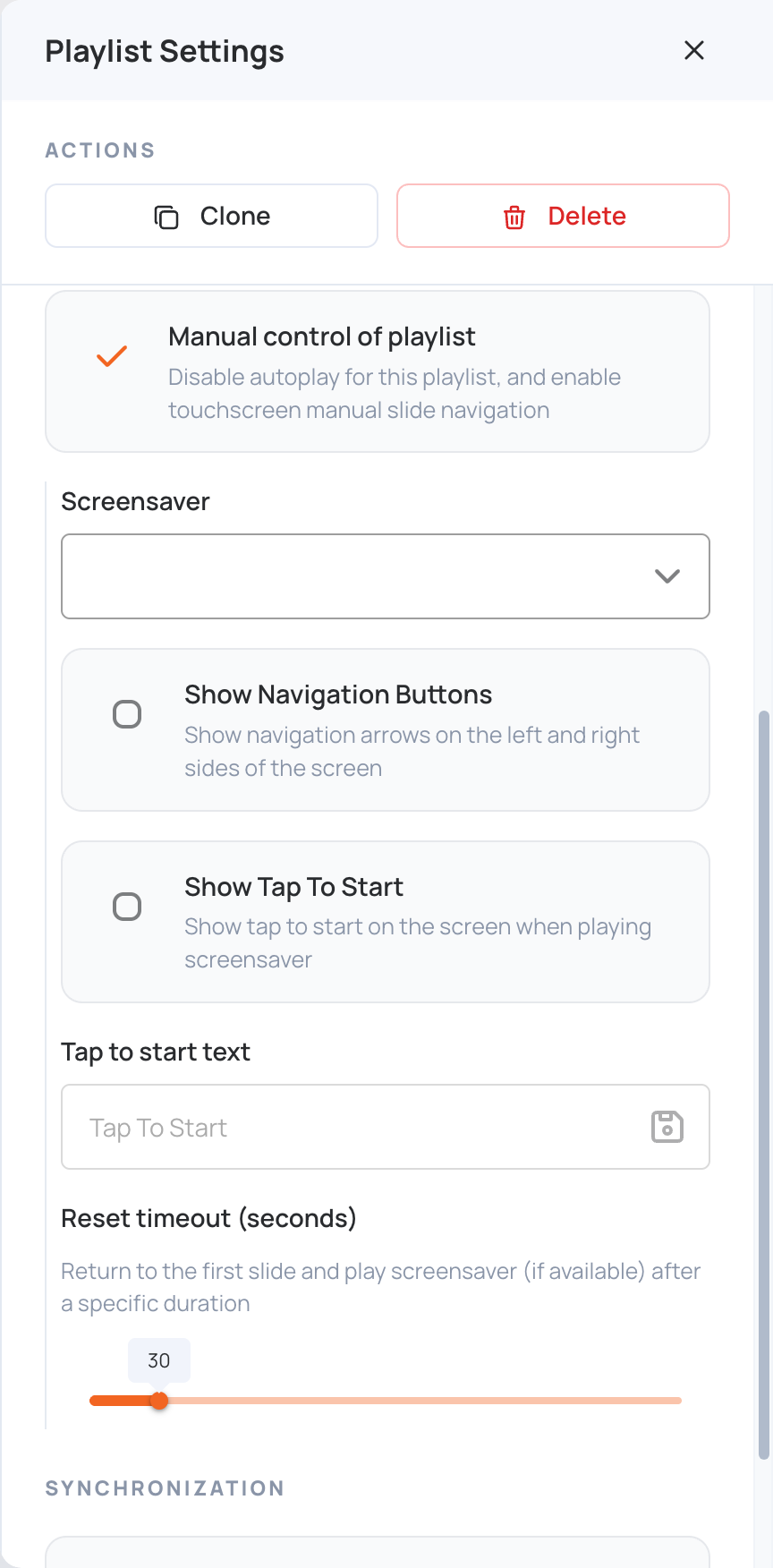
- Select Manual control of playlist to stop the playlist from playing automatically. The options below appear.
- On the screen, swipe left and right to move between the playlist’s media.
Screensaver
- The screensaver plays another playlist when the screen is idle.
- To set a screensaver, choose one of your playlists in Screensaver.
- Reset timeout (seconds): if the screen is not on the first slide, it returns to the first slide after this time. If a screensaver is set, this is also how long the screen stays idle before the screensaver plays.
Navigation
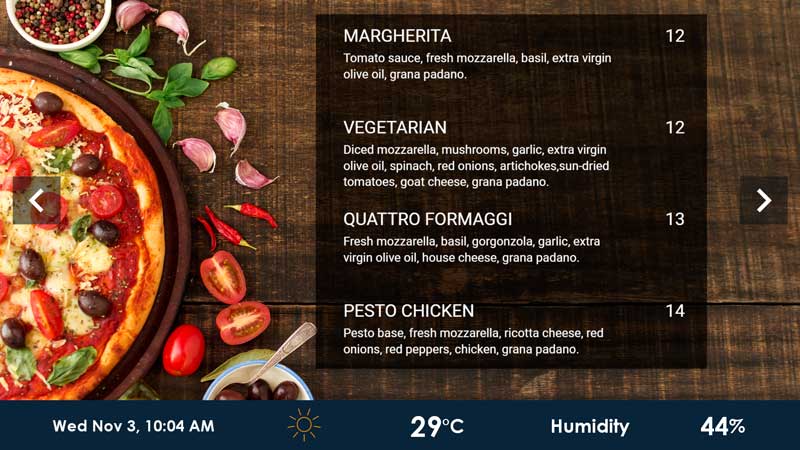
- Select Show Navigation Buttons to show left and right arrows on the screen during manual control.
- This is how the navigation buttons look on the screen:
Tap to Start
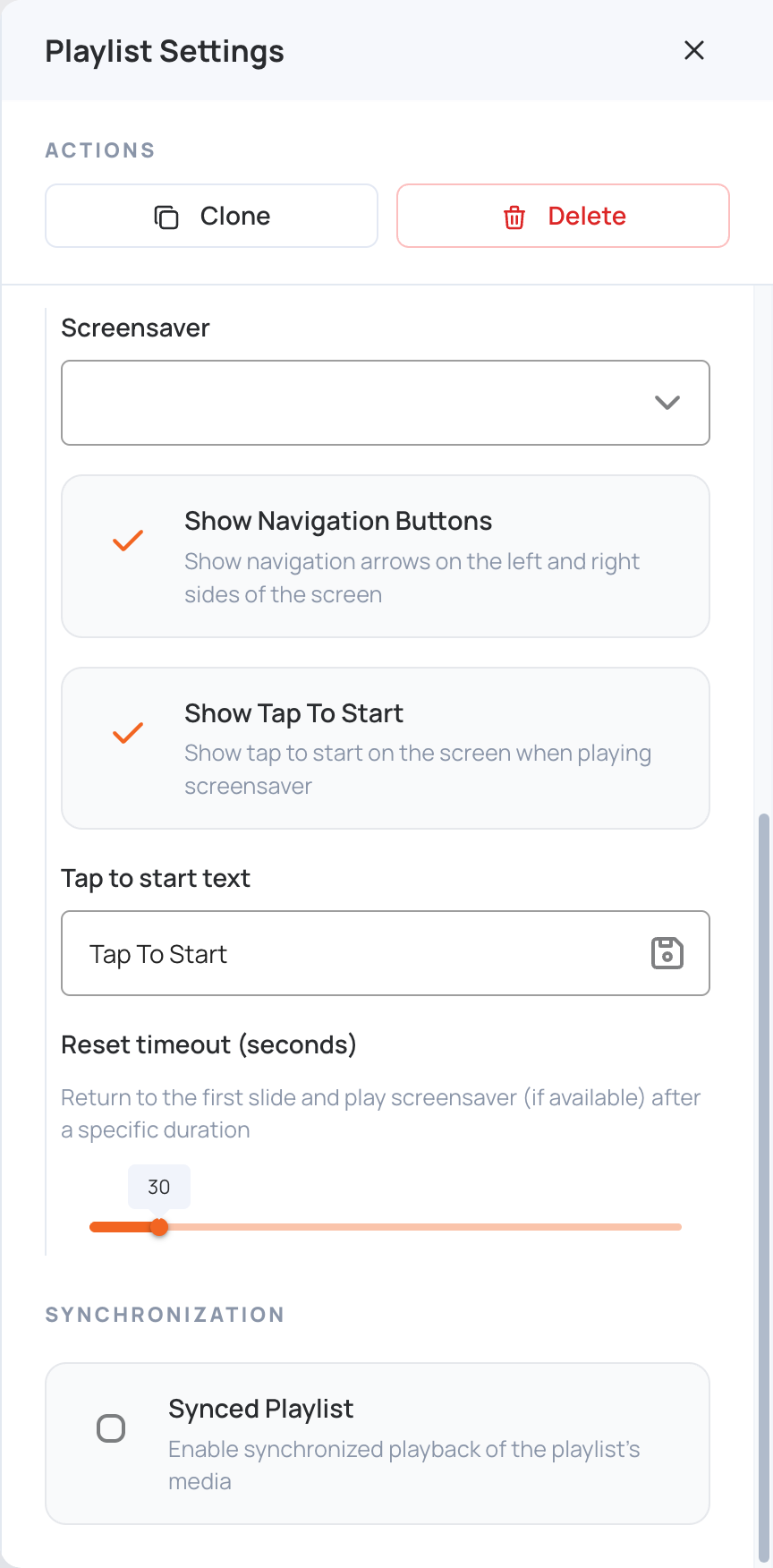
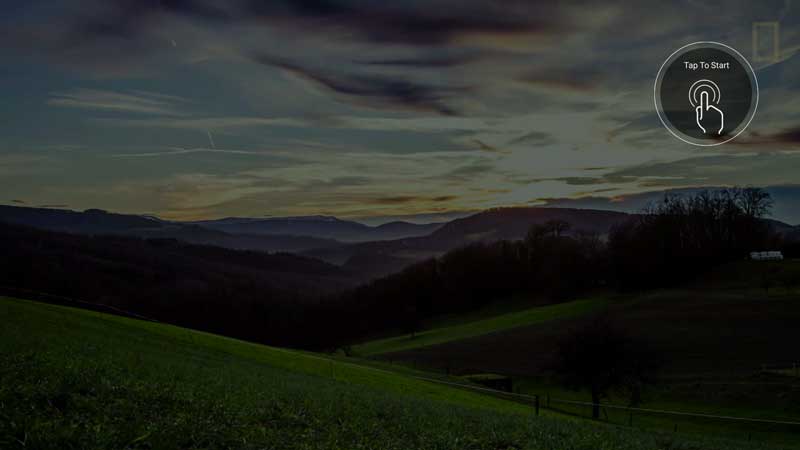
- Select Show Tap To Start to show a tap-to-start message on top of the screensaver.
- Type the message in Tap to start text, then click the save icon.
- This is how tap to start looks on the screen, on top of the screensaver playlist: