How to Add Digital Signage Media
- Open an existing playlist, or create a new one. See Playlist Management.
- In Layout preview, click a layer, either on the preview or in the Layers list.
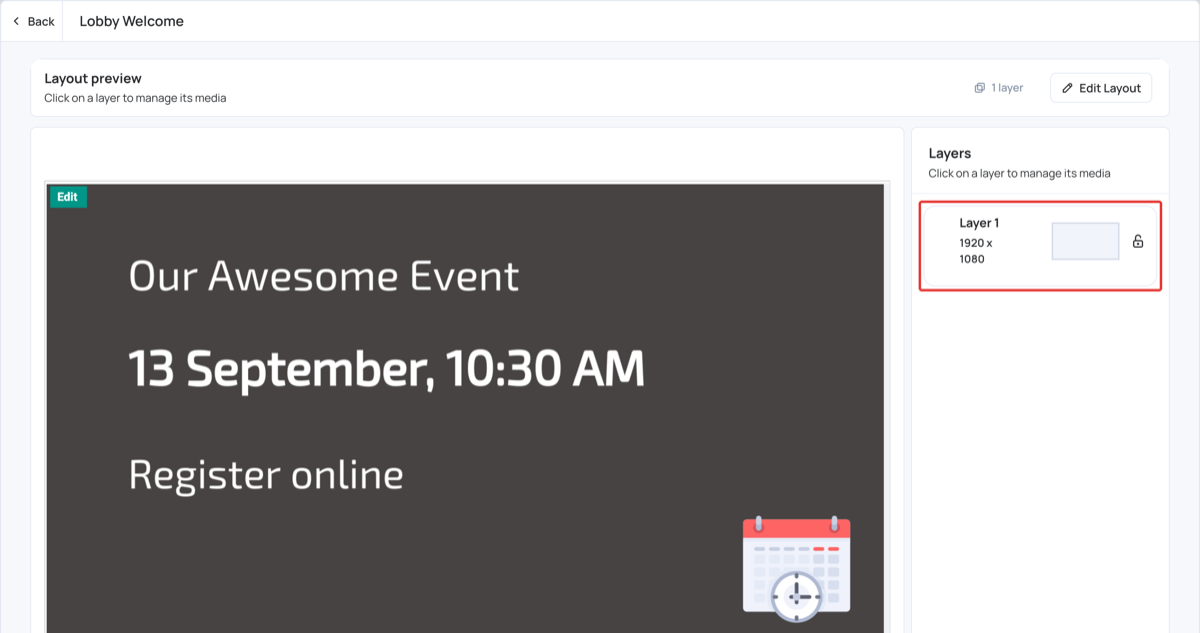
- If the layer is empty, the content apps open. Each layer only lists the apps that suit its size (width and height).
- Click an app to add it to the layer.
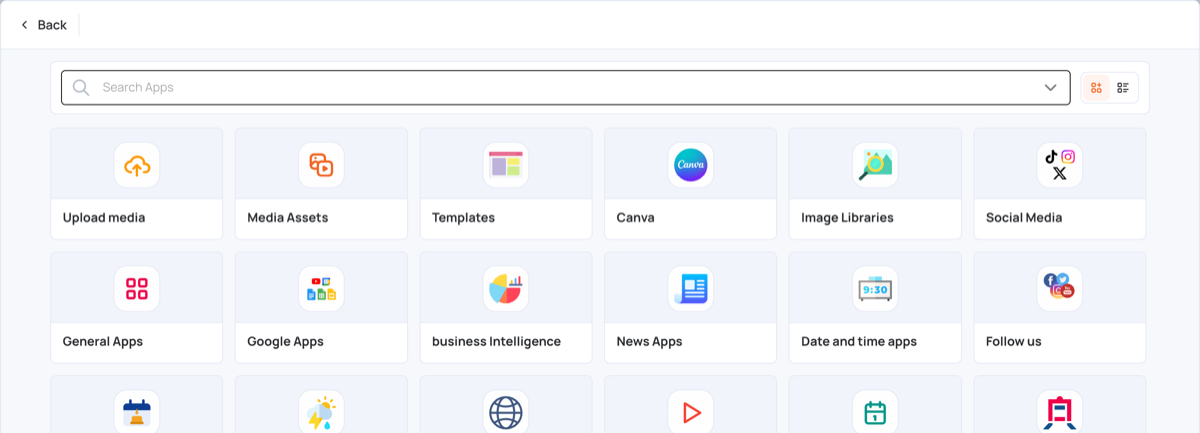
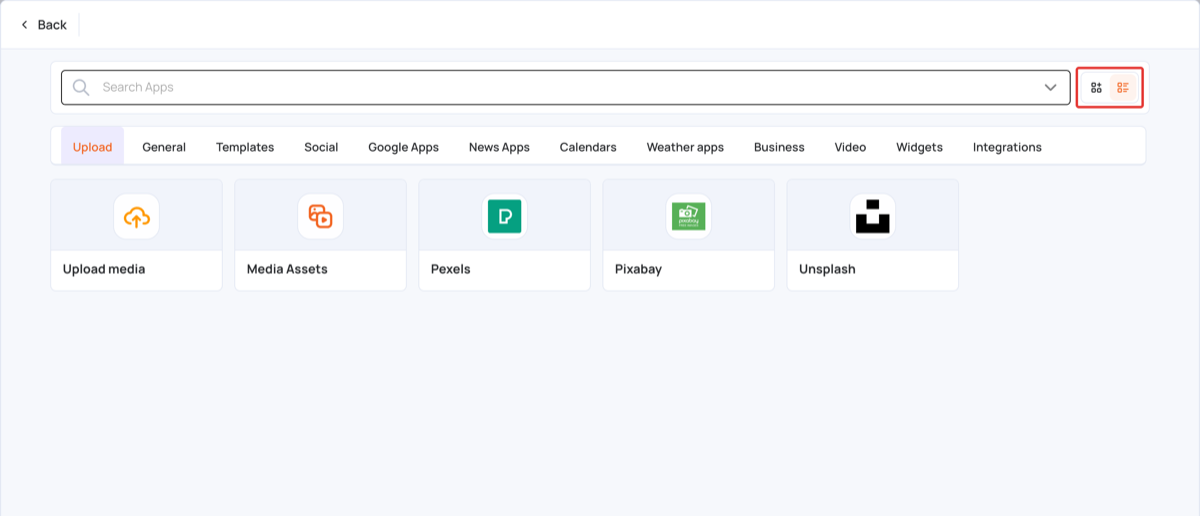
Use the view buttons next to Search Apps to switch between the grid view and the list view. The list view groups the apps into tabs such as Upload, General, Templates and Social.
Note: To find out how each app works, see the Apps section.
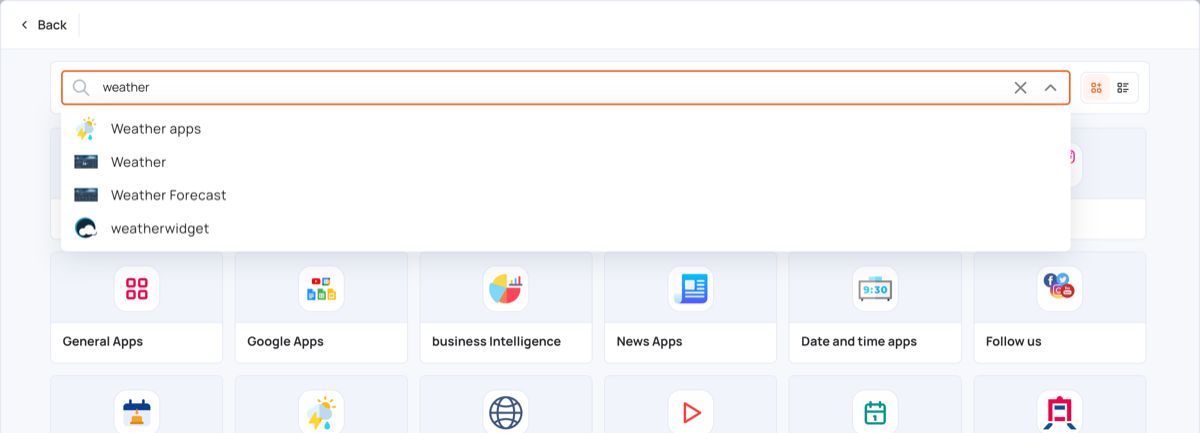
Search Apps
- Type in Search Apps to filter the apps.
- Click the app in the results.
- Set up the app.
Layer’s Transition
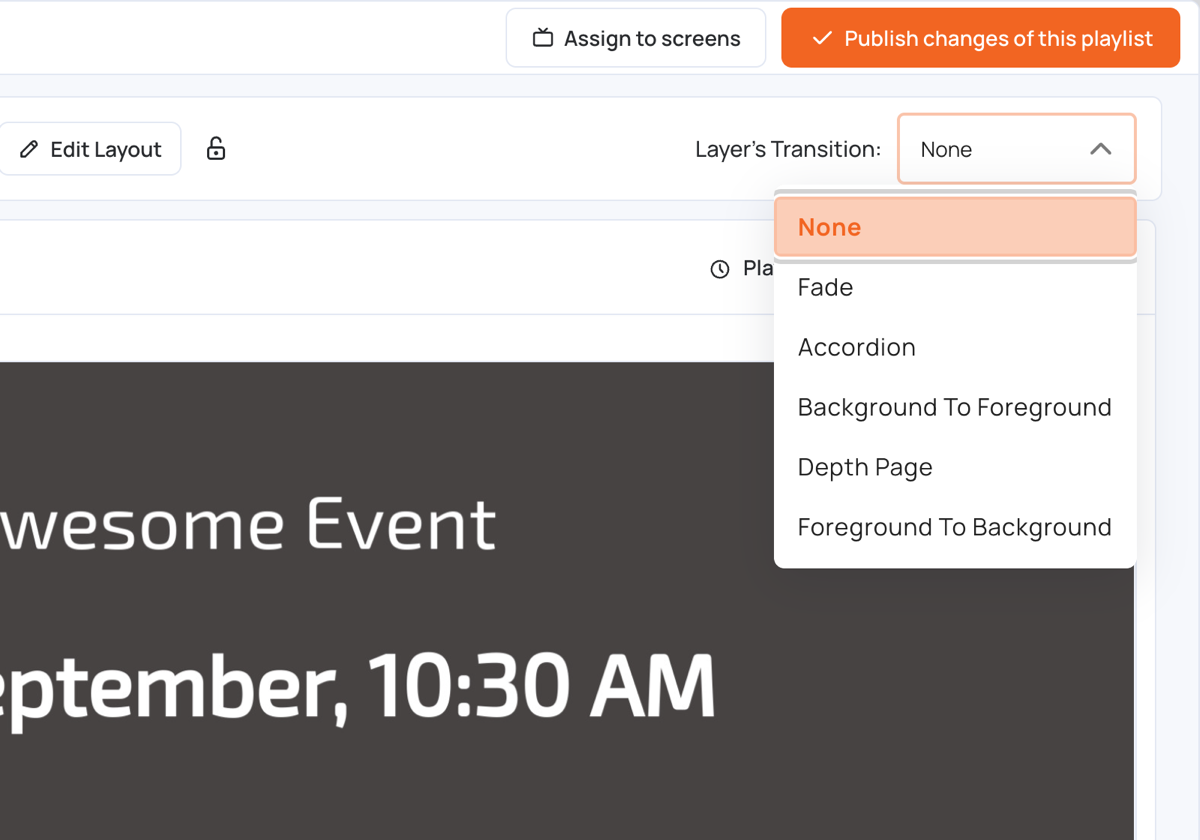
- To change the transition, choose one from the Layer’s Transition menu, for example Fade or Accordion.
- Each layer keeps its own transition, and only that transition plays. Changing one layer does not affect the others.
Check your screen for a preview. It works like a slideshow transition from one media item to the next. - To set the transition that every new layer starts with, see Default Transition.
Add New Media
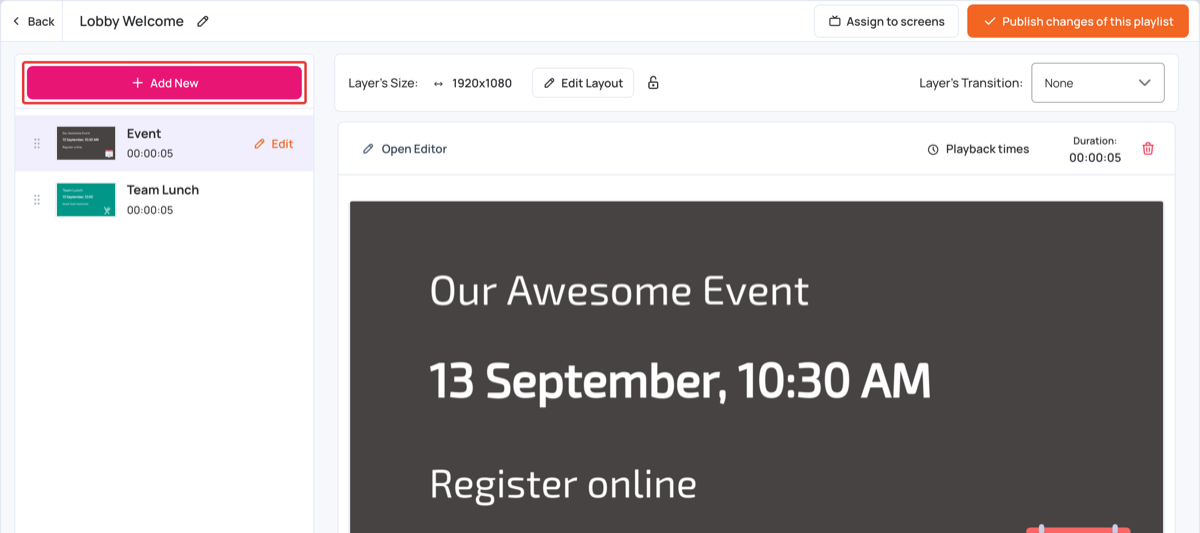
- To add more content to the layer, click Add New, then choose an app.
- The media items in the layer are listed below Add New, each with a preview, a name and its playback duration.
- Order: drag an item up or down the list to change its position. This is the order the screen plays them in.
- The middle of the page previews the item selected in the list.
- Edit: click Edit next to an item in the list to open its Media Settings, such as duration, playback times and tags. See Playlist Media Settings.
- Open Editor: for items you can edit, such as templates, opens the editor.
- Playback times: sets when the item plays. See Playback Times.
- Delete: click the trash icon at the top right of the preview to remove the item from the layer.