How to Customize a Layout
- In the left sidebar, select Playlists, then open a playlist.
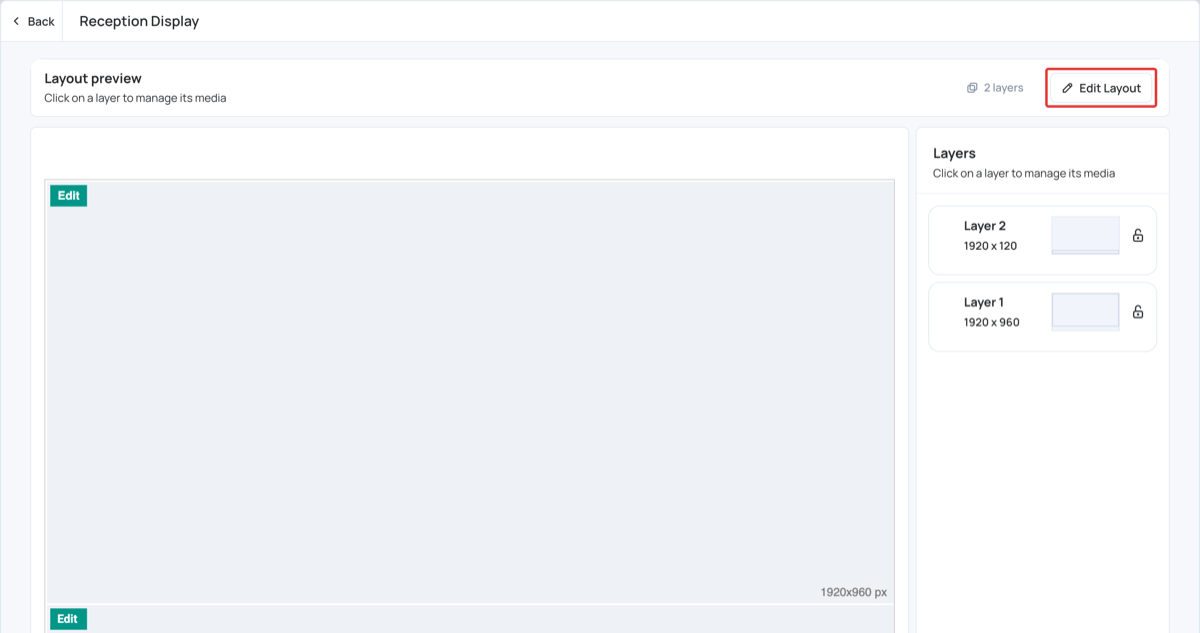
- The Layout preview shows how the layout is divided into layers. In this example, the layout has 2 layers: a 1920x960 layer and a 1920x120 layer.
- To customize the layout, click Edit Layout.
The Layout Editor opens. The editor saves your changes automatically.
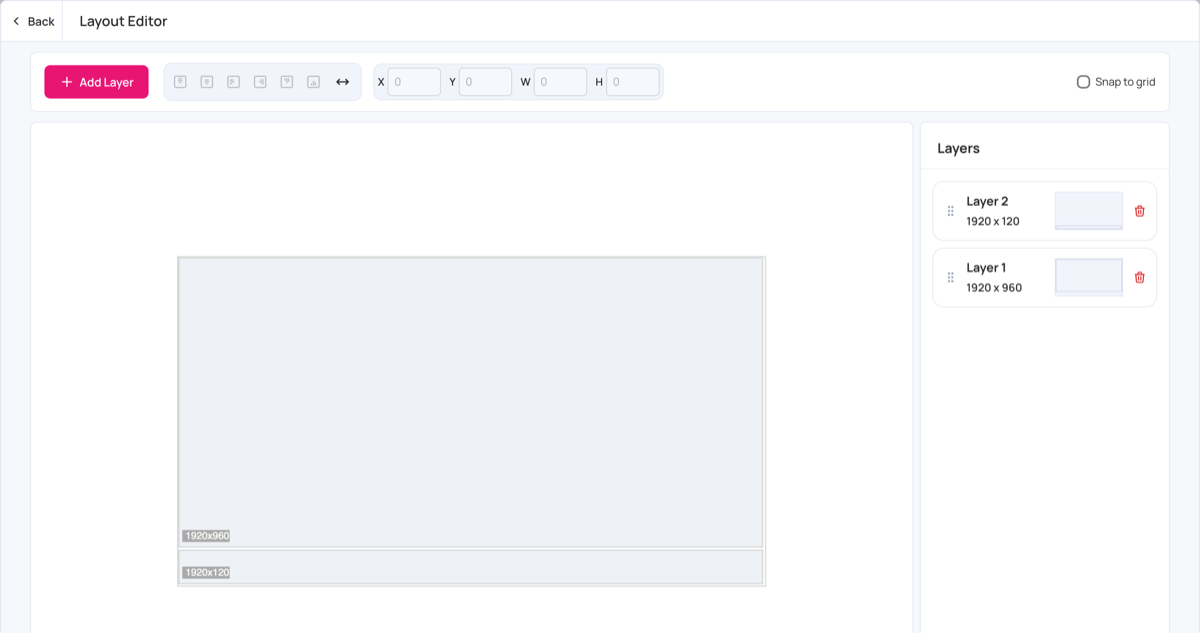
Add Layer
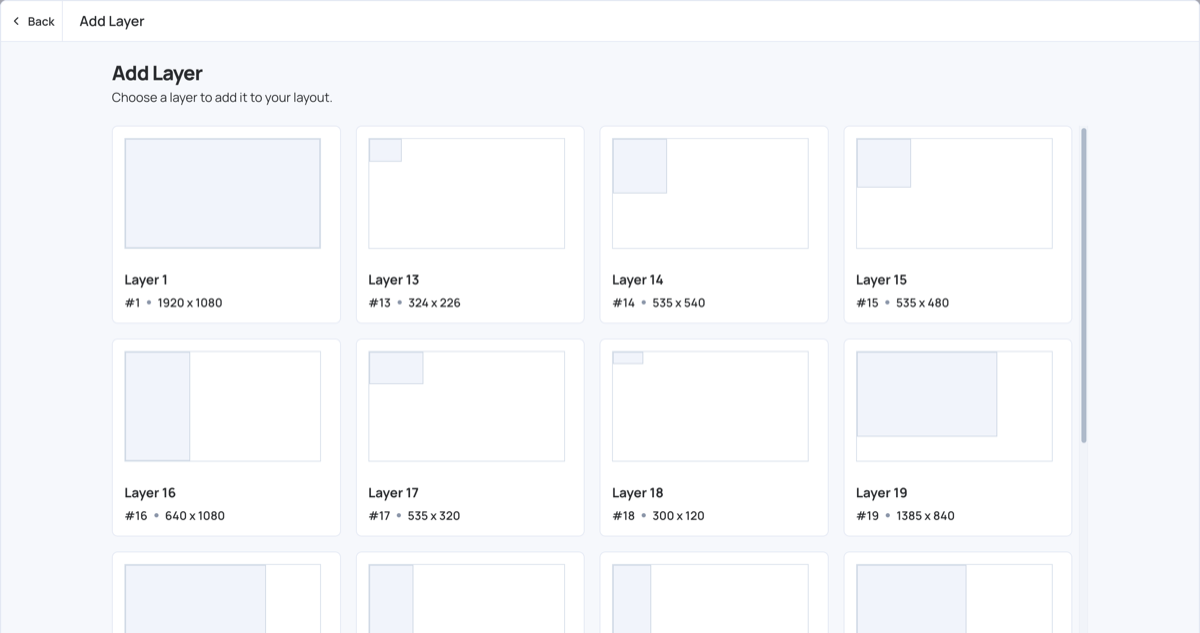
- Click Add Layer.
- Click one of the preset layer sizes to add it to the layout.
A layout can have up to 6 layers. Layers can sit on top of each other and support transparent content.
Position
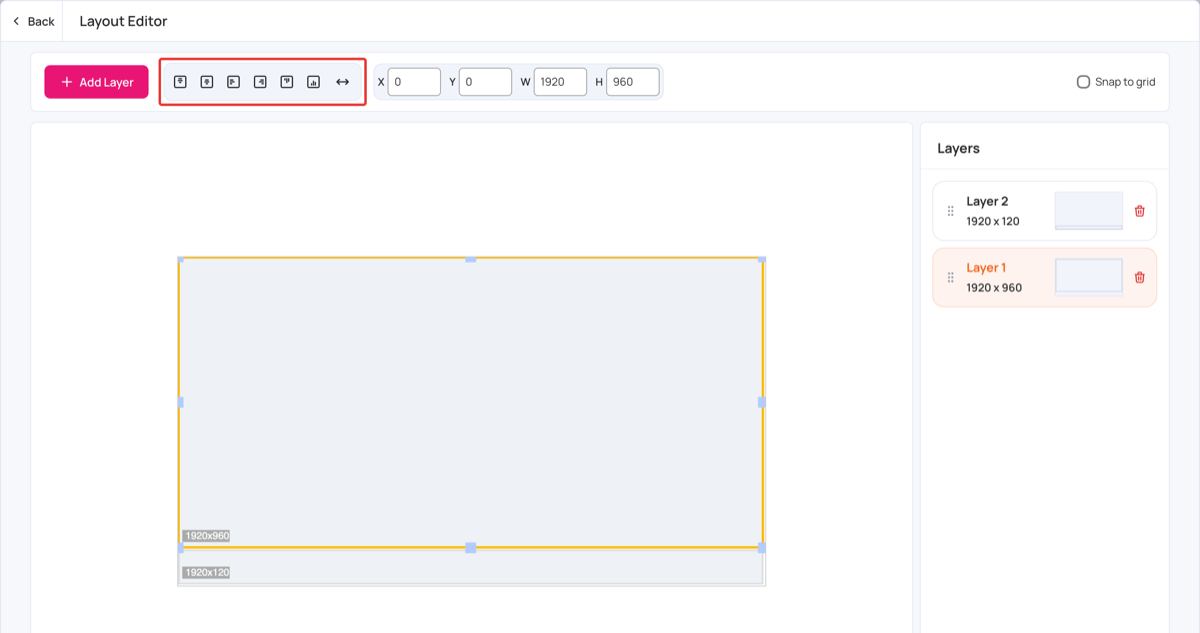
- Click a layer on the canvas, or in the Layers list, to select it.
- Drag the layer to move it, or type values in X and Y.
- Use the alignment buttons to center the layer horizontally or vertically, or align it to the left, right, top or bottom.
- Snap to grid: when selected, the layer moves in fixed steps instead of pixel by pixel.
Width and Height

- To resize a layer, drag its handles, or type values in W (width) and H (height).
Important: the first time you resize a layer, a warning explains which content types you can use. Not all content can be used in custom-sized layers:
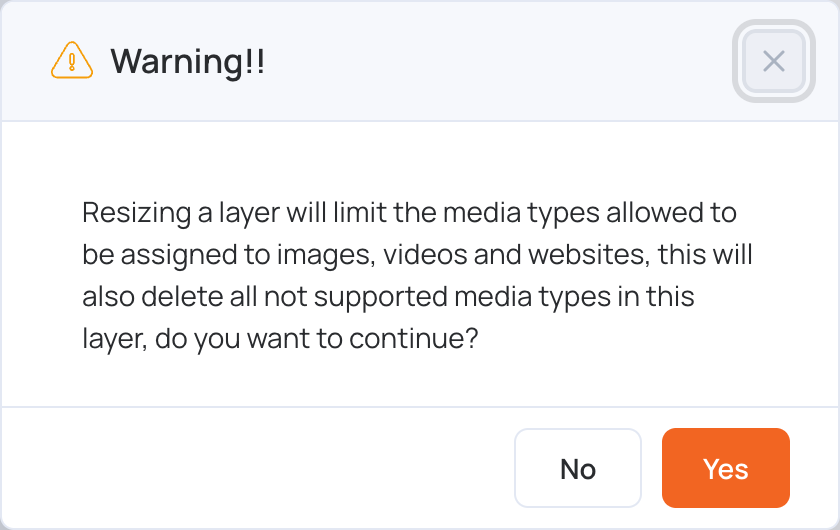
Resizing a layer limits the content you can add to images, videos and websites (web URL). Other content in the layer is removed.
Click Yes to continue, or No to cancel.
Layer Order and Delete
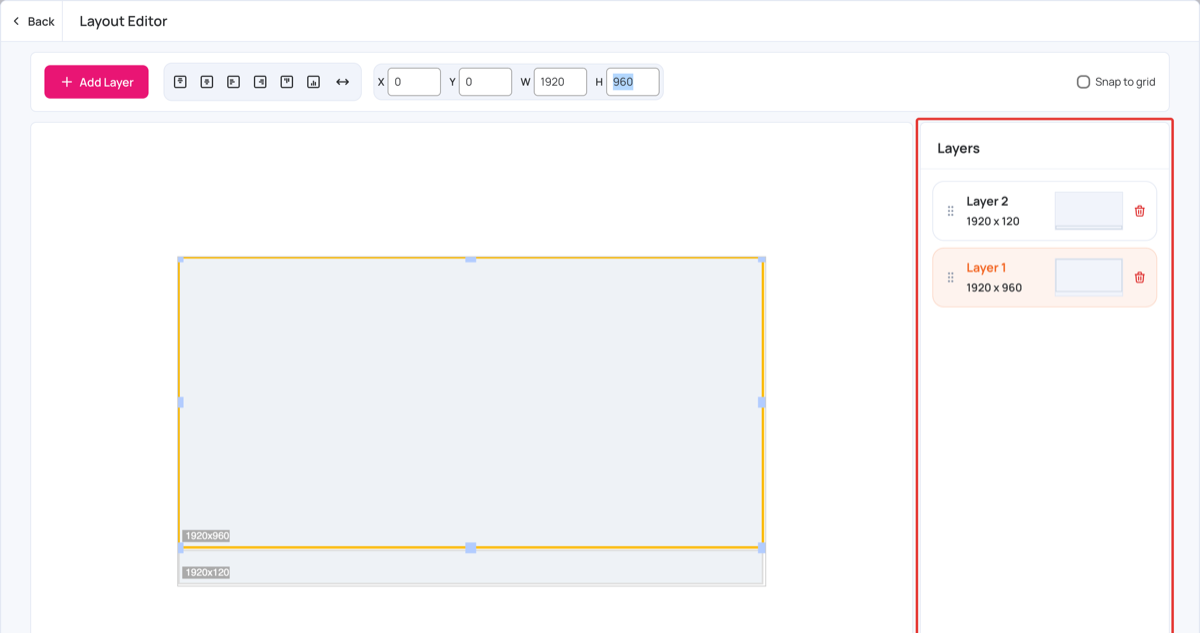
- Layer order: drag a layer up in the Layers list to bring it to the front, or down to send it to the back.
- Delete: click the trash icon next to the layer, then click Yes to confirm. All the content in the deleted layer is removed.
Layer’s Size
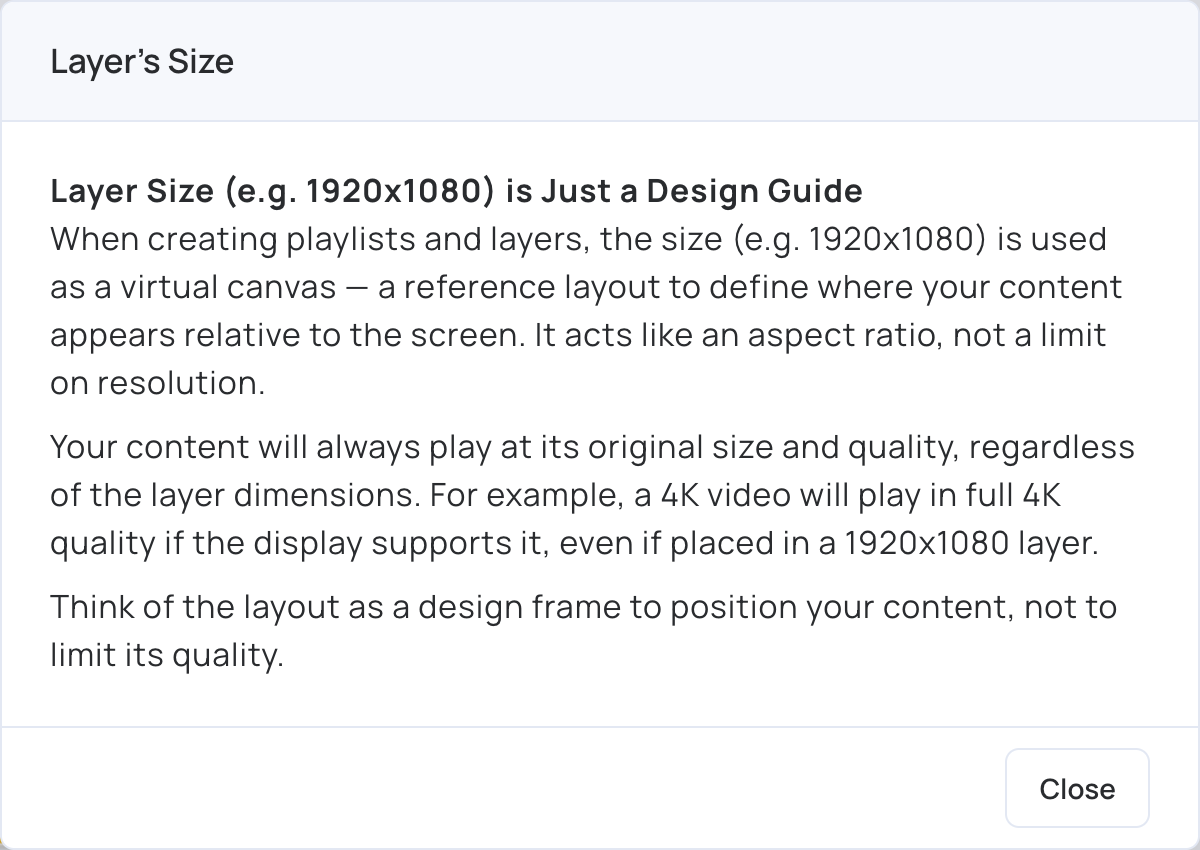
Click the arrows button next to the alignment buttons to read about layer sizes. The layer size (for example 1920x1080) is a design guide, not a limit on quality: your content always plays at its original size and quality.
Click Back to return to the layout preview.