A Channel is a collection of playlists that can be used to create your own content channel by reusing playlists.
How to Create a Channel
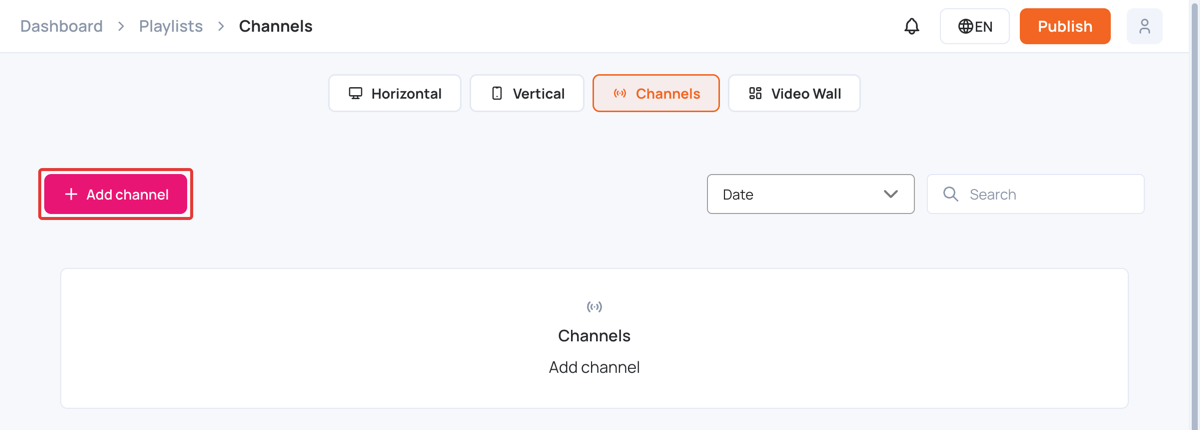
- In the left sidebar, select Playlists, then open the Channels tab.
- Click Add channel.
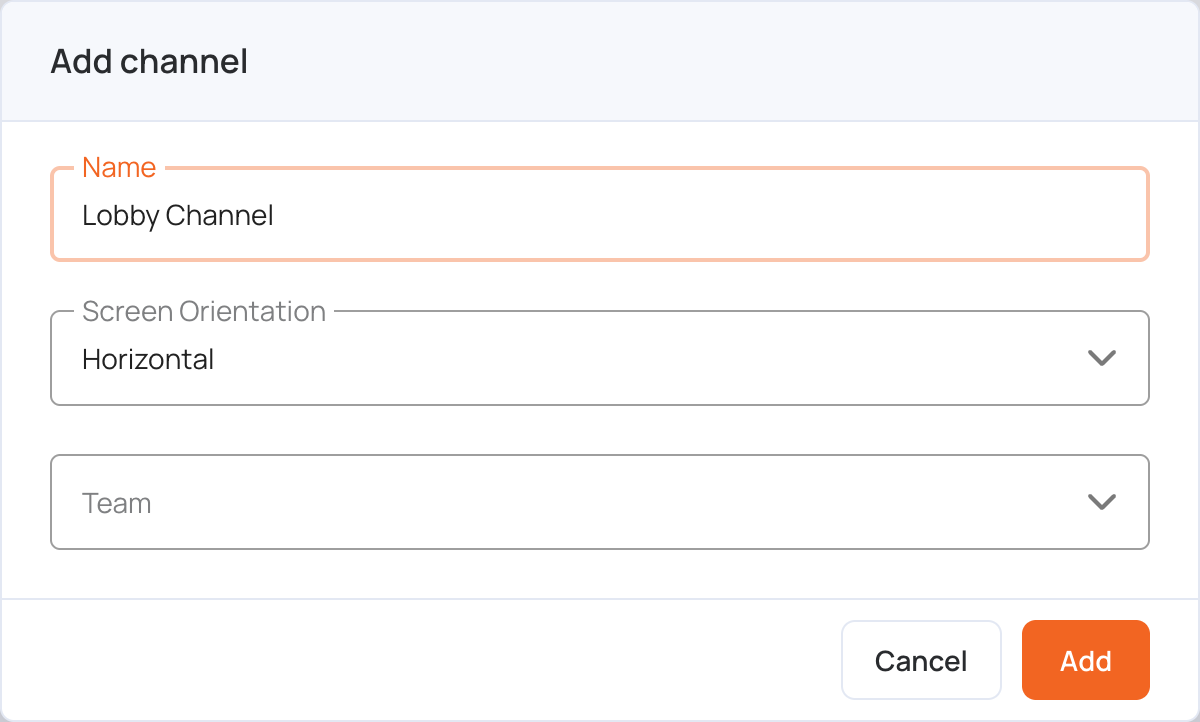
- Enter a Name for the channel.
- Choose the Screen Orientation: Horizontal or Vertical.
- Optionally, choose a Team to limit who can see the channel. Teams must be created first; see Teams.
- Click Add.
The channel opens so you can assign playlists to it. Playlists must exist before you can add them.
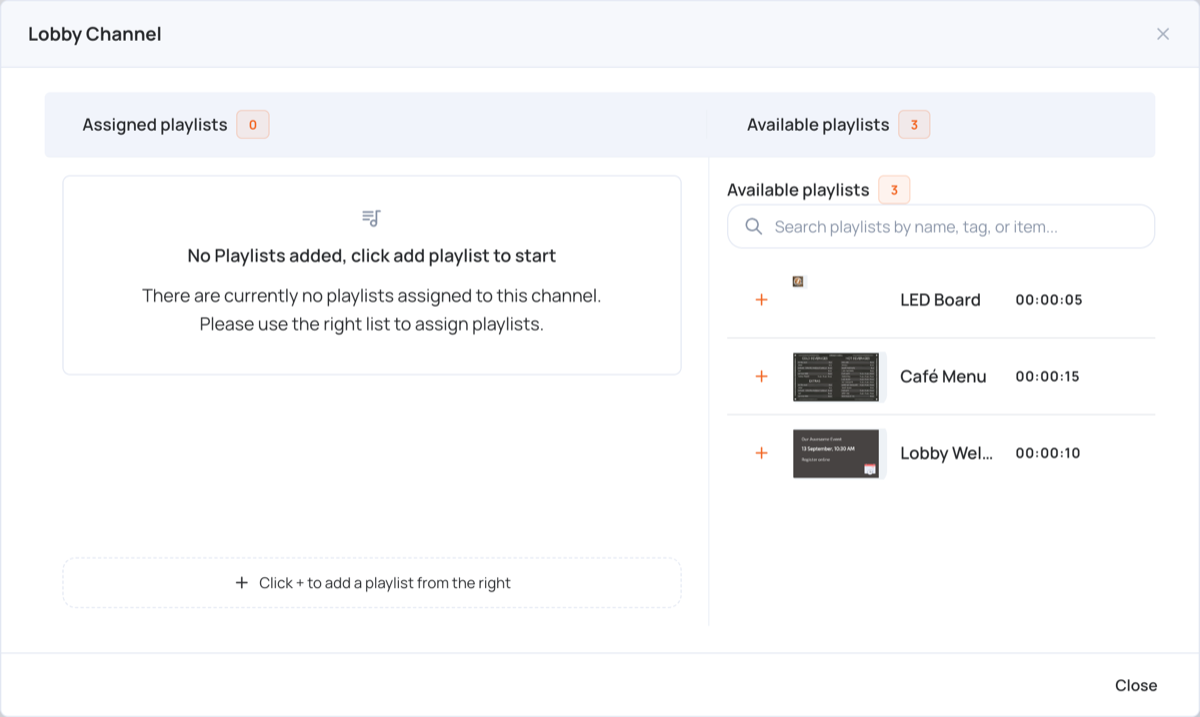
- Available playlists are listed on the right. A horizontal channel only lists horizontal playlists, and a vertical channel only lists vertical playlists. Type in the search box to find a playlist by name, tag or item.
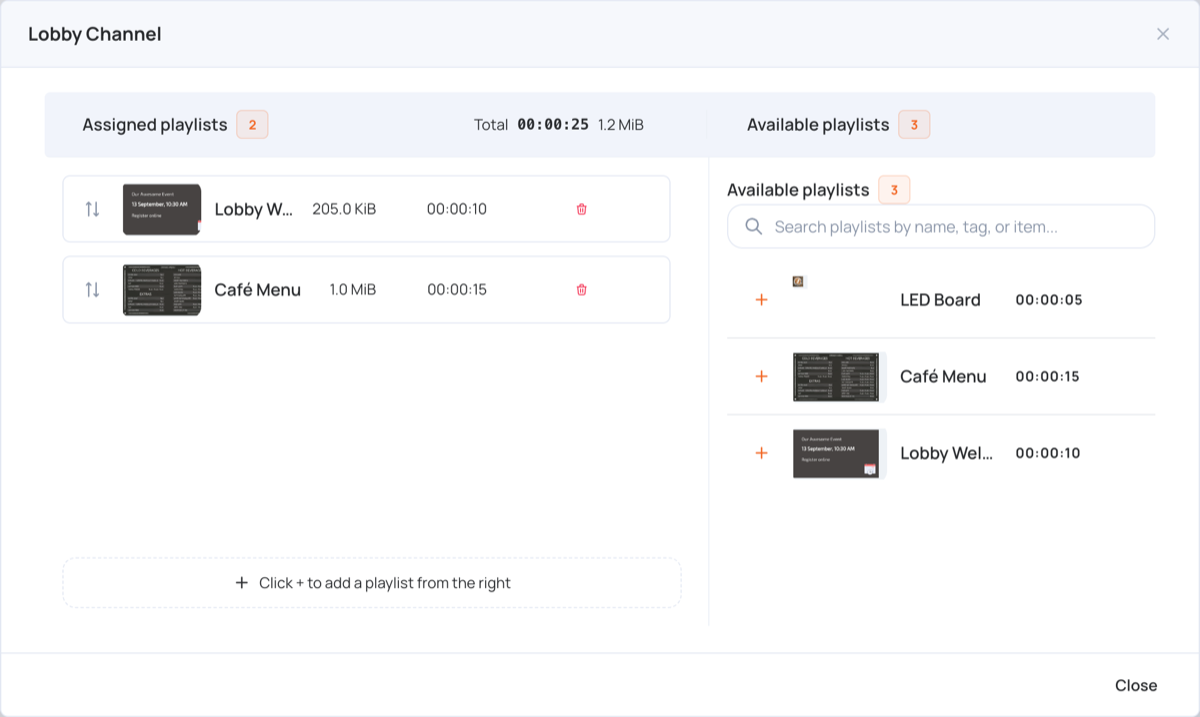
- Click + next to a playlist to add it to the channel. It appears under Assigned playlists on the left, with its size and duration. The total duration of the channel is shown at the top.
- To remove an assigned playlist, click its trash icon.
- To change the order, drag a playlist up or down in Assigned playlists. The channel plays the playlists in this order.
- When you’re done, click Close.
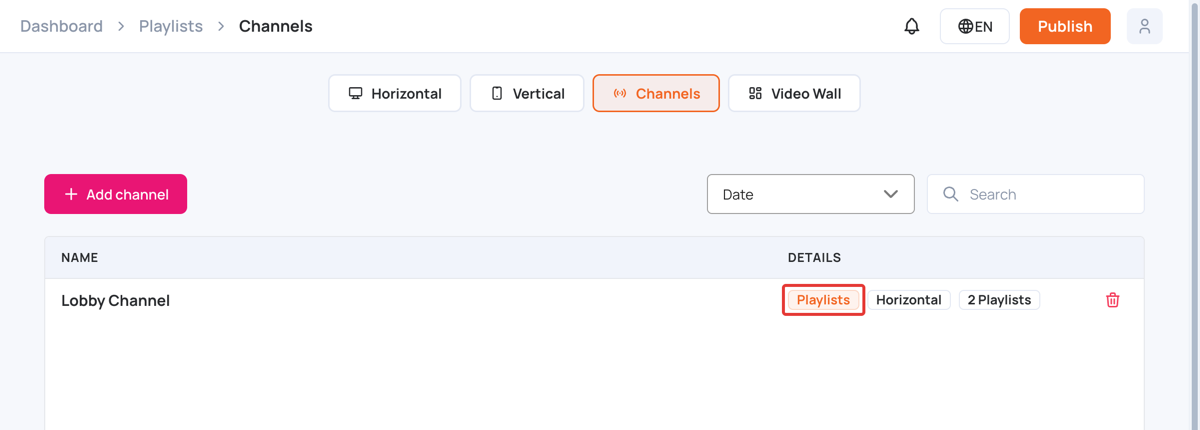
To change the playlists in a channel later, click Playlists next to the channel’s name in the list. The list also shows the channel’s orientation and how many playlists it has. To delete a channel, click its trash icon.
How to Add a Channel to a Screen
- In the left sidebar, select Screens.
- On the screen’s row, click Set Screen Content (or the screen’s current source).
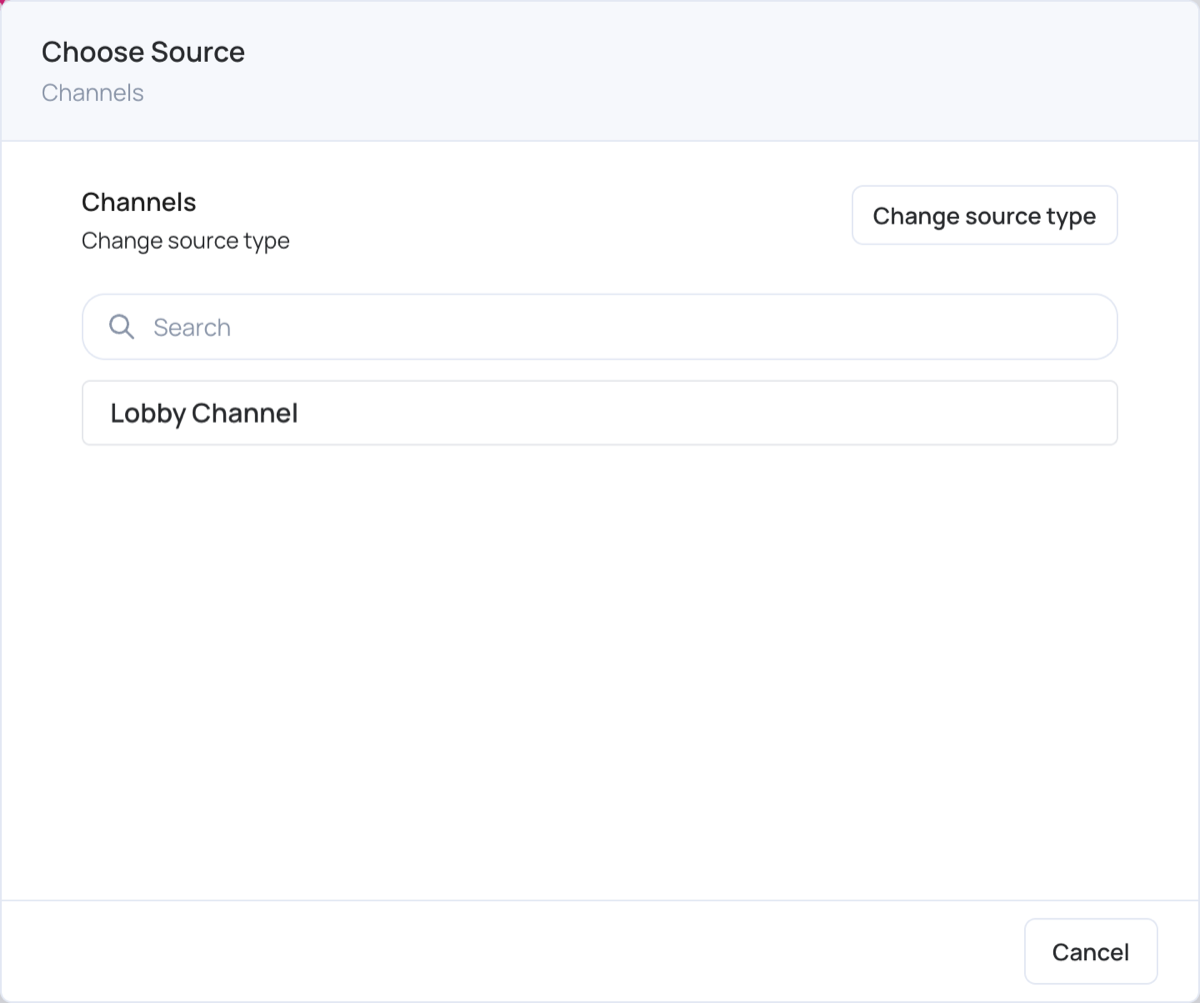
- Click Change source type if needed, then choose Channels.
- Click the channel.
- Publish to the screen. The channel downloads and plays on your screen. See Set screen content.