Playback times let you control when each item in your playlist plays on your digital signage screens. Set a date and time range so an item starts and stops automatically, and add a weekly schedule to play it only at certain times on certain days.
Playback times was previously called Media Lifetime.
How to Set Up Playback Times
- In the left sidebar, select Playlists, then open a playlist (or create one).
- Click the layer, then select the media item in the list.
- Click Playback times above the preview. You can also open it from the item’s Media Settings.
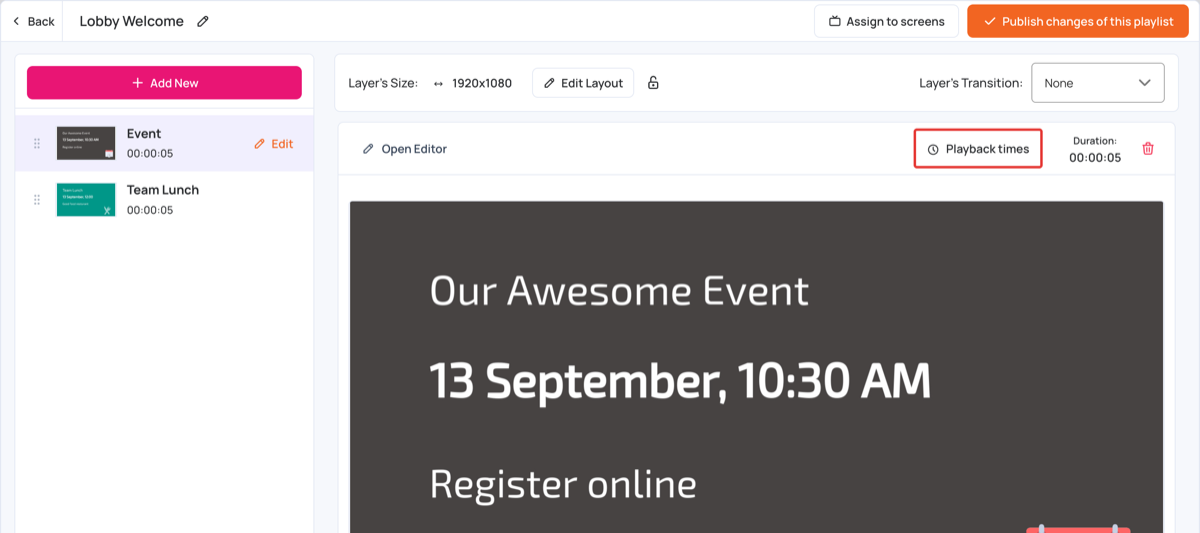
The Playback times window opens. Each media item has its own playback times.
Date/Time Range
Use the date/time range to set when this media plays on the screens.
- Select Play only between dates.
- Choose a Start Date and End Date.
- Enter a Start Time and End Time.
- Click Save.
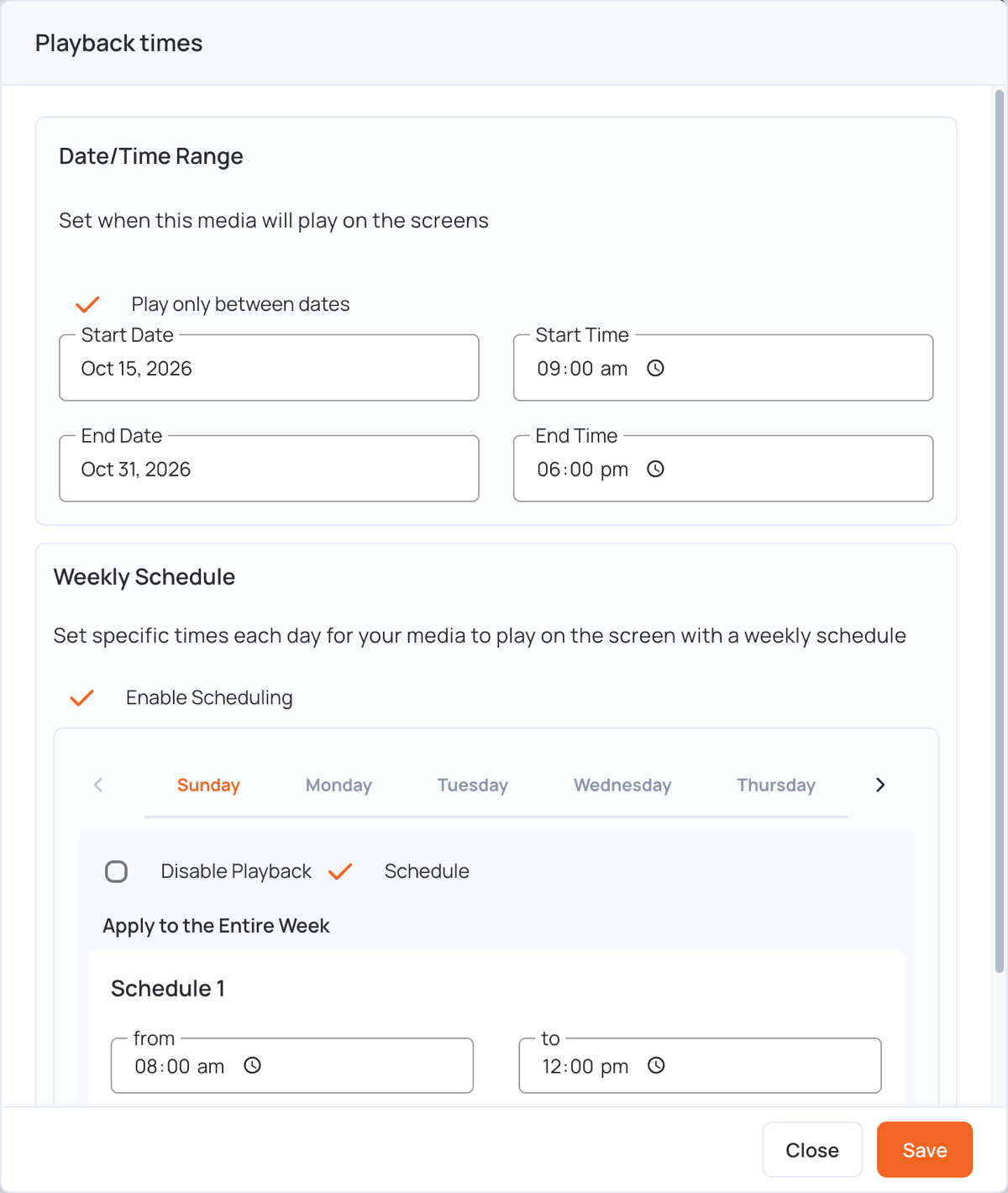
Weekly Schedule
A weekly schedule sets specific times each day for the media to play on the screen.
- Select Enable Scheduling.
- Click a day, for example Wednesday. You can set schedules for the whole week.
- Select Schedule. To stop the item playing on that day, select Disable Playback instead.
- Set the from and to times.
- To use the same times every day, click Apply to the Entire Week.
- To add another time slot that day, click Add Schedule. You can add up to 3 per day.
- Click Save, then click Publish changes of this playlist to send the schedule to the screens.
Make sure your screen is set to the correct timezone for the schedule to work properly.
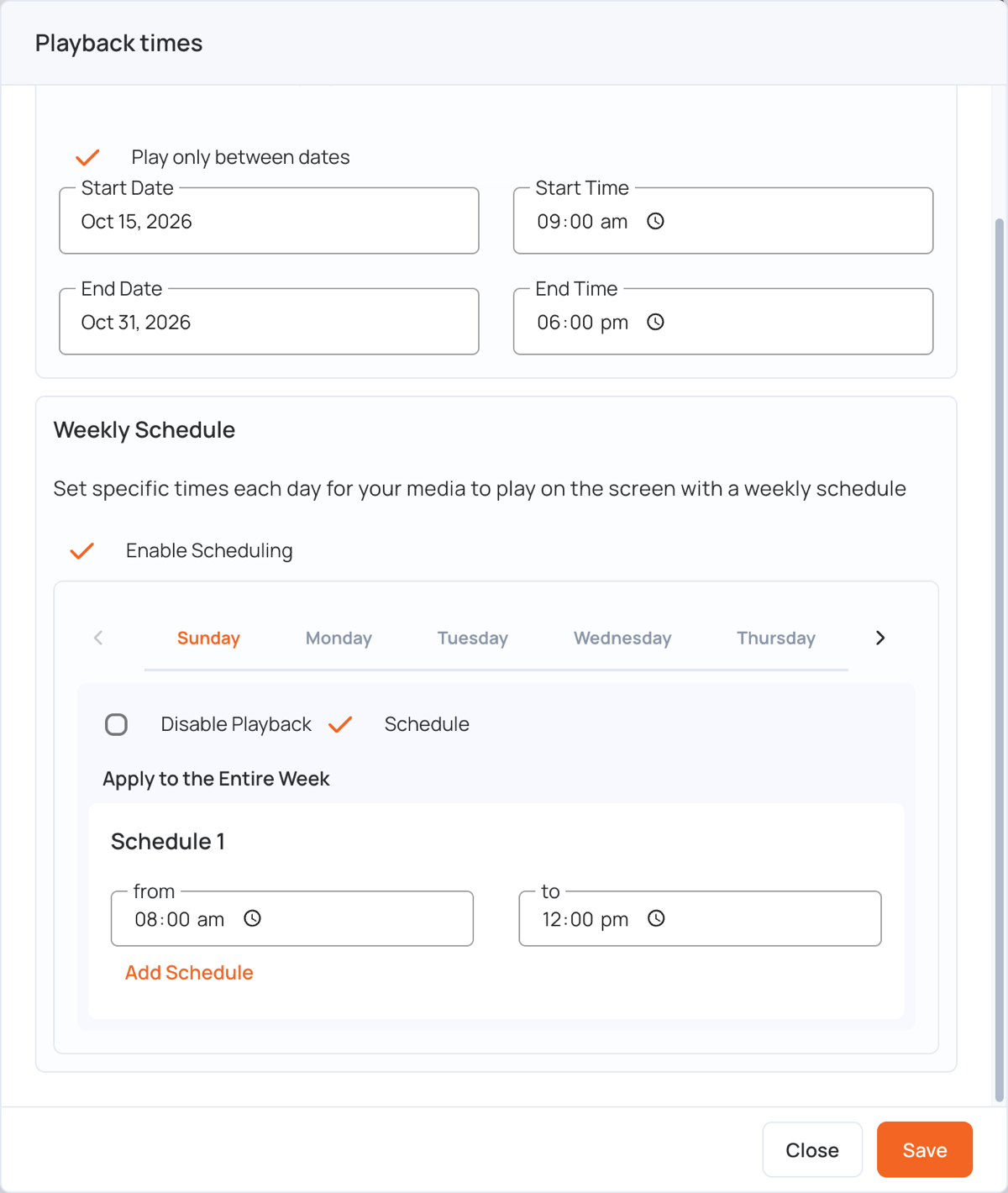
The item now plays only within its playback times. Once the end date and time pass, it stops playing on your display.