Using tags you can limit media that belong to the same playlist to play on specific screens only as in the below example.
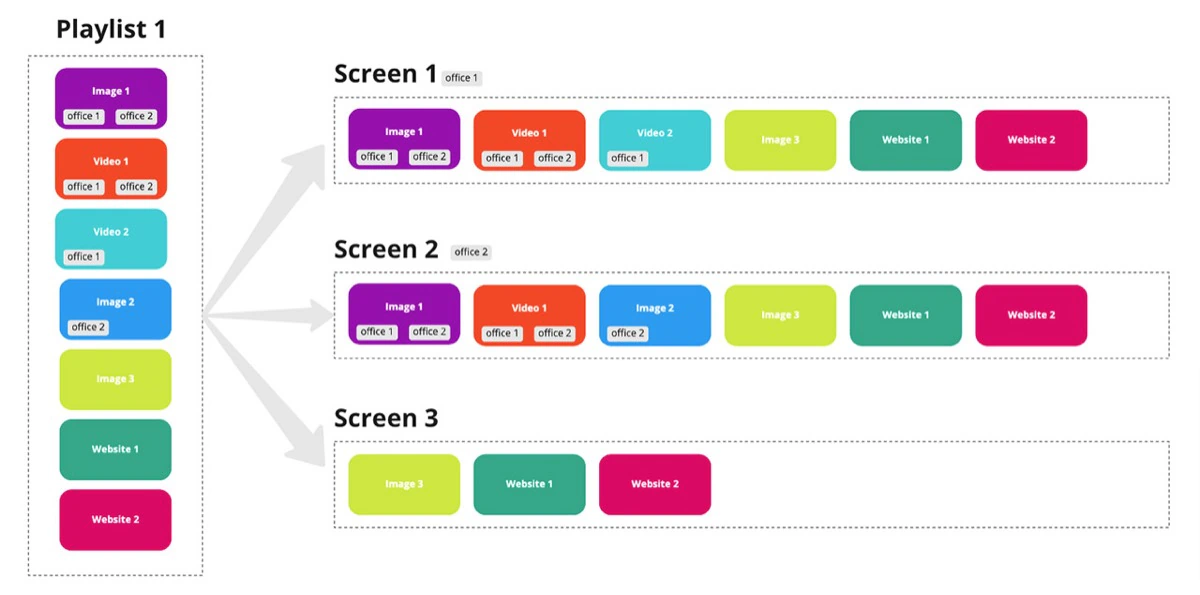
Playlist 1 has multiple media with multiple tags, and is published to 3 screens where Screen 1 has the tag “office1”, screen 2 has the tag “office 2” and screen 3 without tags
Each screen will play all media that have matching tags or media without tags as below diagram:
To set up media and screen tags:
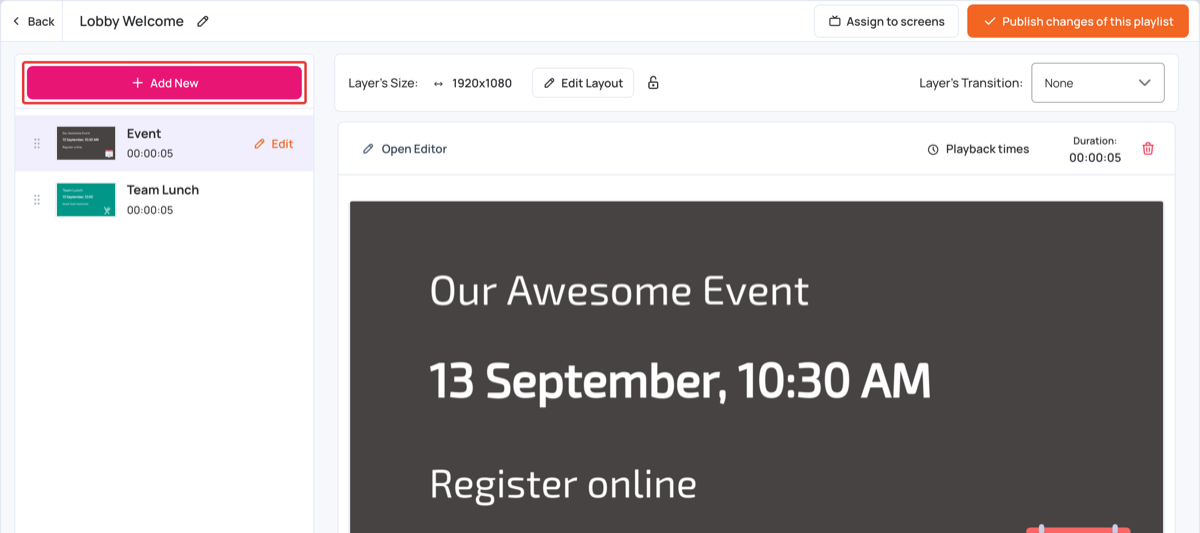
Open the media item’s settings: open the playlist, click the layer, then click Edit next to the item.
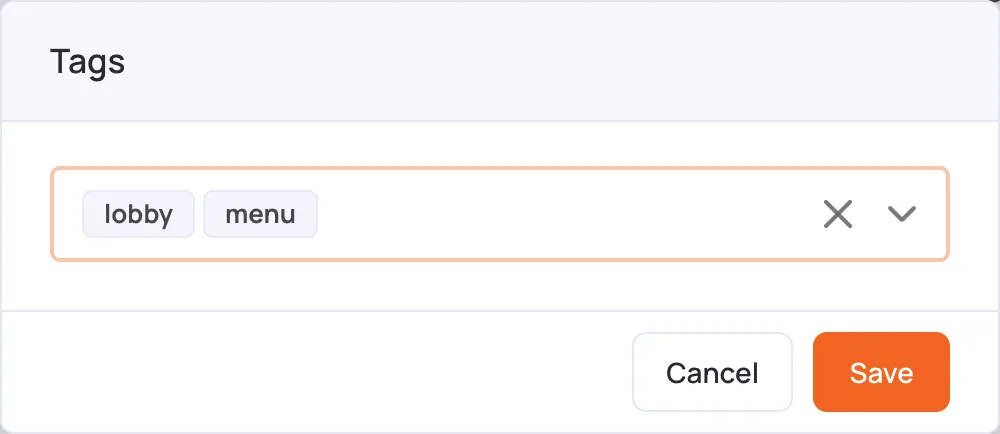
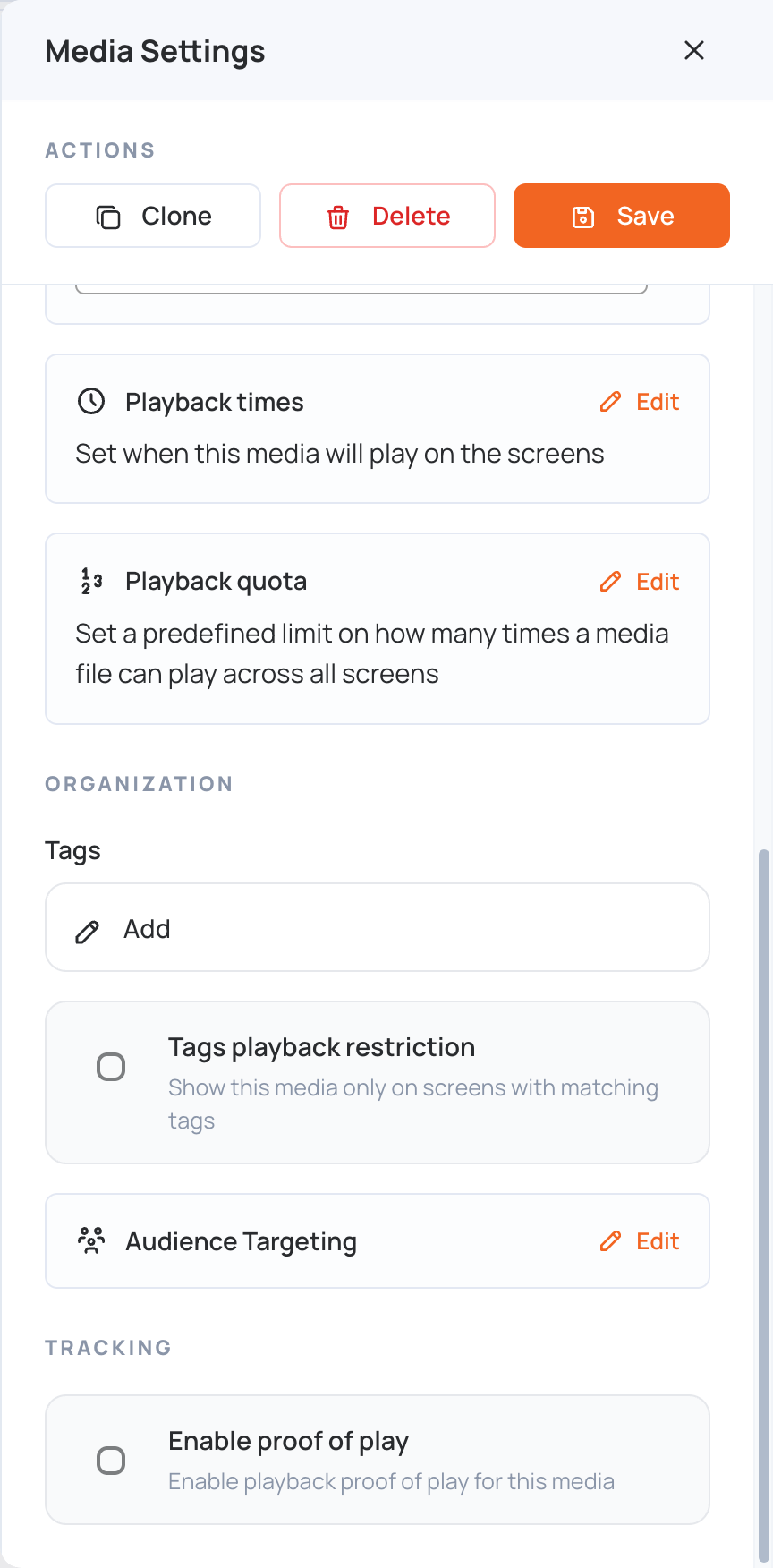
Under Tags, click Add, enter one or more tags, then click Save.
Select Tags playback restriction, then click Save in Media Settings.
In the left sidebar, select Screens. On the screen’s row, click the Screen Details (gear) icon, then click More > Tags.
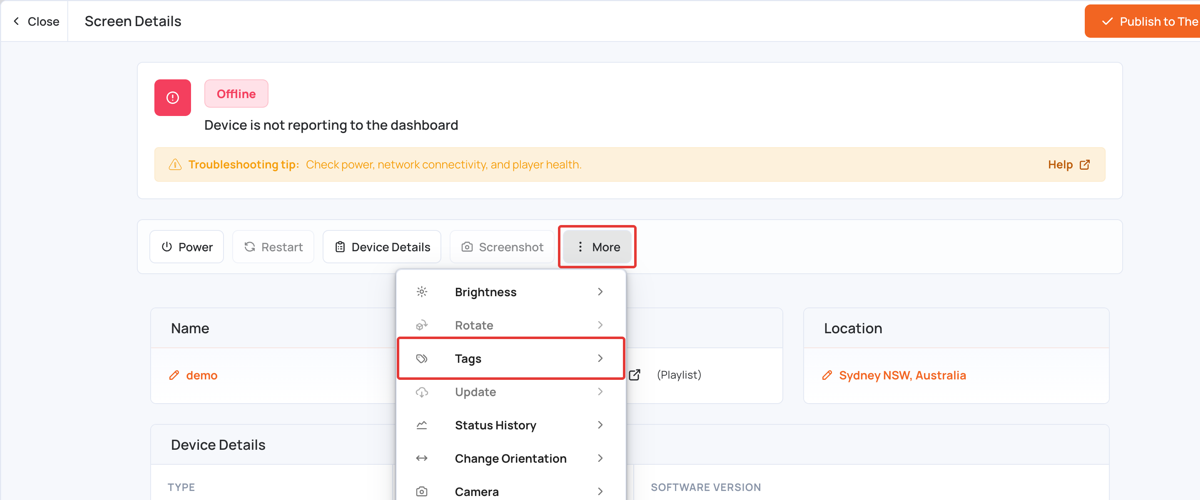
Enter one or more tags, then click Save. Media with matching tags will play on this screen.
Click Publish to The Screen. Media with matching tags is sent to the screen.