How to use web based digital signage player?
- Open a Web Browser, preferably Chrome or Chromium.
- Click on dsplayer.io
- Go to CMS portal and use the code displayed in the browser to assign the web player to your account.
- For more information on how to assign a screen to your account, check the below link Add Screen to your account
How to persist the Player ID
Some embedded devices may automatically clear browser storage during reboots, power loss, firmware updates, or maintenance tasks. When this happens, the digital signage player may lose its assigned screen identity and disconnect from your account.
Persisting the Player ID ensures the device always reconnects using the same screen ID, preventing duplicate screens and avoiding the need to pair the device again.
- Sign in to your digital signage account and go to Screens.
- Open your recently paired web player screen.
- Click Details.
Under Details, you will find the Device ID.
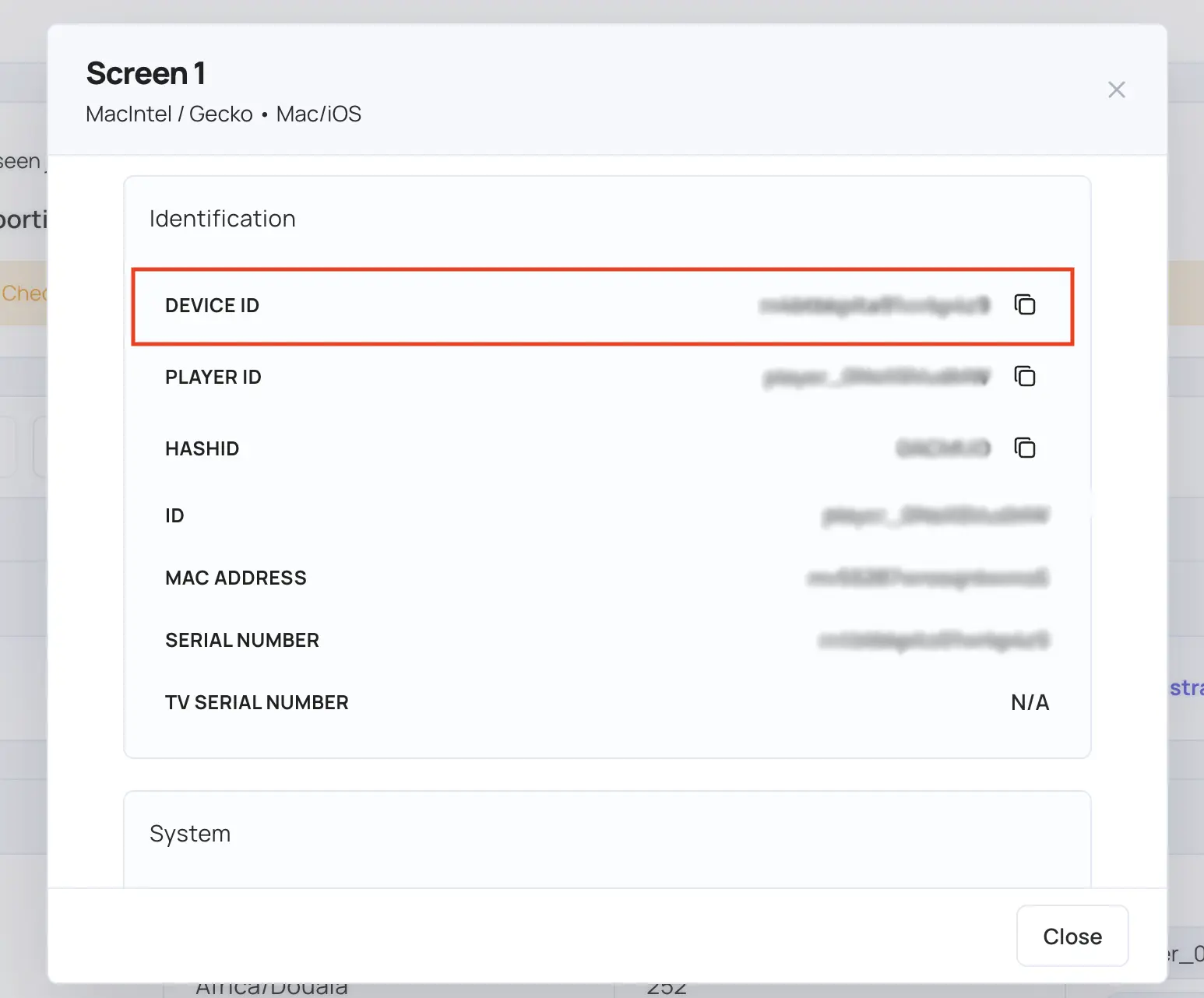
Copy the Device ID, then update and re-publish the Web Page URL using the following format:
https://dsplayer.io?id=XYZ
Replace XYZ with your actual Device ID.
After publishing the updated URL, the device will always reconnect using the same screen identity, even if the browser cache or local storage is cleared.
Important: Chrome Autoplay Policy and How to Resolve It
What is the Chrome Autoplay policy?
Modern browsers like Chrome block autoplay of videos that include sound unless the user has interacted with the page (e.g. click, tap, or key press). This is designed to prevent unexpected noise and improve user experience — but it may affect signage playback if your videos include sound.
How to resolve the Chrome Autoplay policy
To ensure videos autoplay without restriction:
Option 1: Mute the video
- Go to your digital signage CMS
- Open your playlist and select the video
- Select Mute this video. The change is saved straight away
- Click Publish changes of this playlist
Muted videos are allowed to autoplay in all browsers without any user interaction.
Option 2: Disable the autoplay policy in Chrome
For kiosks or controlled environments, you can disable the autoplay restriction:
Method 1: Launch Chrome with a special flag
On Windows:
chrome.exe --autoplay-policy=no-user-gesture-required
On macOS:
/Applications/Google\ Chrome.app/Contents/MacOS/Google\ Chrome --autoplay-policy=no-user-gesture-required
- On Linux:
google-chrome --autoplay-policy=no-user-gesture-required
Method 2: Chrome experimental flag (may not work in newer versions)
- Open
chrome://flags/#autoplay-policy - Set to “No user gesture is required”
- Restart the browser
Note: This method is ideal for development or kiosk use. For public users, using muted videos is the recommended approach.