After you sign in to the management console, you land on the Dashboard. It gives you a quick view of your account and shortcuts to the most common tasks.
The dashboard has two main rows, with a status bar between them:
- System Statistics
- Screens and Playlists
You can reach every other part of the platform from the left sidebar.
Getting around: the left sidebar
The sidebar is grouped into sections:
- Main: Dashboard
- Content: Playlists, Media Assets, Schedules
- Devices: Screens
- Support: Help
- Bottom of the sidebar: Settings and Account
1. System Statistics
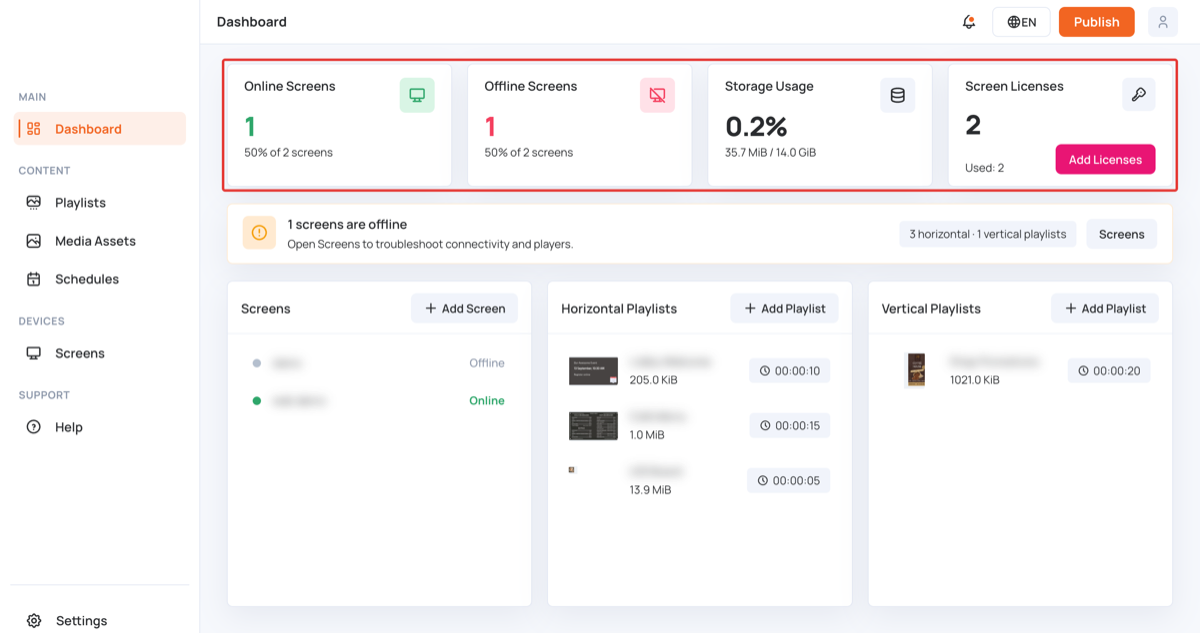
The first row shows four cards:
- Online Screens: how many of your screens are connected right now.
- Offline Screens: how many screens are not connected.
- Storage Usage: the percentage of storage used, plus the amount used out of your total (for example, 81.5 MiB / 12.0 GiB).
- Screen Licenses: how many licences your account has, and how many are Used.
The screen cards only appear for users who can see screens, and the Screen Licenses card only for users who manage screens.
On the free plan, the Storage Usage card also shows Expand storage. Click it, then click Add Licenses: buying at least one paid licence expands your storage to 10 GB.
Add licences from the dashboard
- On the Screen Licenses card, click Add Licenses.
- You’re taken to the Screens page.
- Click Add Licenses at the top of the page to continue.
Status bar
Below the statistics, a status bar sums up your screens and playlists:
- When every screen is connected, it shows All [number] screens are online.
- When screens are offline, it shows how many, with the hint Open Screens to troubleshoot connectivity and players. Click Screens to go straight to the Screens page.
- On the right, it shows how many horizontal and vertical playlists you have.
2. Screens and Playlists
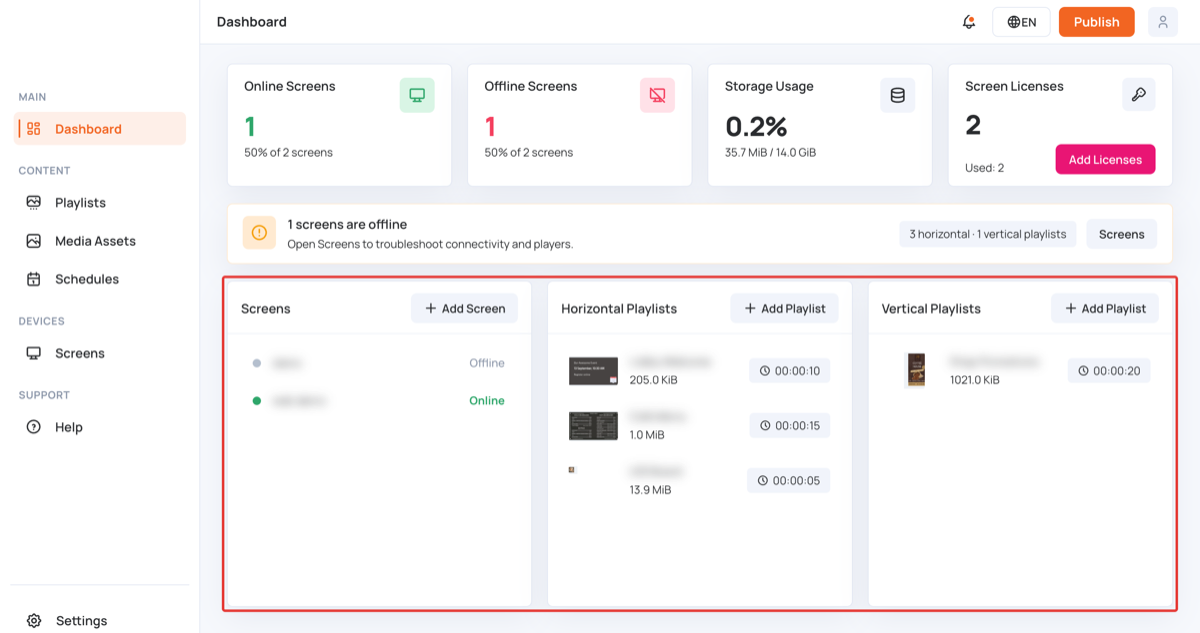
The second row has three cards: Screens, Horizontal Playlists and Vertical Playlists.
Screens
If you haven’t added a screen yet, the card shows: “To assign a screen to your account, click on the ‘add screen’ button.”
To add a screen:
- On the Screens card, click Add Screen.
- The Add new screen window opens. If all your screen licences are in use, the licence purchase steps open instead.
- Under Click below for installation instructions, choose your device type.
- Follow the instructions to install the app on your screen.
- Open the app on your screen. It will show a unique screen ID.
- Back in the window, fill in:
- Enter the ID displayed on the screen
- Screen Name (for example, “Reception TV”)
- Screen Location (for example, “Reception”)
- Click Add Screen.
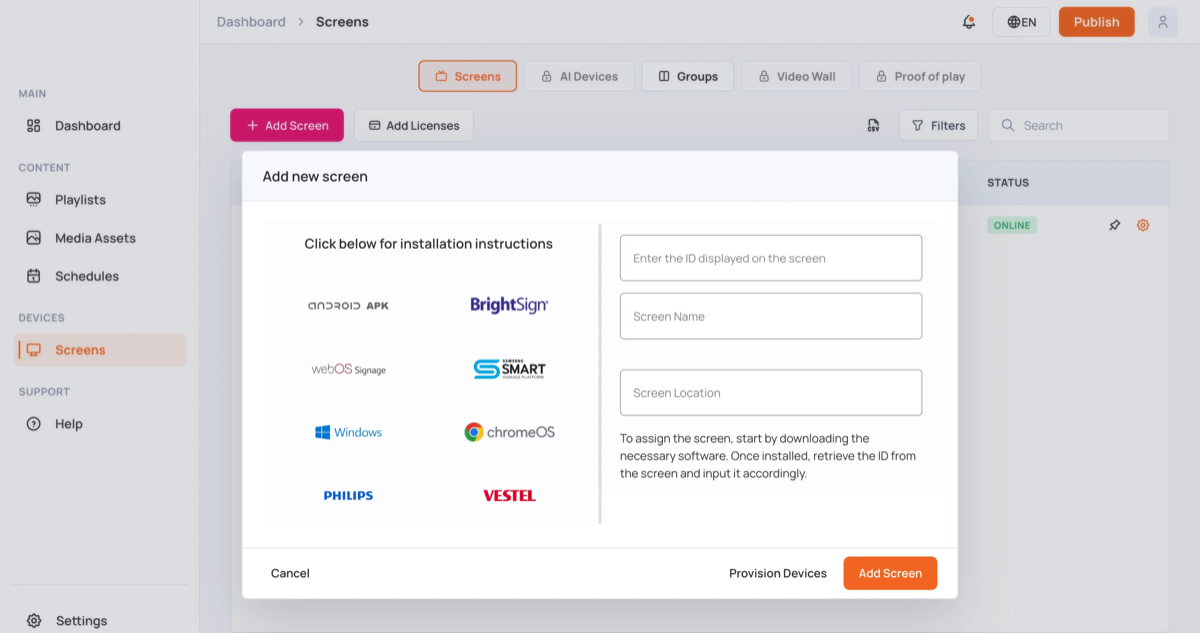
Good to know: Setting up many devices at once? Click Provision Devices at the bottom of the window.
Once your screen is added, go back to the Dashboard. It now appears in the Screens card, and the online and offline counters update.
Click a screen in the list to open it on the Screens page and manage it.
For full information on how to add a screen, visit How to Add a Screen.
Playlists
The Horizontal Playlists and Vertical Playlists cards list your playlists. Each one shows a thumbnail, its name, size and total play time.
To add a playlist:
- Click Add Playlist on the Horizontal Playlists or Vertical Playlists card.
- You’re taken to the Playlists page, and the Add Playlist window opens.
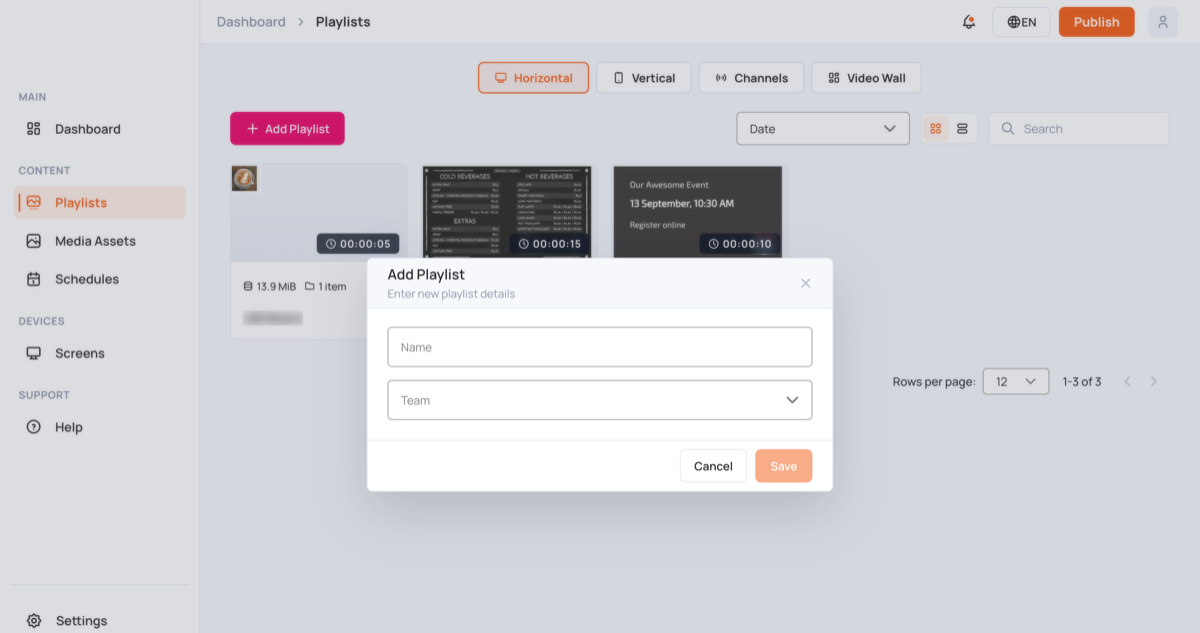
- Enter a Name for your playlist.
- Choose a Team from the dropdown.
- Click Save.
To open a playlist: click it in the list. The playlist opens, and you can start adding content.
Tip: Use horizontal playlists for landscape screens and vertical playlists for portrait screens.
For full information on how to add a playlist, visit Playlist Management.