A custom app is a complete, self-contained website that you package as a .zip file and
play on your screens like any other media. Everything is stored on the device, so the app
keeps playing when the internet drops.
The player passes every custom app a set of player attributes: the identity and context of the screen it is running on, such as the player ID, the screen name, the resolution, the location and your tags. Your app reads those values and changes what it shows, so one package behaves differently on every screen. The attributes use Broadsign-compatible key names, so a creative moved from Broadsign can keep its field names.
With custom apps you can:
- Show the right content per screen, store, zone, floor, region or language
- Personalise data requests using the screen’s ID or tags
- Keep playing offline
- Reuse one package on hundreds of screens
Download the Sample
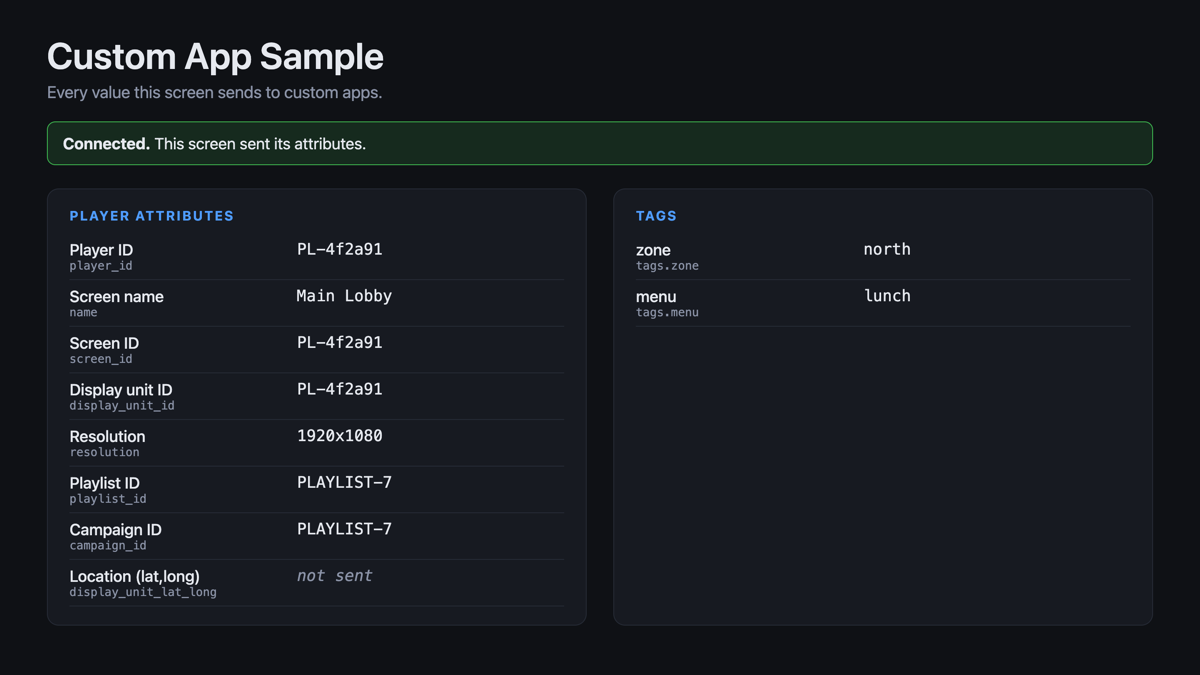
To see how custom apps work, upload the sample. It shows every attribute the screen sends, live on the screen.
Ready-made custom app sample
Download custom-app-sample.zipThe .zip contains three files:
| File | What it is |
|---|---|
index.html | The page itself, and always the entry point. |
player.js | The small reader you copy into your own app to get the player attributes. |
demo.js | Draws the values on screen for the sample only. Leave it out of your own app. |
Required: the entry point of every custom app must be named
index.htmland sit at the top level of the.zip. Keep every image, style sheet, script and font inside the package and refer to them with relative paths, so the app works without an internet connection.
Quick Start Without Coding
- Upload the
.zipin one of two ways:- In a playlist: open the playlist, click the layer, click Add New > Upload media, and choose the
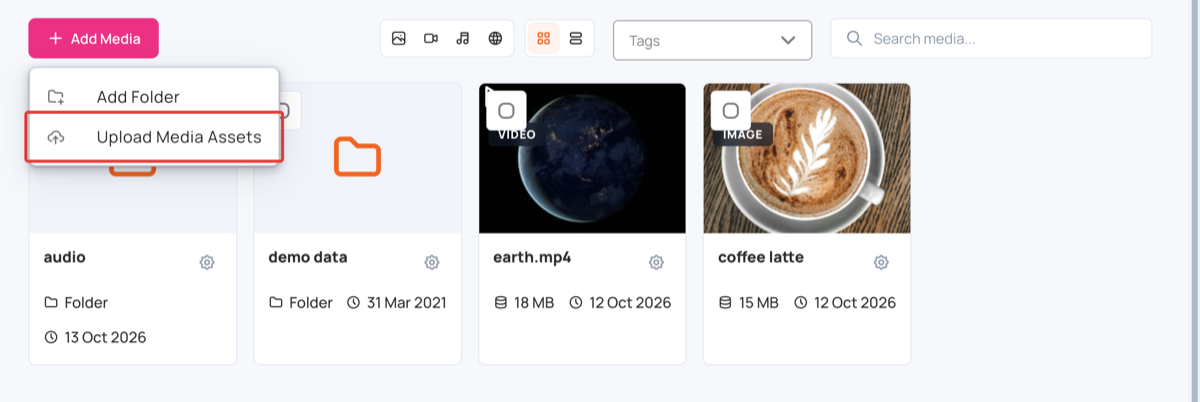
.zip. It is added to the layer straight away. See Upload Media. - In Media Assets: go to Media Assets, click Add Media > Upload Media Assets, and choose the
.zip. Then add it to a playlist with Add New > Media Assets. See Media Assets.
- In a playlist: open the playlist, click the layer, click Add New > Upload media, and choose the
- Click Publish changes of this playlist, and assign the playlist to a screen.
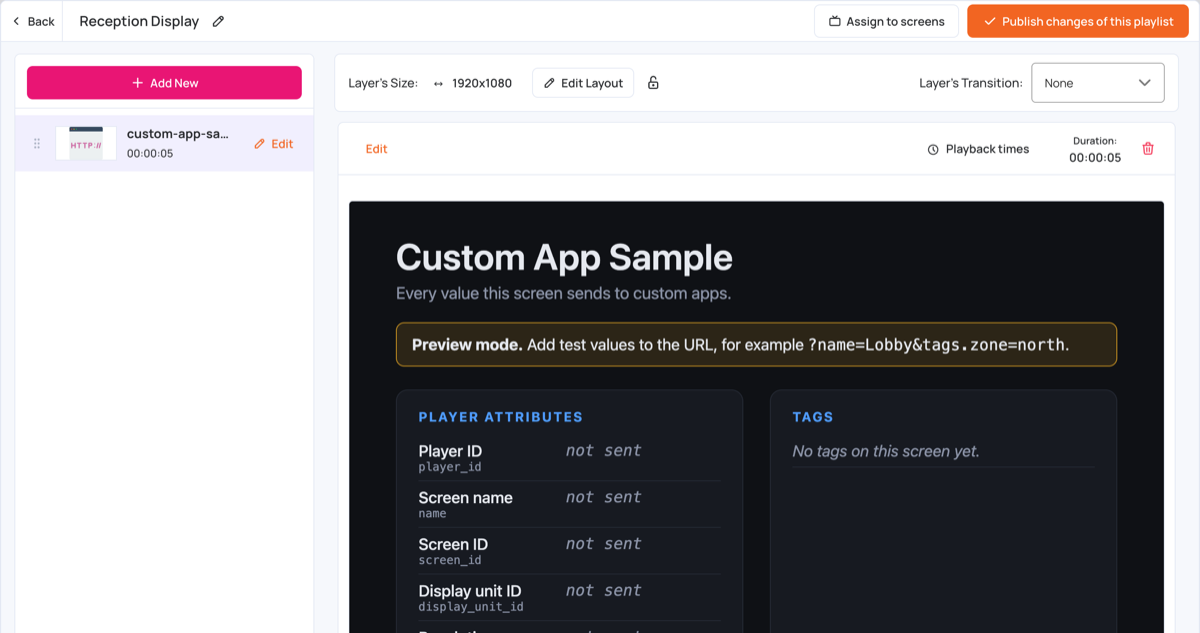
The app appears in the layer. In the CMS the preview shows Preview mode with no values, because only a screen sends its attributes.
The sample appears on the screen and lists every attribute the screen sent. The green Connected banner confirms that it works.
Give Each Screen Its Tags
Apps that show different content per screen read the screen’s tags. Add tags as
key:value, for example zone:north or menu:lunch: open the screen, click More >
Tags, type each tag and press Enter, then click Save. See
Screens.
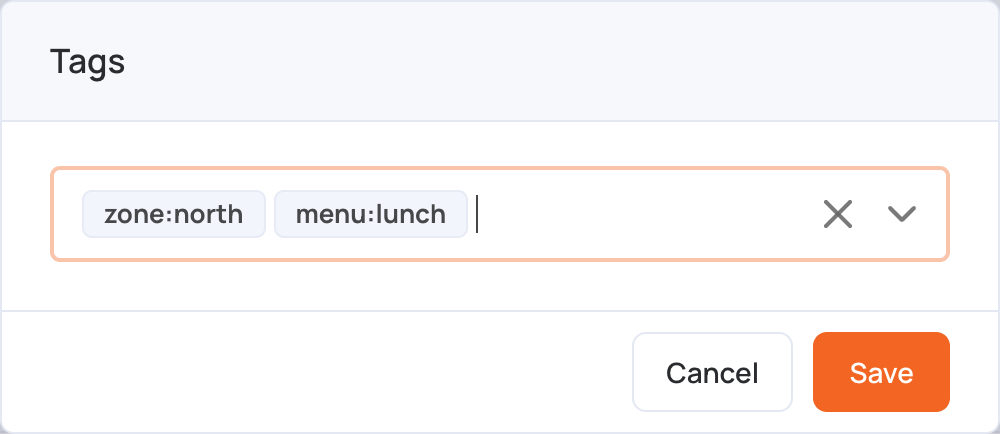
Only tags written as
key:valuereach your app as named values (tags.zone). A tag without a colon, such aslobby, is only included intags.all.
How the Data Reaches Your App
Every time the app plays, the player adds the attributes to the app’s address as a query string:
index.html?player_id=PL-abc123&name=Main%20Lobby&display_unit_id=PL-abc123&resolution=1920x1080&tags.zone=north
The query string is always there, on every player, even if your page uses a strict
Content-Security-Policy. Keys that start with tags. (for example tags.zone) are the
screen’s tags.
For Developers: Read the Attributes
Copy player.js from the sample into your app and load it with a plain script tag
before your own code:
<!-- index.html -->
<script src="player.js"></script>
<script>
  var screen = Player.read();     // the attributes, with the tags as an object

  var playerId = screen.player_id || "";
  var name     = screen.name || "";
  var zone     = screen.tags.zone || "";

  // ...use these values to drive your app.
</script>
Player.read() reads the query string and rebuilds the tags. keys into a tags object.
Load
player.jsas a classic script (<script src="...">), not astype="module". A classic external script also runs under a strictContent-Security-Policy(script-src 'self'), and it works on older Tizen, webOS and BrightSign players.
Moving from Broadsign?
The attributes include the Broadsign key names (display_unit_id, display_unit_resolution,
frame_resolution, campaign_id, display_unit_lat_long), so your field names carry over:
var screen = Player.read();
this.playerId = screen.player_id || "";
this.screenId = screen.display_unit_id || "";
this.latLong  = screen.display_unit_lat_long || "";
window.BroadSignObject is not available. Read the attributes with player.js instead.
Available Attributes
Each value is sent under its own name and its Broadsign name, so an app written for either can keep its field names.
| Attribute | Broadsign name | Description |
|---|---|---|
player_id | player_id | Unique player ID. |
name | — | Name of the screen. |
screen_id | display_unit_id | Screen ID. |
resolution | display_unit_resolution, frame_resolution | Screen resolution, for example 1920x1080. |
playlist_id | campaign_id | ID of the playlist the app is playing in. |
| — | display_unit_lat_long | Screen location as one "lat,long" string. Sent only when the location is known. |
tags.<key> | — | Your key:value tags, for example tags.zone=north. tags.all lists them all. |
Data minimisation: custom apps are third-party code, so only the attributes in this table are sent. Device identifiers (serial, device ID), the operating system, manufacturer and version details, separate coordinates, orientation, and playlist and media names are not passed to your app.
Tags
Tags are the key:value labels you add to your screens, for example zone:north, store:42
or lang:ar. Use them to drive your own logic:
var screen = Player.read();

screen.tags.zone;   // "north"
screen.tags.store;  // "42"
screen.tags.all;    // "zone:north,store:42"
Tags are case-sensitive; use lowercase keys. Up to 20 tags are sent to the device.
Value Rules
- Every value is a string.
- Unknown values are sent as an empty string
"", exceptdisplay_unit_lat_long, which is sent only when the location is known. tagsis always an object, possibly empty.- Keep the package self-contained and use relative paths so it runs fully offline.
Example: Show Different Content per Screen
<script src="player.js"></script>
<script>
  var screen = Player.read();
  var zone   = screen.tags.zone || "default";

  // pick content based on the screen's zone tag
  var banners = {
    north: "north-promo.jpg",
    south: "south-promo.jpg",
    default: "generic-promo.jpg",
  };
  document.getElementById("hero").src = banners[zone] || banners.default;

  // switch to a portrait layout on portrait screens (resolution is "WIDTHxHEIGHT")
  var res = (screen.resolution || "").split("x");
  if (res.length === 2 && Number(res[1]) > Number(res[0])) {
    document.body.classList.add("portrait");
  }
</script>
Troubleshooting
- Nothing shows up: check that the entry file is named
index.html, that it is at the top level of the.zip, and that every file uses a relative path. - A tag doesn’t work: upload the sample to the screen to see every value it sends. Tag names are case-sensitive, and only
key:valuetags arrive as named values. - The app fails on older players: keep your scripts as classic scripts, without
type="module", so they run on older Tizen, webOS and BrightSign players. - Test before you upload: open
index.htmlin a browser with test values added to the address, for exampleindex.html?player_id=TEST&name=Lobby&resolution=1080x1920&tags.zone=north, to see how your app reacts.
Related Articles
- Website Dynamic URL Variables: pass the same player attributes into an online web page.
- Upload Media: how to upload media.
- Screens: how to add tags to a screen.