Use Upload media to add your own images, videos, documents and music to a playlist layer. The files are also saved in Media Assets, so you can reuse them in other playlists.
Supported File Types
- Images: for example JPG, PNG and GIF
- Videos: for example MP4, MOV, AVI, MKV, WEBM and M4V
- Audio: MP3. See Background Music.
- Documents: PDF, PowerPoint (PPT, PPTX), Word (DOC, DOCX), OpenDocument (ODP, ODT) and RTF. Each page becomes an image.
- HTML apps: a ZIP file with a self-contained website.
You can upload up to 20 files at a time.
How to Upload Media
- Open the playlist, then click the layer. See Playlist Media Management.
- If the layer is empty, the content apps open. If it already has media, click Add New.
- Click Upload media.
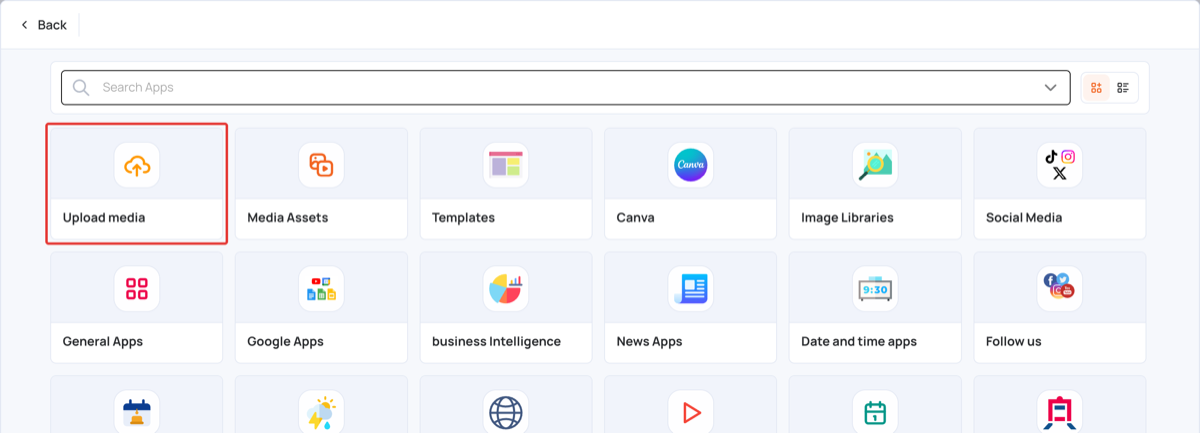
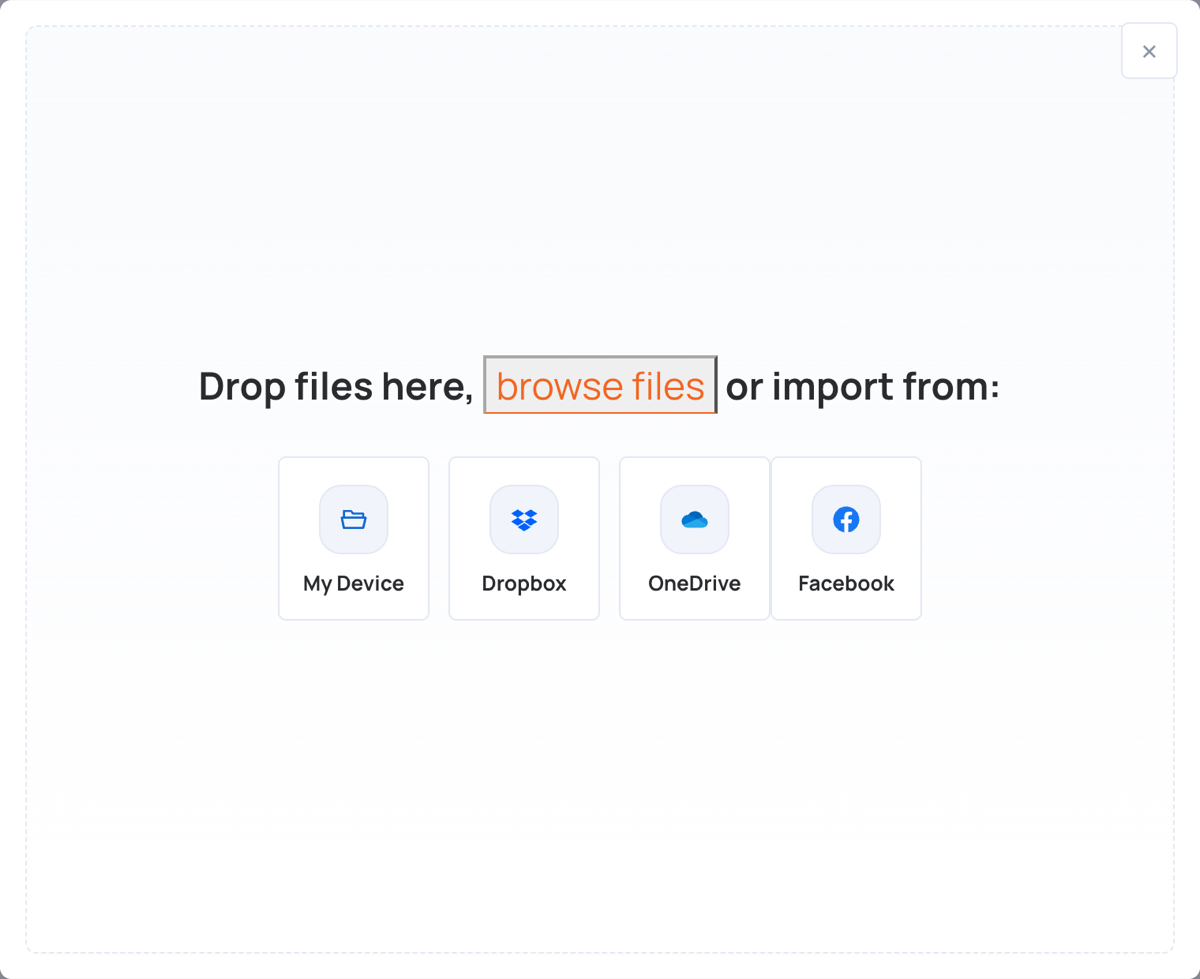
- Add your files in one of the ways below. The upload starts as soon as you add a file.
From your computer
- Click My Device, or drag the files onto the window.
- Select your files.
- When the upload finishes, click Done.
From Dropbox
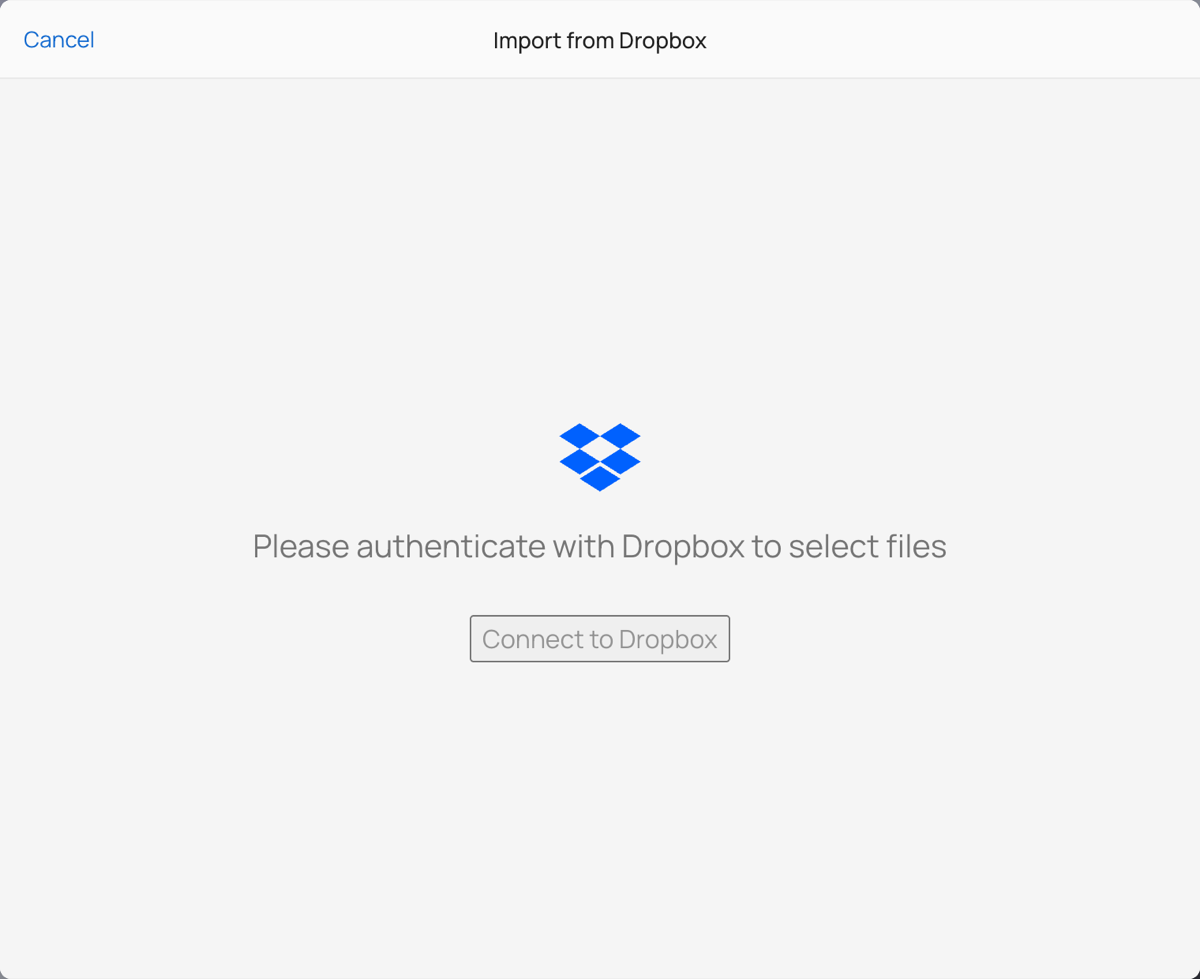
- Click Dropbox.
- Click Connect to Dropbox and sign in to your Dropbox account.
- Select your files, then click Select.
- When the upload finishes, click Done.
From OneDrive
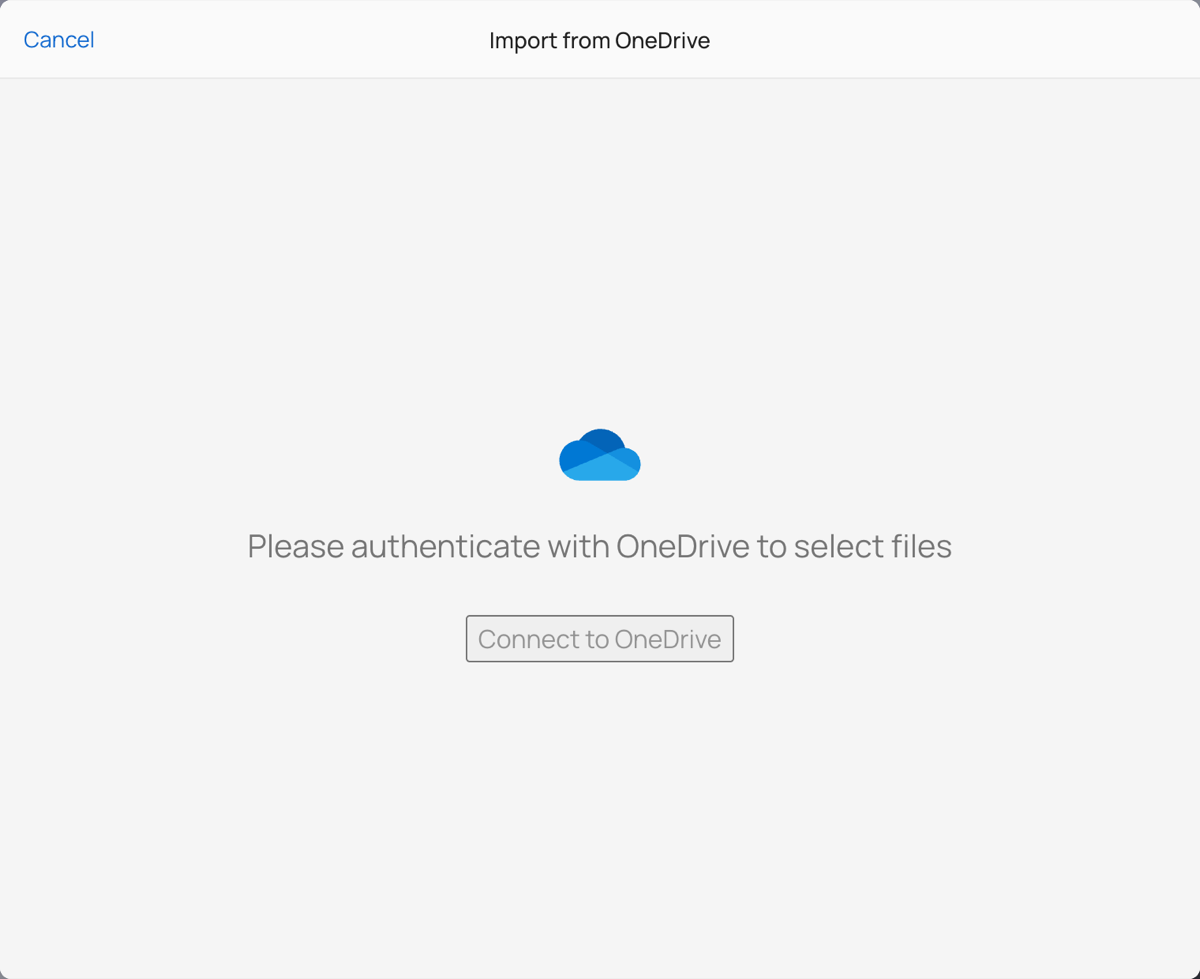
- Click OneDrive.
- Click Connect to OneDrive and sign in to your Microsoft account.
- Select your files, then click Select.
- When the upload finishes, click Done.
From Facebook
- Click Facebook.
- Click Connect to Facebook and sign in to your Facebook account.
- Select your photos or videos, then click Select.
- When the upload finishes, click Done.
After the Upload
The files are listed in the layer, each with a preview, a name and its playback duration.
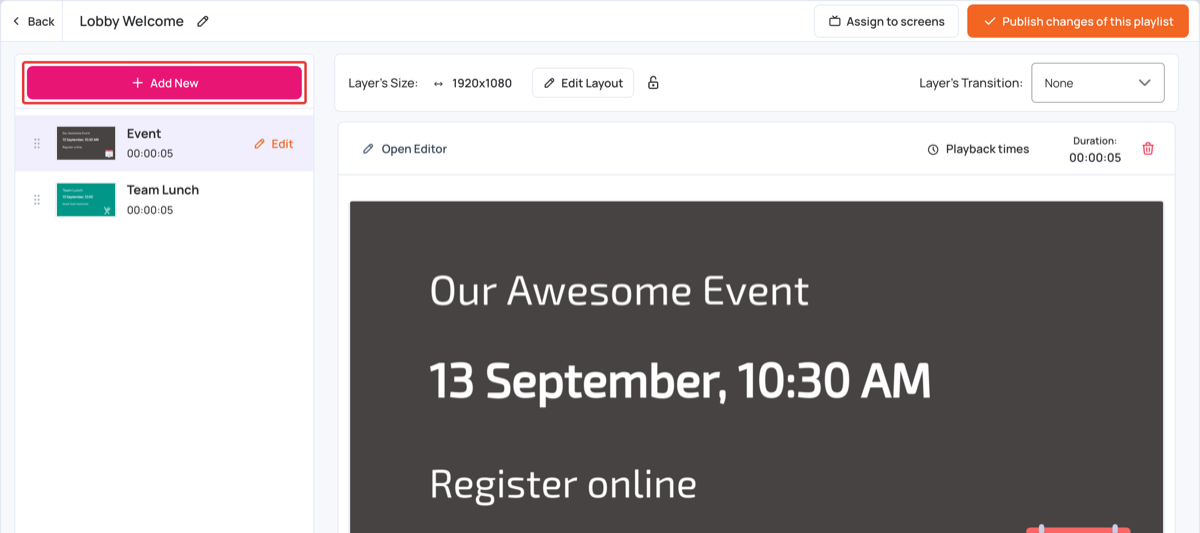
- Drag an item up or down to change the order.
- Click Edit next to an item to change its Media Settings, such as its duration.
- Click Publish changes of this playlist to send the changes to your screens.