The Outlook Calendar app shows the events from a Microsoft Outlook calendar on your screens, as a list or as a day, week or month view. It stays in sync with the calendar, so new and changed events show up by themselves.
Add Outlook Calendar to a Playlist
- Open the playlist, then click the layer. See Playlist Media Management.
- If the layer is empty, the content apps open. If it already has media, click Add New.
- Click Calendars, then Outlook Calendar.

- Under Accounts, click Add/Refresh account and sign in to your Microsoft account. Accept the permissions so the app can see your calendars.
- Under Settings, choose the Account, then the calendar in Choose a calendar, and the language.
- Choose how to show the calendar:
- Type: List, Today’s list, Day, Week or Month.
- weekdays: the days to show, for example Mon - Fri or Sun - Sat.
- Auto-Scroll Interval: when the list does not fit on one page, how many seconds each page stays before it scrolls to the next (up to 60, 10 by default).
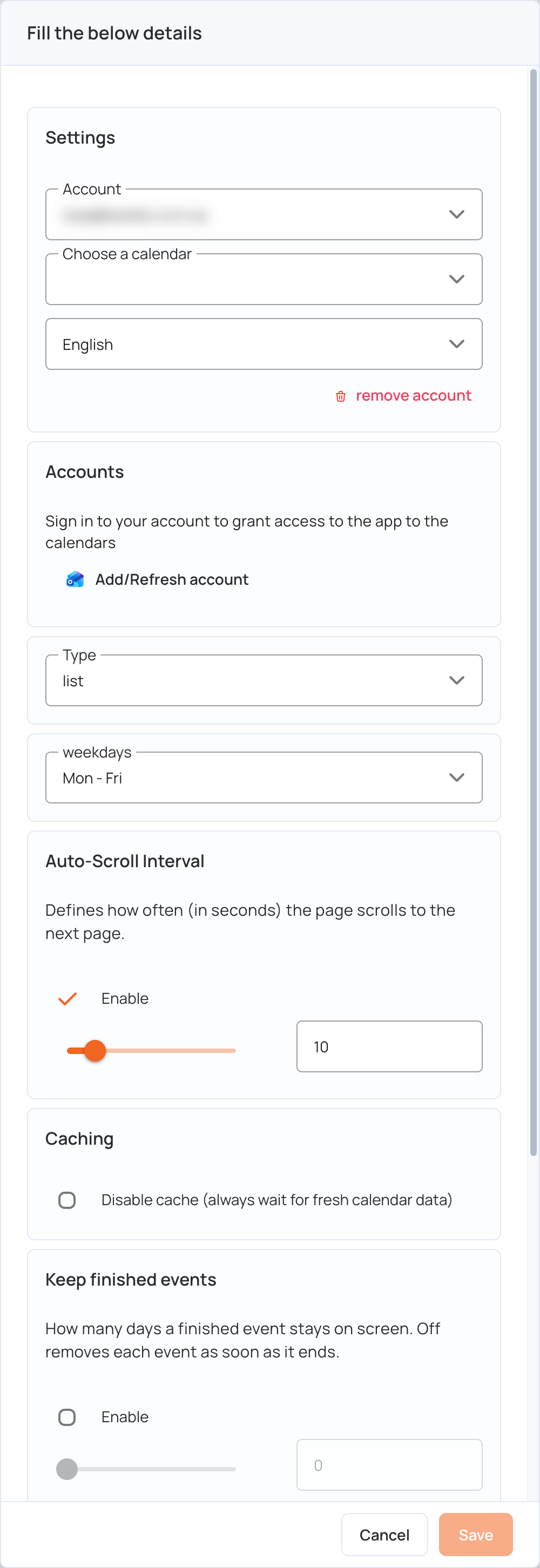
- Optional settings:
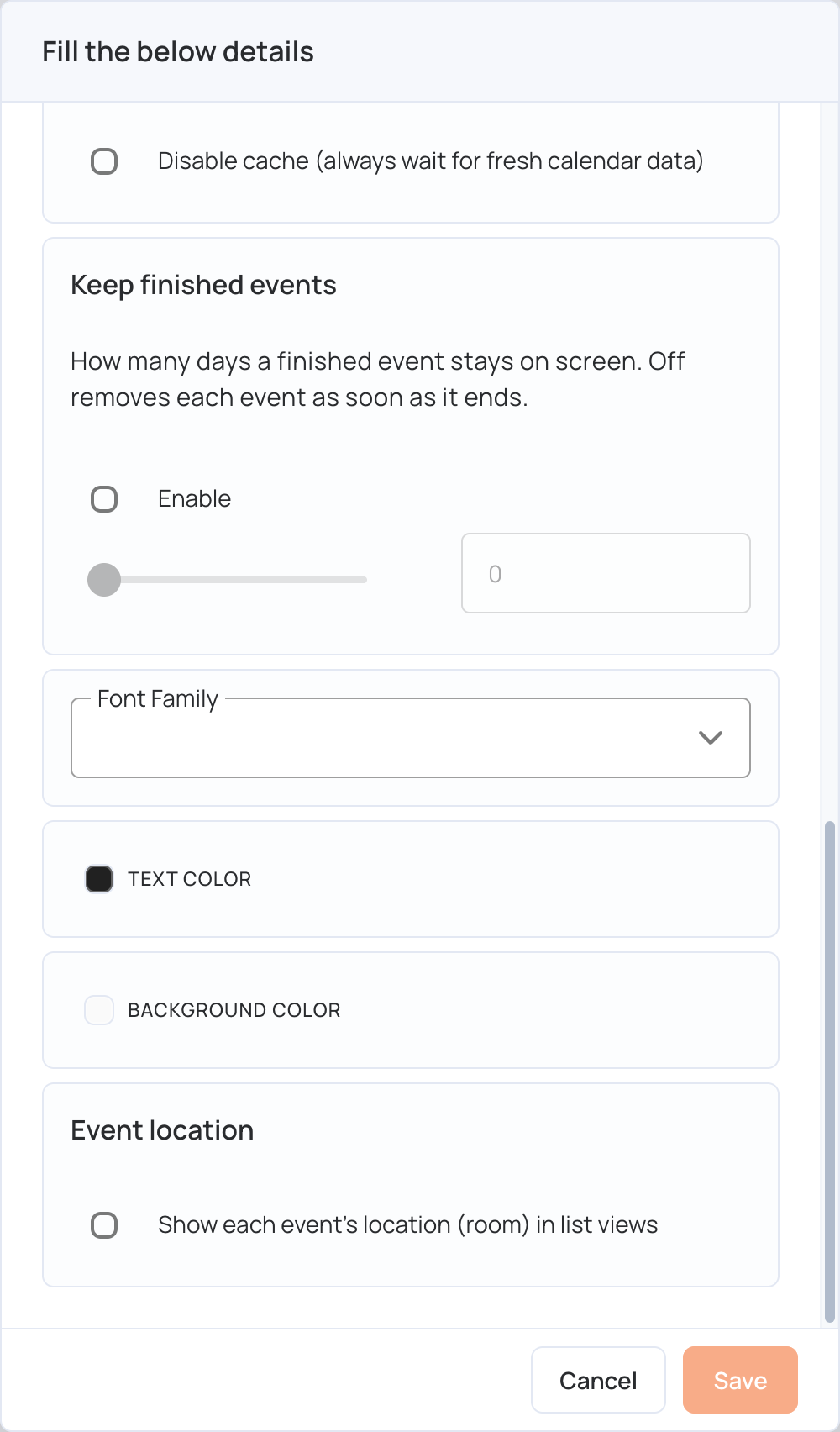
- Keep finished events: tick Enable to keep finished events on screen for up to 30 days. When it is off, each event disappears as soon as it ends.
- Font Family, Text Color and Background Color: the look of the calendar.
- Event location: shows each event’s location (room) in list views.
- Caching: see Caching.
- Click Save, then Publish changes of this playlist.
How It Looks
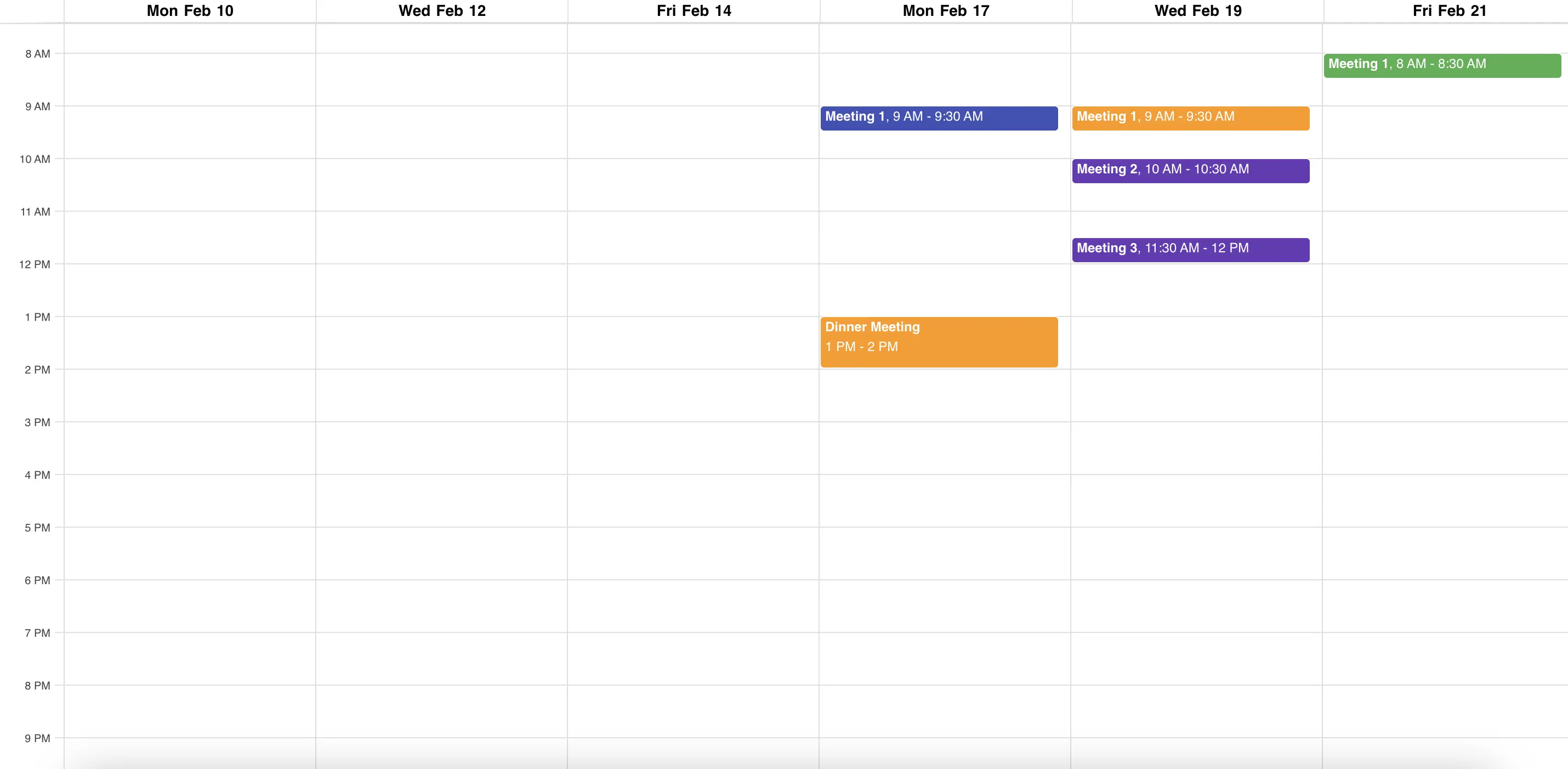
Week view:
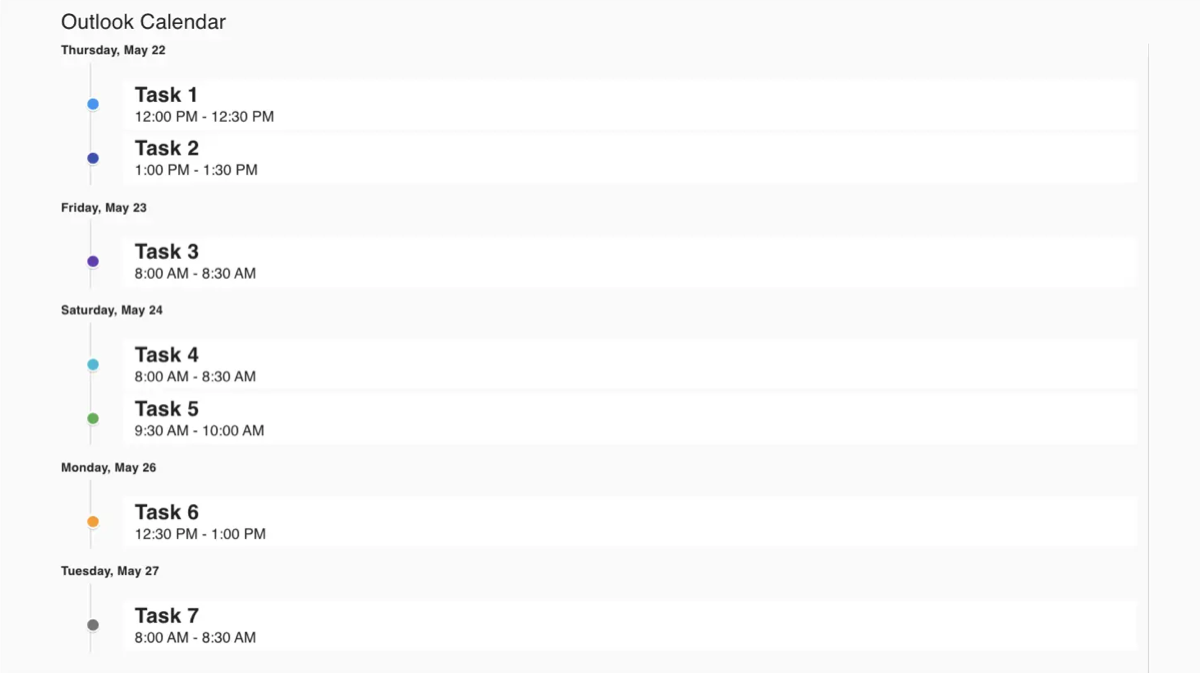
List view:
To change the settings later, click Edit next to the calendar in the layer. If the calendar stops updating, click Add/Refresh account and sign in again.
Caching
The calendar remembers the events it showed last time, so a screen that has just started up can show the schedule straight away instead of waiting. That is what makes the calendar appear quickly, and it is why Disable cache is switched off to begin with.
Turn it on only if one screen shows more than one calendar and they get mixed up — for example, a calendar briefly showing another calendar’s events. Each calendar will then always wait for its own events, which takes a little longer to appear on the screen.
- Click Edit next to the calendar in the layer.
- Under Caching, tick Disable cache (always wait for fresh calendar data).
- Click Save, then Publish changes of this playlist.