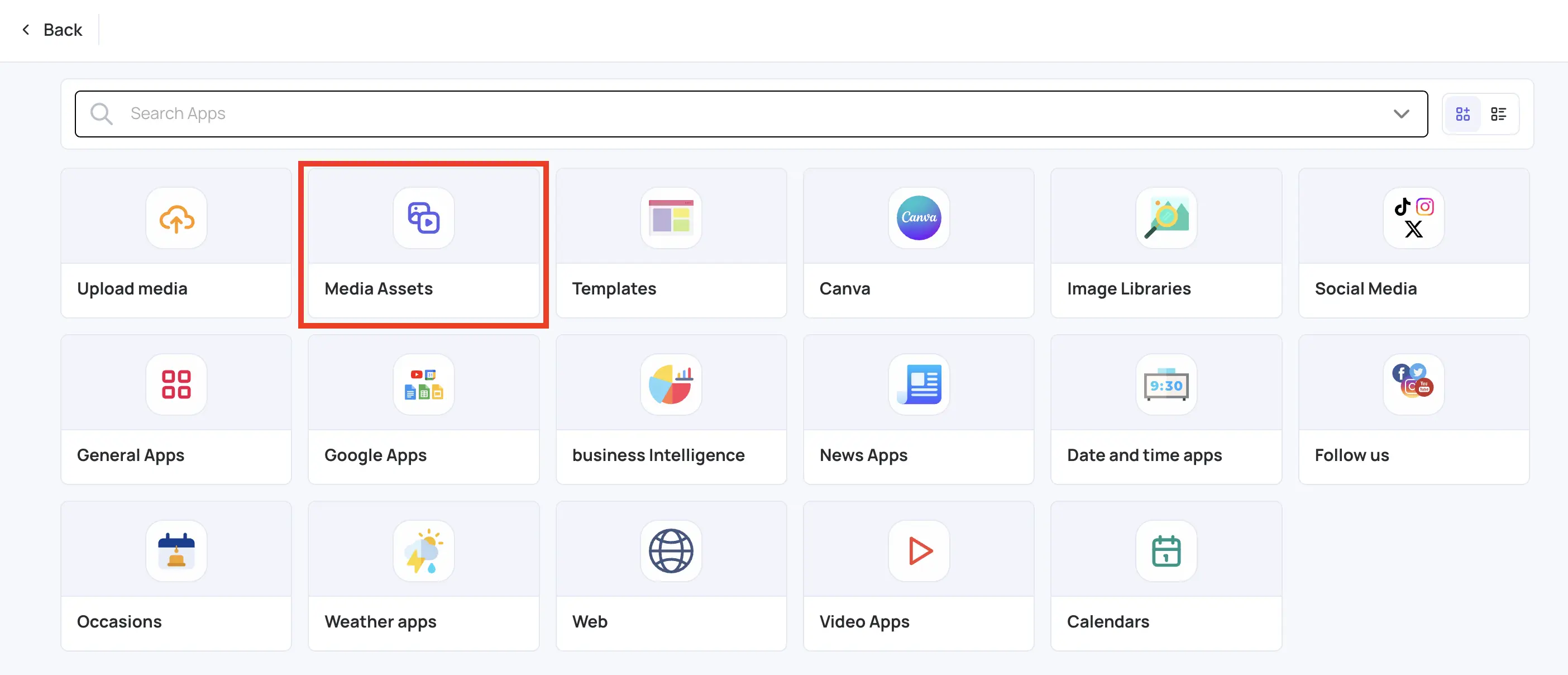
Media Assets is your library of files already uploaded to the CMS: images, videos, audio and documents. Adding files from Media Assets saves you uploading the same file again, and you can reuse a file in any playlist.
To organize your library (folders, tags and so on), see Media Assets.
Add Files from Media Assets to a Playlist
- Open the playlist, then click the layer. See Playlist Media Management.
- If the layer is empty, the content apps open. If it already has media, click Add New.
- Click Media Assets.
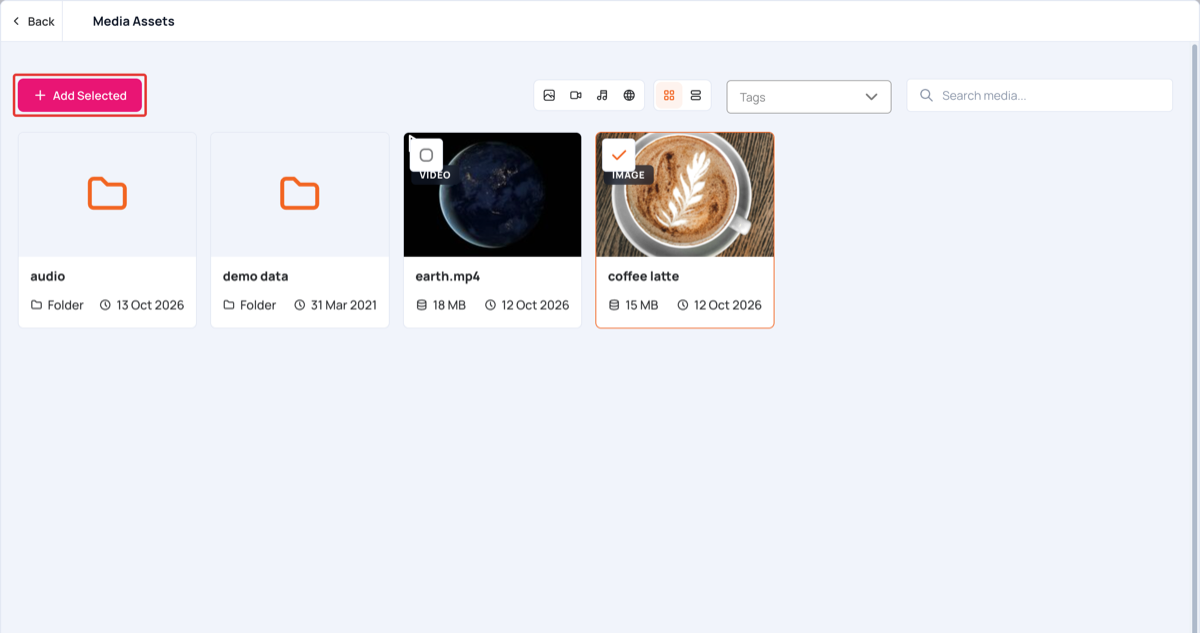
- Tick the files you want. Open a folder to see the files in it.
- To find files faster, filter by type (images, videos, audio or web), choose Tags, or type in Search media….
- Switch between the grid and the list view with the buttons next to Tags.
- Click Add Selected. The files are added to the layer and fitted to its size.
- Click Publish changes of this playlist to send them to your screens.
To change the settings of an added file, such as its duration, click Edit next to it in the layer. See Playlist Media Settings.