The Instagram app shows the latest posts from your Instagram business account on your screens: photos, videos and reels. New posts appear by themselves.
Add Instagram to a Playlist
- Open the playlist, then click the layer. See Playlist Media Management.
- If the layer is empty, the content apps open. If it already has media, click Add New.
- Click Social Media, then Instagram.

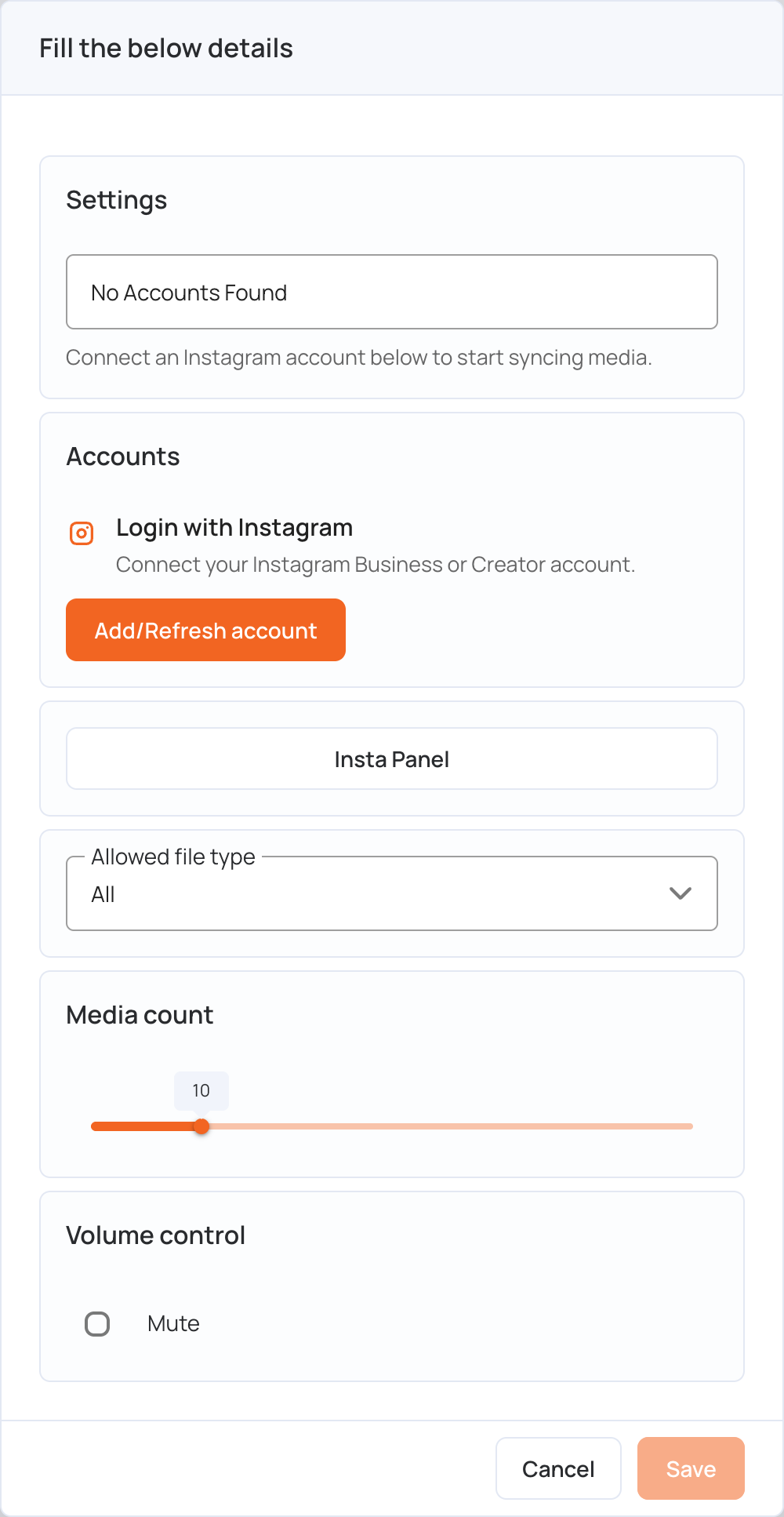
- Under Accounts, click Add/Refresh account.
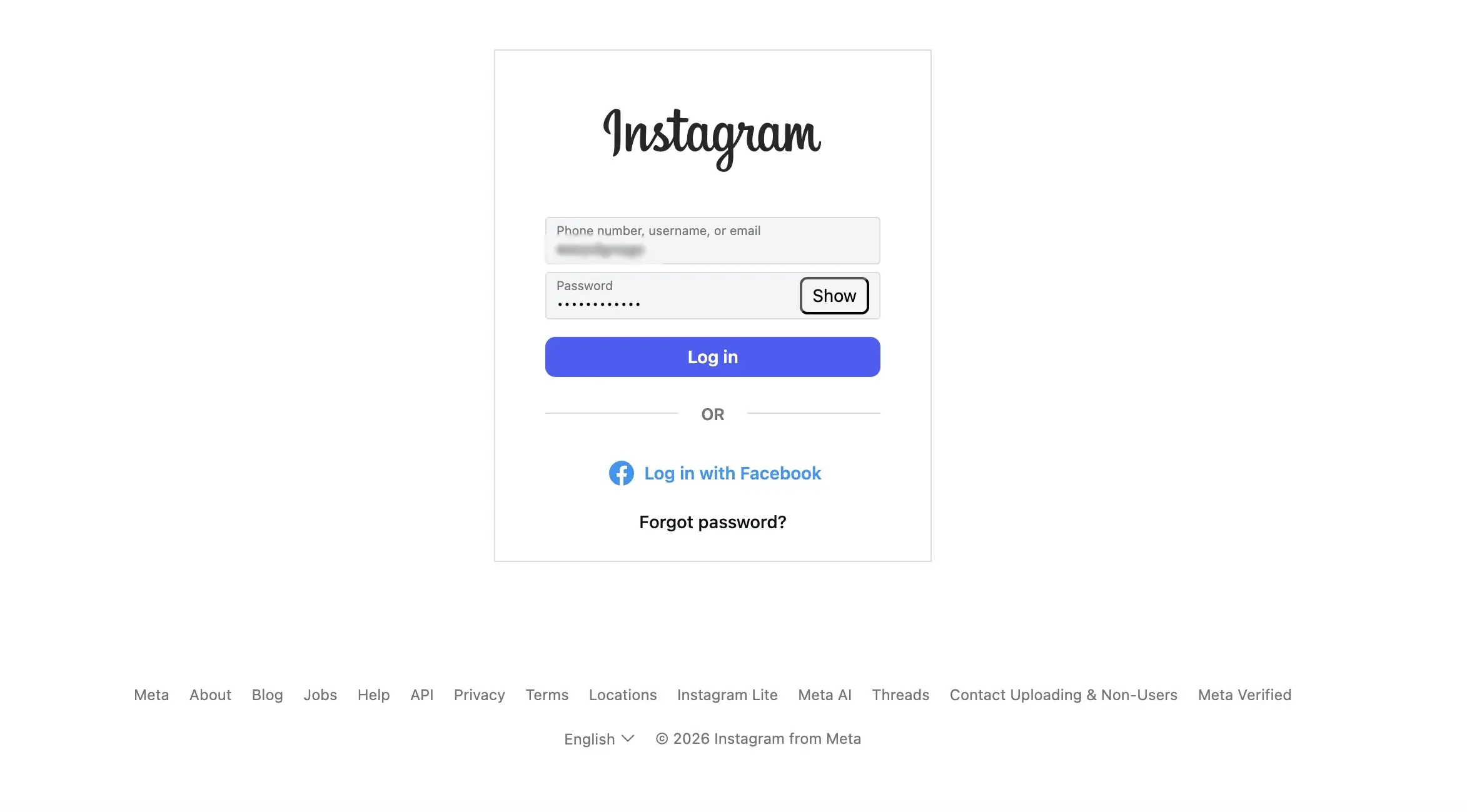
- Sign in with your Instagram Business or Creator account.
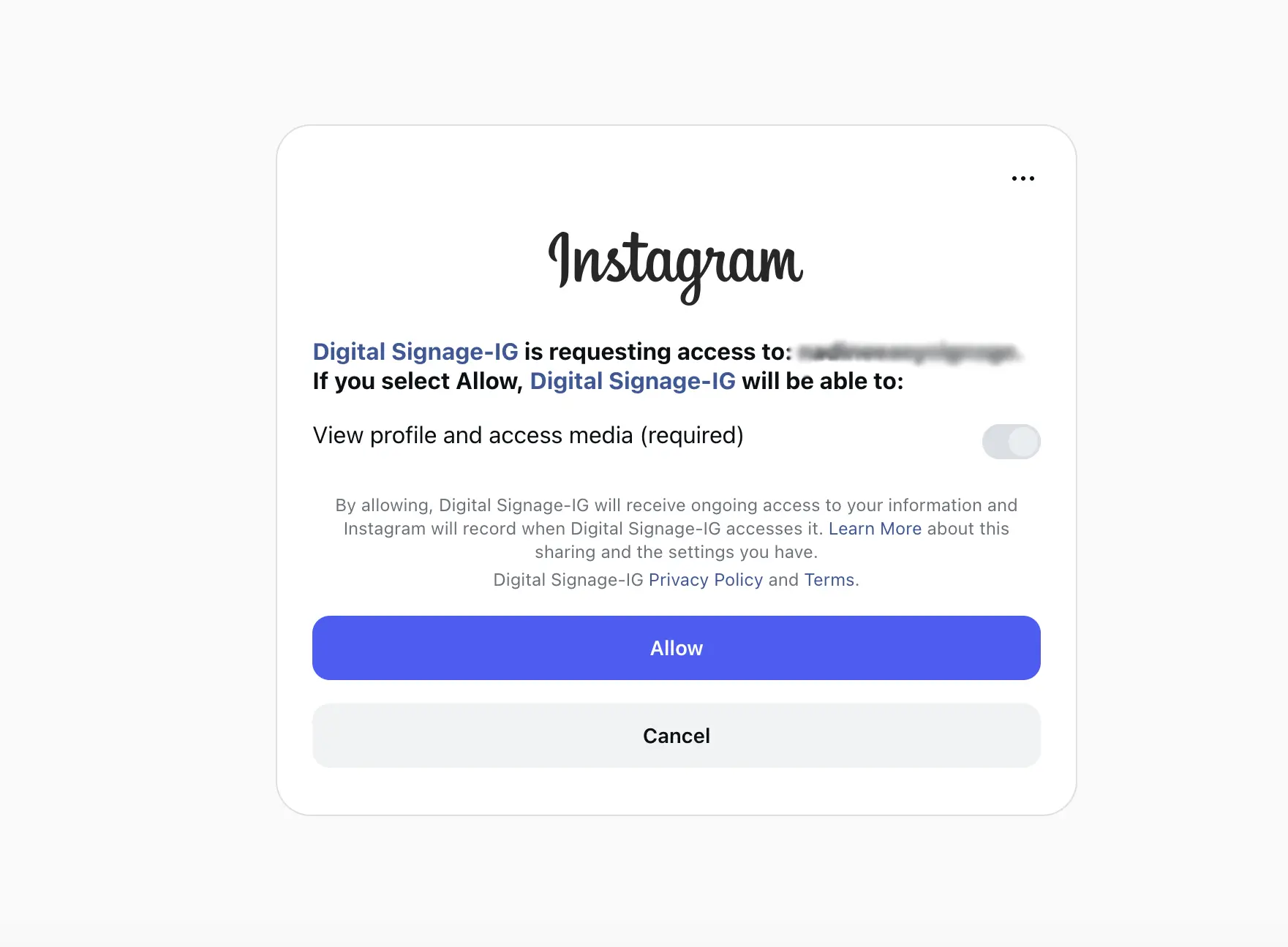
- Click Allow to give the app access to your profile and media.
- Back in the CMS, choose the account in Choose an Instagram account, then set the display settings.
- Click Save.
- Click Publish changes of this playlist, and assign the playlist to your screens.
Display Settings
| Setting | What it does |
|---|---|
| Theme | How each post is framed on screen. Click the theme button to choose one. See Themes. |
| Allowed file type | All, Images or Videos. |
| Media count | How many of your latest posts to show, from 1 to 50 (10 by default). New posts replace the oldest ones at each sync. |
| Volume control | Tick Mute to play video posts without sound. See Muting video sound. |
Themes
A theme controls how each post fits in your layer. Posts come in many shapes (square, portrait, landscape), so the theme decides what happens when a post’s shape doesn’t match the layer.
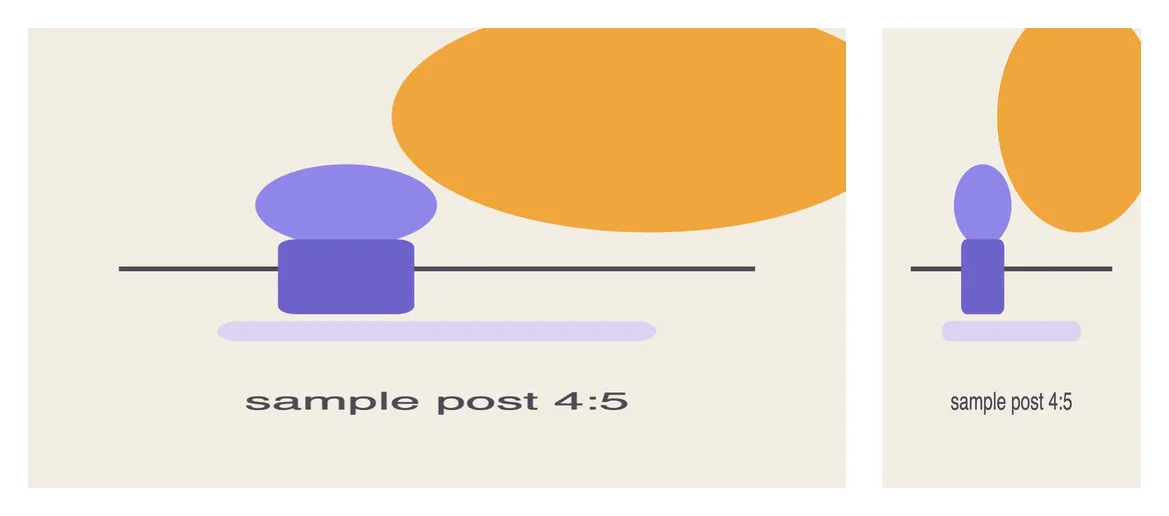
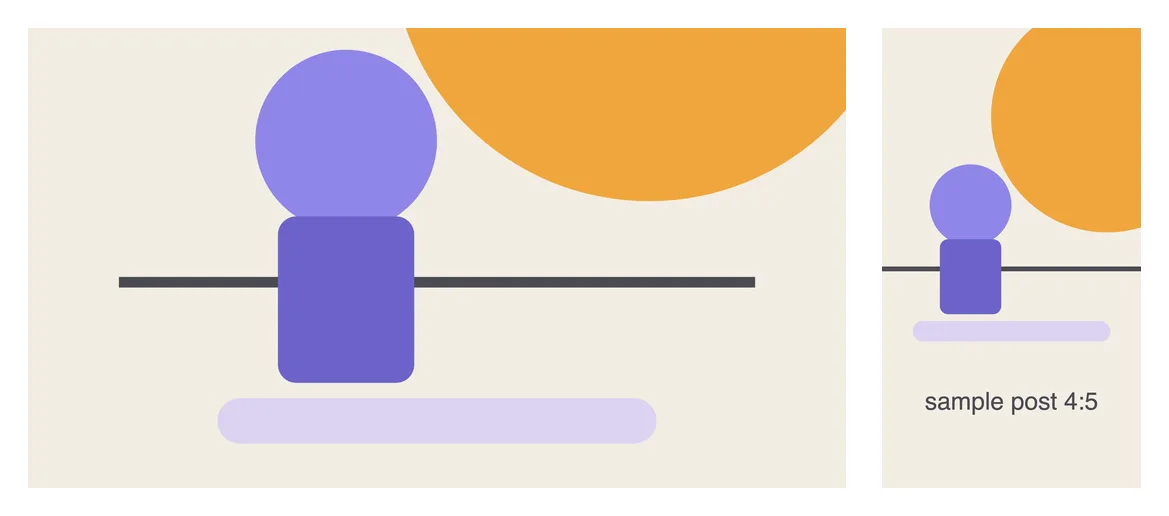
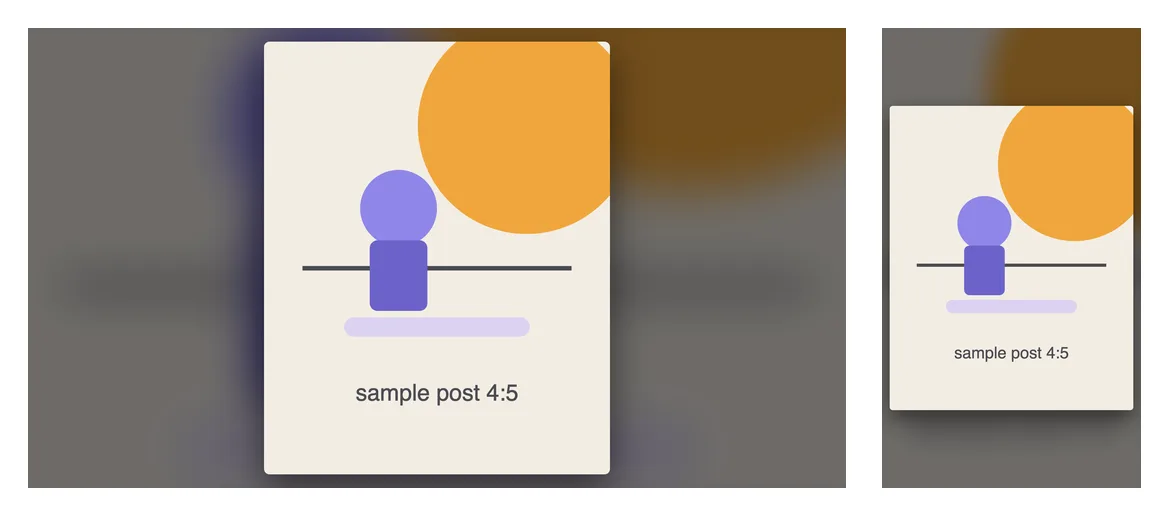
Each example shows the same post in a landscape layer (left) and a portrait layer (right).
Media Only
The post is shown as it was published, with nothing added. If its shape doesn’t match the layer, it is stretched to fill the space. Best when the layer already matches the shape of your posts.
Insta Panel
The post is shown in full next to a panel with your profile picture, account name, caption and a “Scan to follow us” QR code. Nothing covers the post. In portrait layers the panel moves below the post. This is the default theme. Best when you want to grow your following.
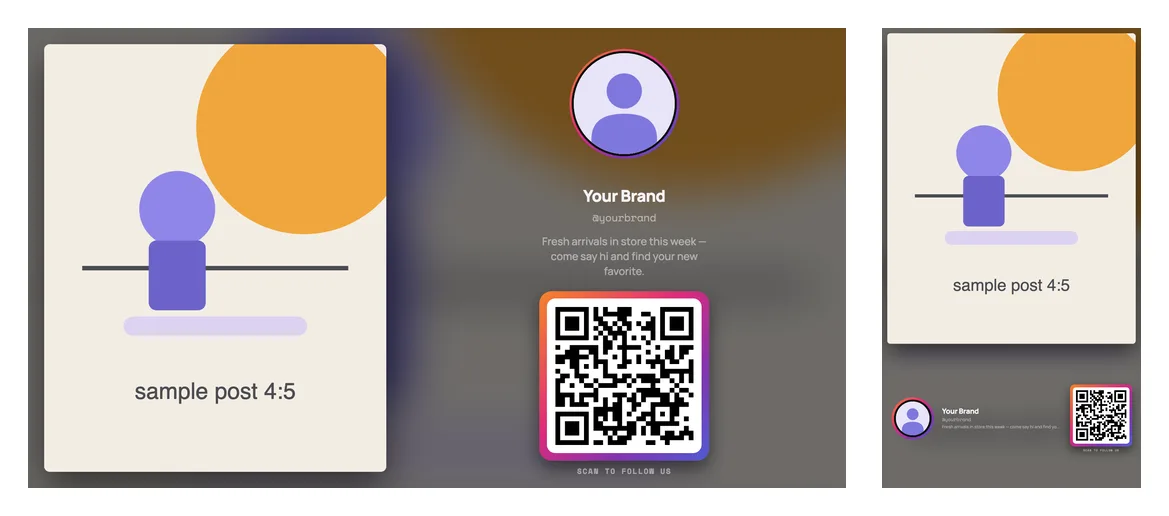
Insta Panel (no QR code) is the same, without the QR code.
Full screen (cropped)
The post fills the whole layer. If its shape doesn’t match, the edges are trimmed so the post is never distorted. Best for the biggest visual impact when some cropping is fine.
Fit with blurred background
The whole post is always shown, centred and never cropped. Empty space around it is filled with a soft, blurred copy of the post instead of black bars. Best when the whole post must stay visible.
Media focus (no caption)
Like Insta Panel (no QR code), without the caption: a slim strip shows only your profile picture and account name, so the post gets most of the space.
Muting Video Sound
Video posts and reels play with their original sound. To play them silently, tick Mute under Volume control. Videos keep their full length; image posts have no sound. The change takes effect the next time you publish the playlist.
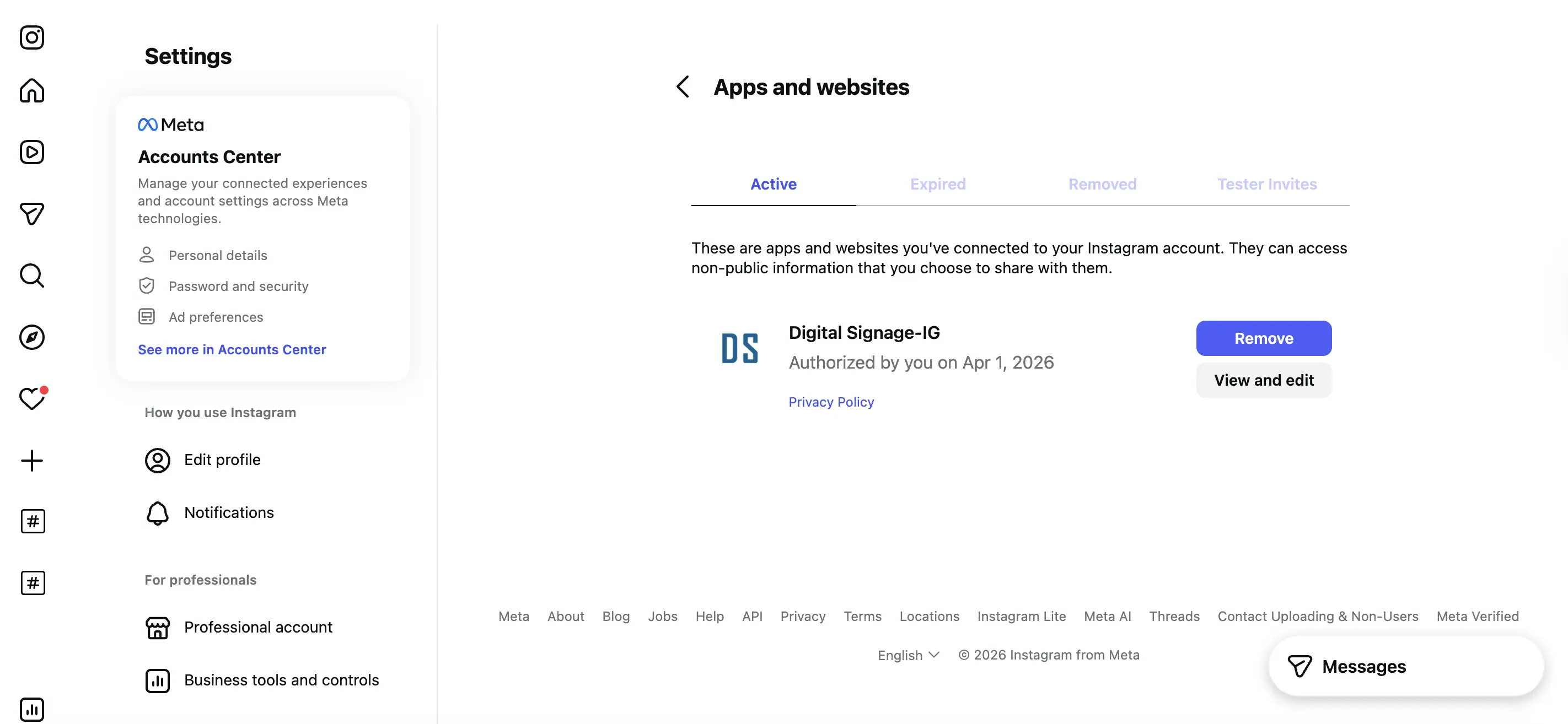
Remove the App’s Access to Instagram
- Open Instagram on the web.
- Click More at the bottom of the left bar, then Settings.
- Under Your app and media, click Website permissions, then Apps and websites.
- On the Active tab, click Remove next to Digital Signage-IG.