Show a Google Slides presentation on your screens as a looping slideshow.
Publish the Presentation in Google Slides
- Open the presentation in Google Slides.
- Click File > Share > Publish to web.
- Tick Start slideshow as soon as the player loads so the slideshow starts by itself.
- Tick Restart the slideshow after the last slide so it loops.
- Click Publish, then OK.
- Copy the link. It looks like
https://docs.google.com/presentation/d/e/.../pub?start=true&loop=true.
Add Google Slides to a Playlist
- Open the playlist, then click the layer. See Playlist Media Management.
- If the layer is empty, the content apps open. If it already has media, click Add New.
- Click Google Apps, then Google Slides.

- In Enter URL, replace the sample link with your presentation’s link.
- Tick Enable Auto-refresh (see the next section).
- Click Save.
- Click Publish changes of this playlist to send it to your screens.
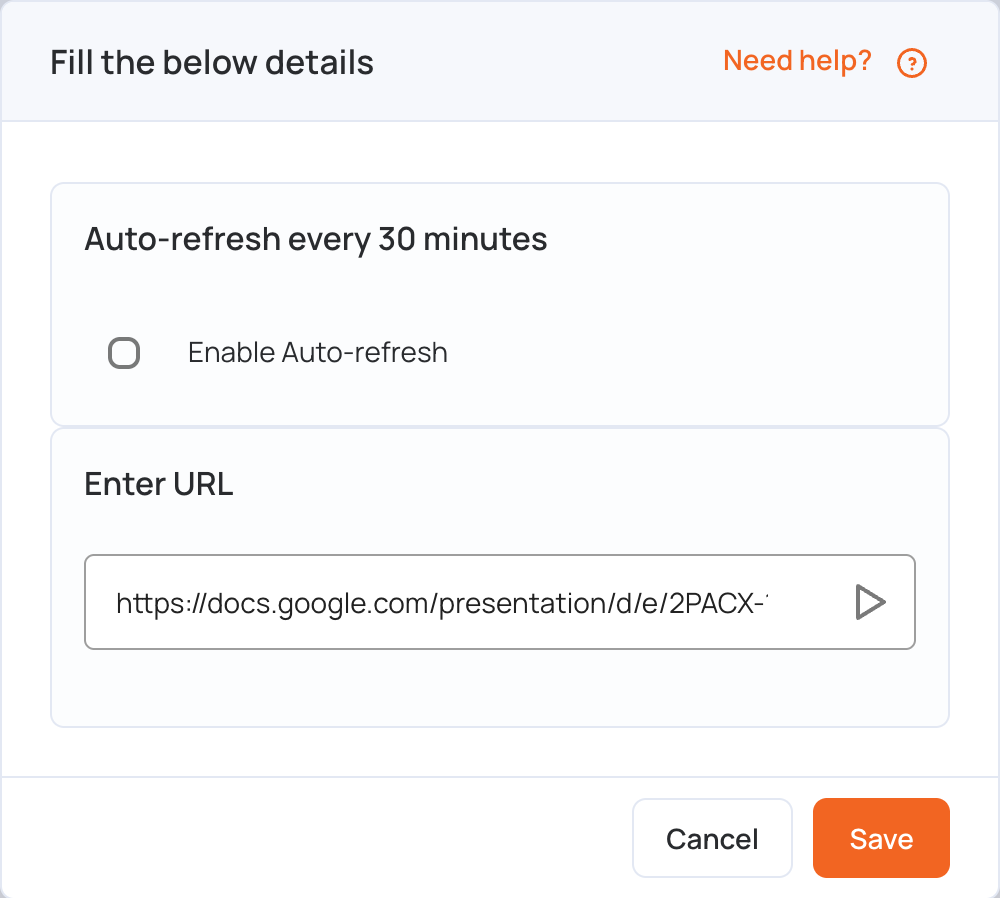
Auto-Refresh
A published presentation does not update on the screen by itself. With Enable Auto-refresh ticked, the screen reloads the presentation every 30 minutes, so your latest changes show within half an hour.