Show the images and videos from a Google Drive folder on your screens. When you add, change or remove files in the folder, your screens update by themselves. People who don’t use the CMS can also add content: they only need access to the folder.
Add a Google Drive Folder
Note: The folder must already contain files before you add it.
- Open the playlist, then click the layer. See Playlist Media Management.
- If the layer is empty, the content apps open. If it already has media, click Add New.
- Click Google Apps, then Google Drive.

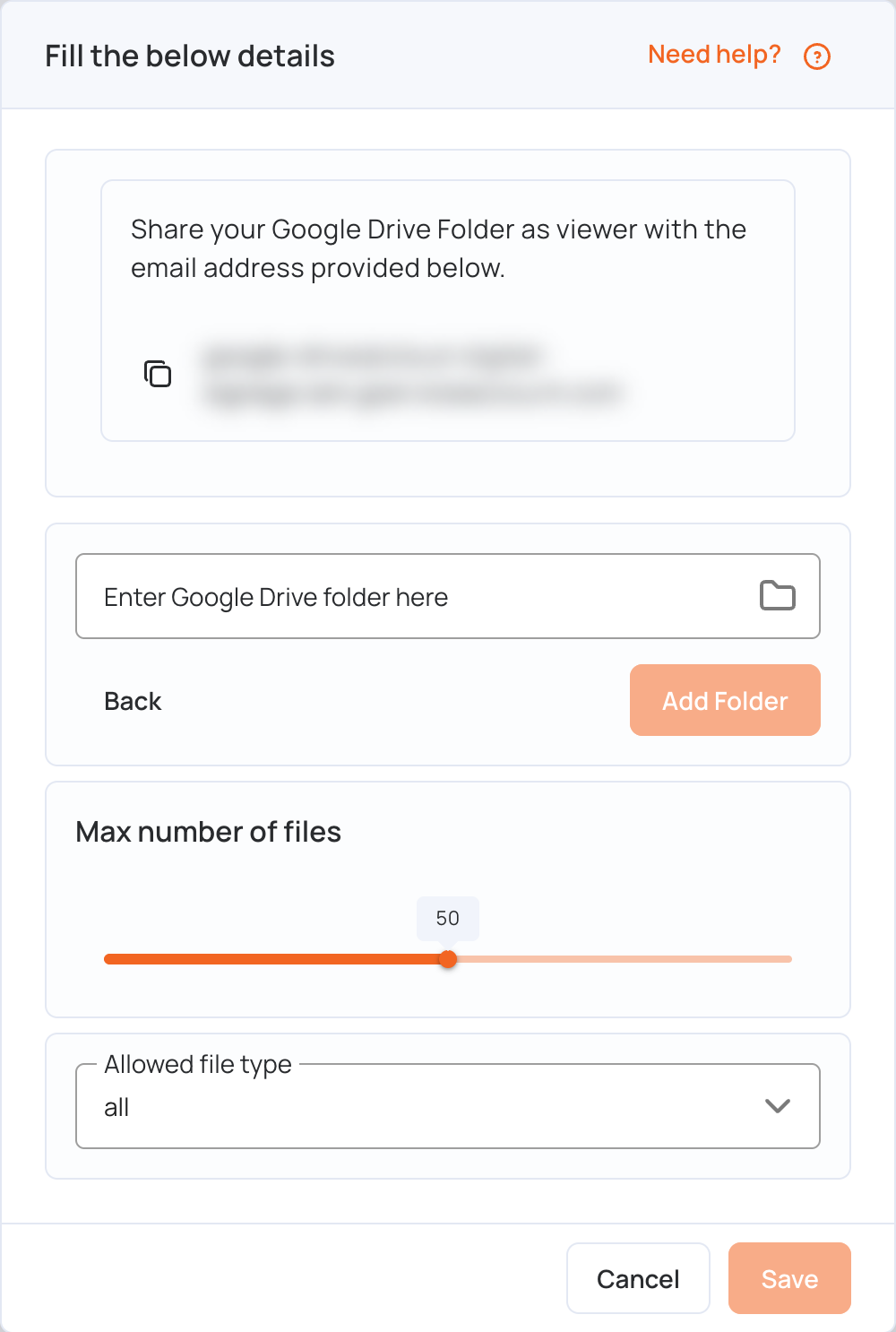
- Click the copy icon to copy the email address shown in the window. Keep the window open.
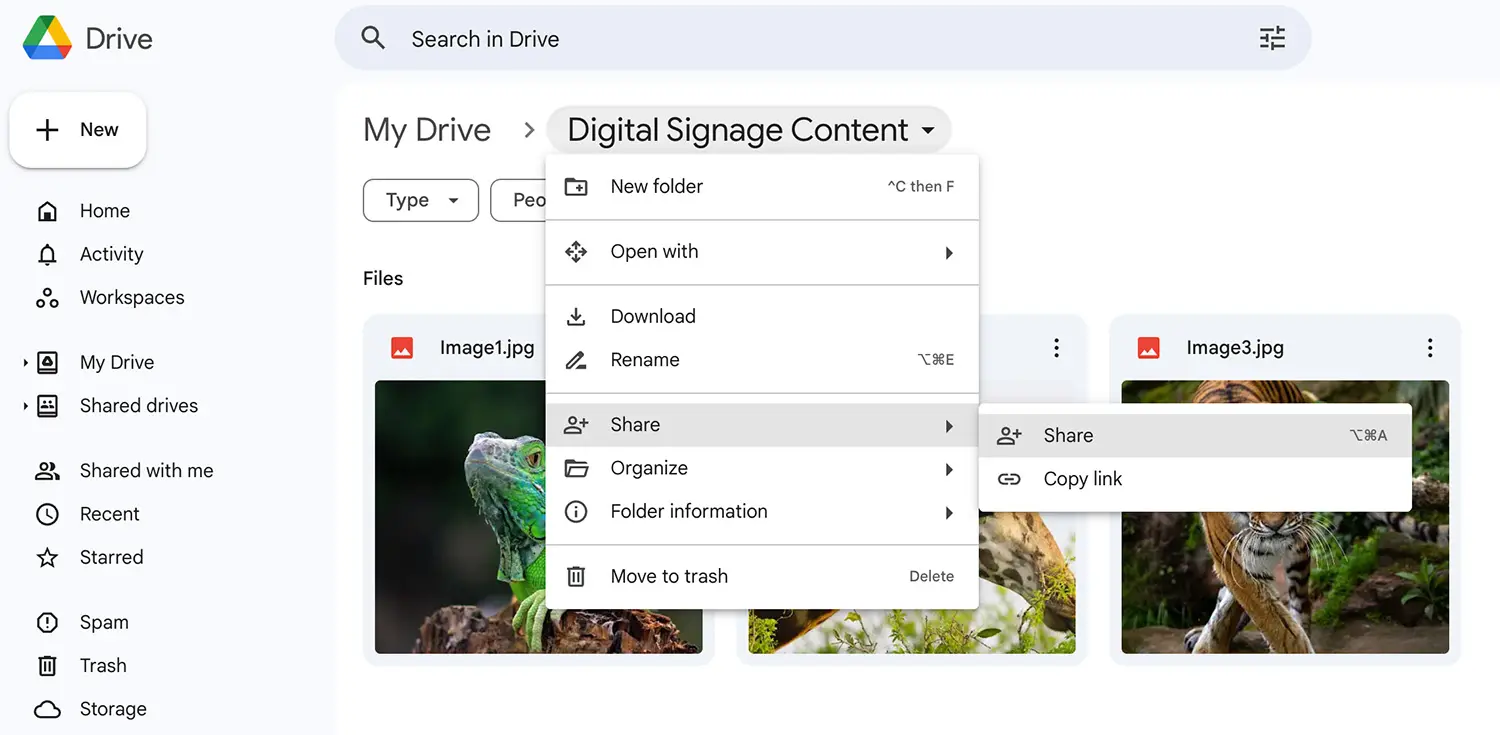
- In Google Drive, open the folder. Click the arrow next to the folder name and choose Share > Share.
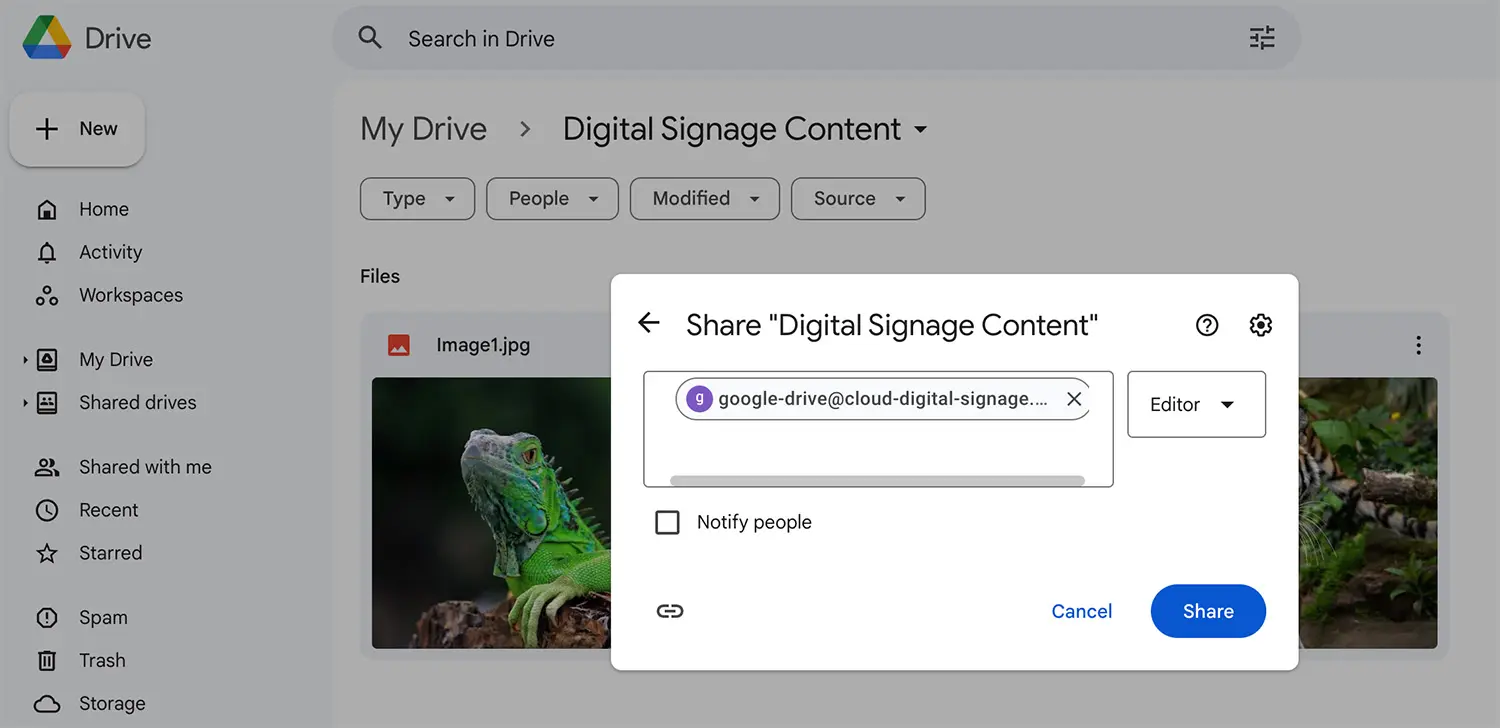
- Paste the email address, set the access to Viewer and click Share. If Google asks, click Share anyway.
- Click the arrow next to the folder name again and choose Share > Copy link.
- Back in the CMS, paste the link in Enter Google Drive folder here and click Add Folder.
- Set the options:
- Max number of files: how many files from the folder to show, from 1 to 99 (50 by default).
- Allowed file type: All, Images or Videos.
- Click Save, then Publish changes of this playlist.
The layer now plays the files from your Google Drive folder.
Add More Folders
- Click Edit next to Google Drive in the layer.
- Click Add a new folder and follow steps 4 to 8 above.
- Choose which folder to show from the list. Next to the list you can open the folder, refresh it, or remove it from the app.
- Click Save, then Publish changes of this playlist.
You can also show another folder in a different layer: click Add New > Google Apps > Google Drive in that layer and choose the folder.
Auto Sync
Auto sync starts after the playlist has been published once:
- Add the Google Drive folder to a playlist.
- Assign the playlist to a screen.
- Click Publish changes of this playlist.
From then on, the CMS checks the folder for changes every 2 minutes and updates your screens.
Important: If the playlist has never been published, the folder does not sync. This makes sure the content is approved before it reaches your screens.
Large Files
- For videos larger than 100 MB, upload them to the folder one at a time, with 2–3 minutes between uploads.
- This gives Google Drive and the CMS time to process each file. Uploading several large files at once can delay or interrupt the sync.
What to Do If a Folder Is Not Syncing
If the folder does not sync within 2 minutes:
- Make a small change in the folder: add a file or delete one.
- Wait 2 minutes.
- If the content still does not update, click Edit next to Google Drive in the layer, then click the refresh icon next to the folder.
- If the changes still do not appear, click Publish changes of this playlist.
- If the folder still does not sync, contact your support team.