The Google Drive integration empowers you to easily manage your digital signage content directly from your Google Drive. With this feature, you can link media files from your Google Drive to your digital signage displays, and any updates or changes made in the designated Google Drive folder will automatically sync with your screens in near real time.
Users have the flexibility to select specific file types to display, such as videos only, images only, or a mix of all supported file types.
Additionally, this integration enables external collaborators to share content on your screens without needing access to your digital signage CMS, ensuring seamless and secure content management.
How to Link Google Drive to Digital Signage
- Go to the Management Console.
- Click on the layer where you want to add the Google Drive folder.
- If the layer has no media, the apps dialog will open. Otherwise, click on Add New
- Click on Google Apps.
- Choose Google Drive.
- Click on the Copy icon to copy the provided email address.
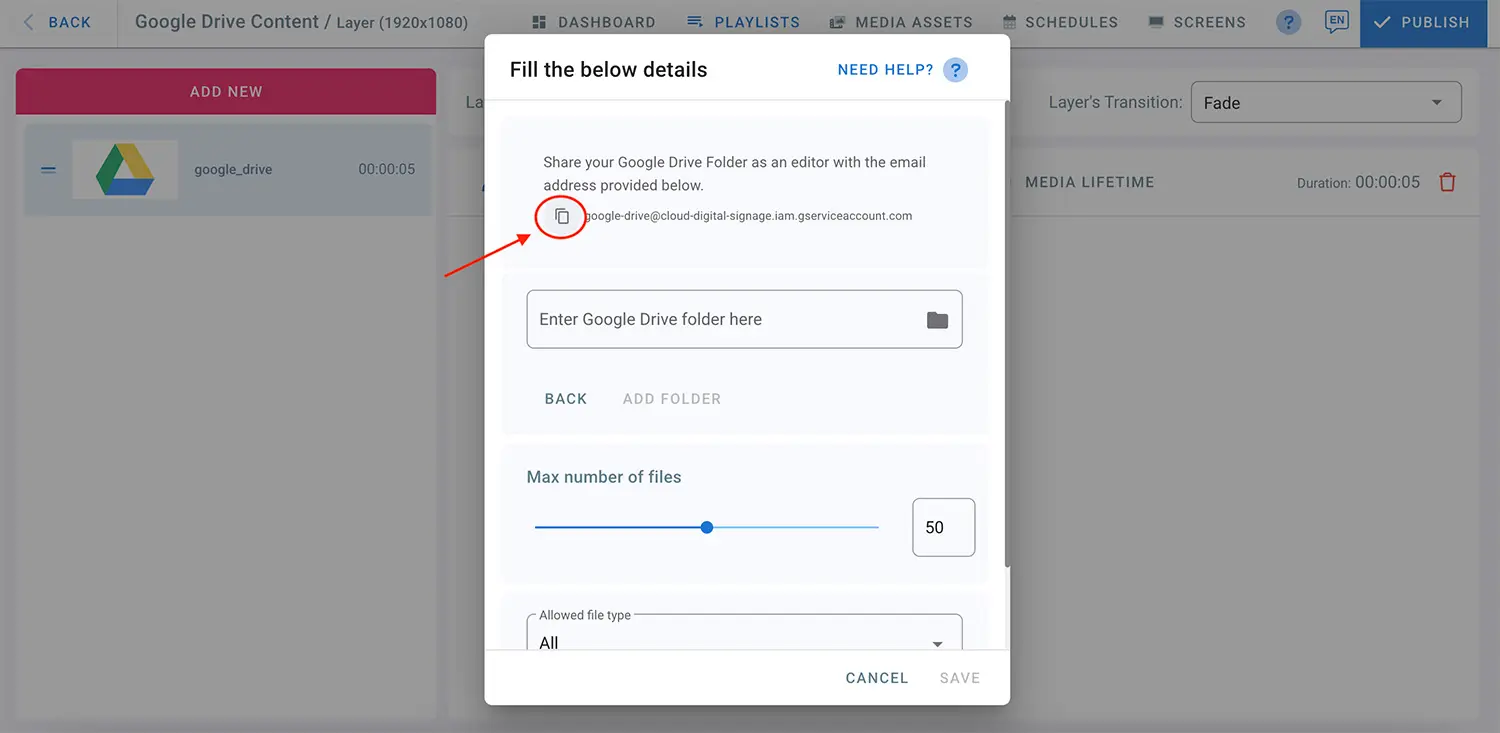
Now, share your Google Drive folder with the copied email address as a Viewer.
Note: The Google Drive folder must already contain files before it is added to the Management Console.
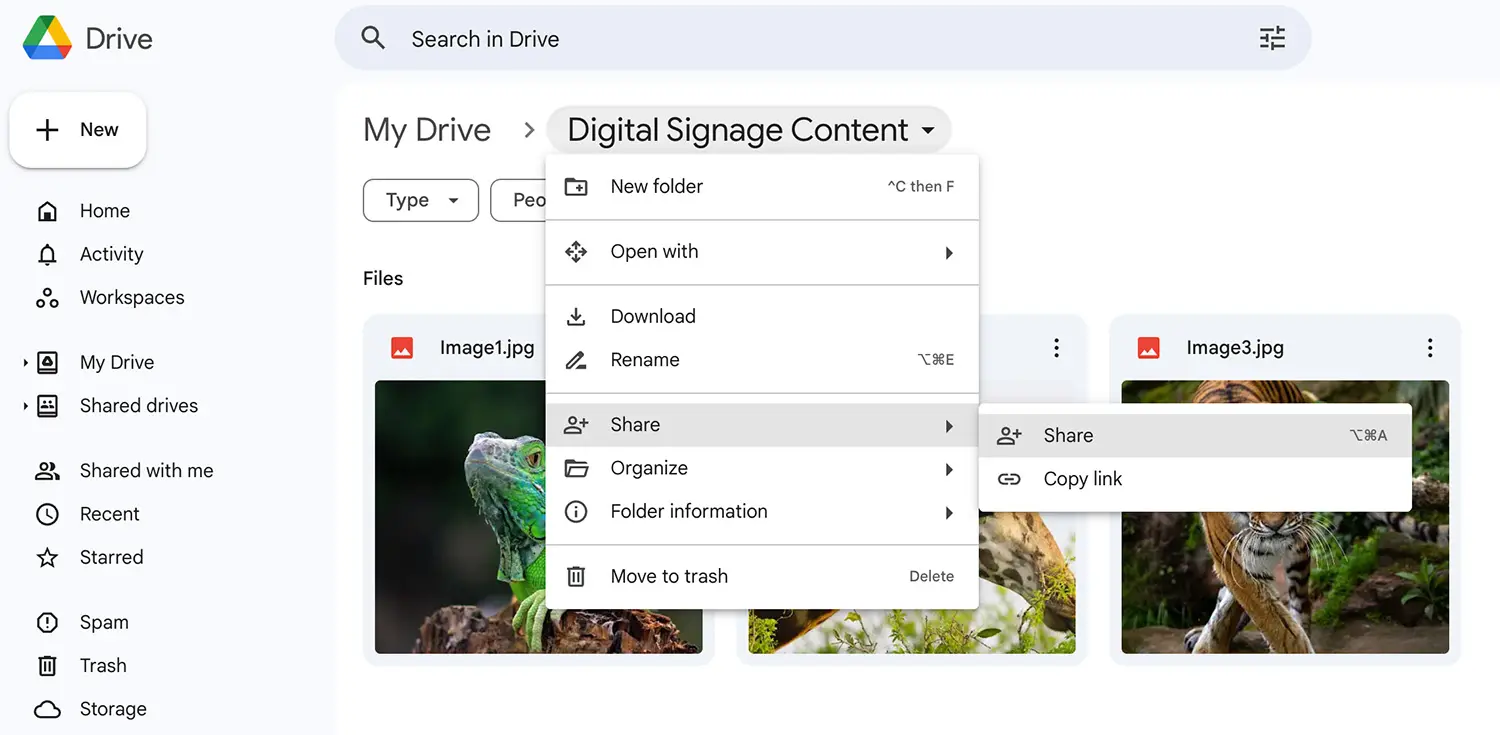
- Open the Google Drive folder you want to share.
- Click the arrow next to the folder name.
- From the menu, select Share > Share.
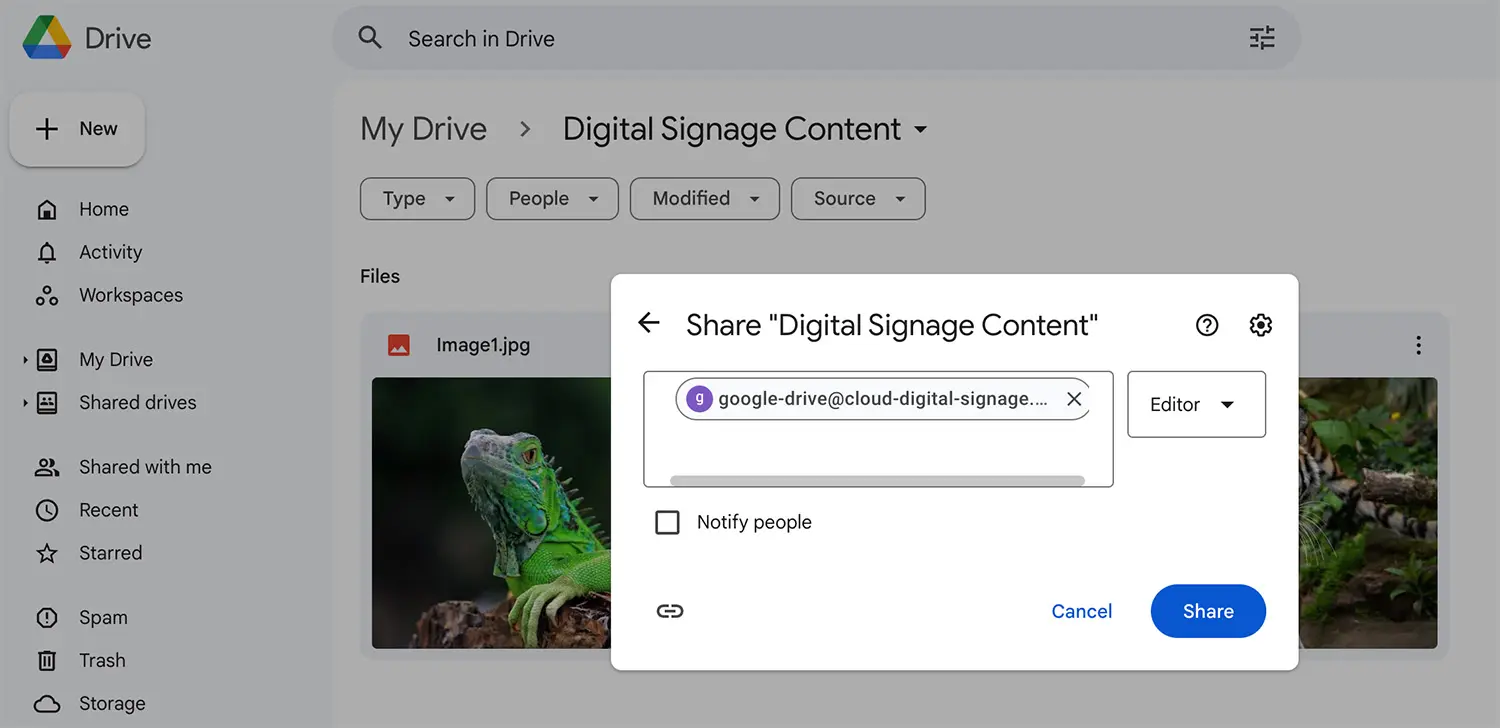
- Paste the copied email address.
- Set the access level to Viewer.
- Click Share, then confirm by selecting Share anyway.
- Click the arrow next to the folder name again.
- Go to Share > Copy link.
Return to the Management Console:
- Paste the folder link into the designated field.
- Click ADD FOLDER.
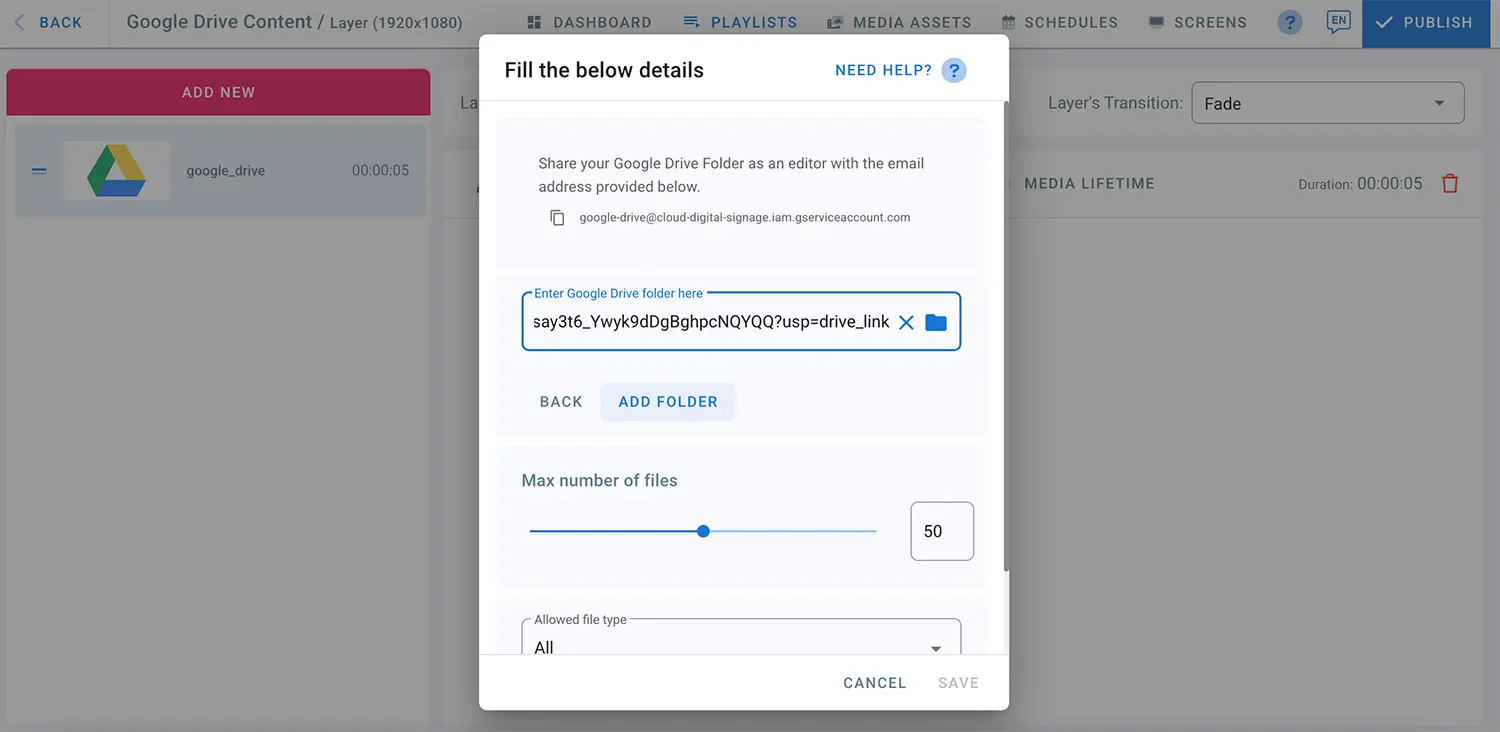
- Choose the maximum number of files to display.
- Select the allowed file type from the drop-down list (images only, videos only, or all supported file types).
- Click Save.
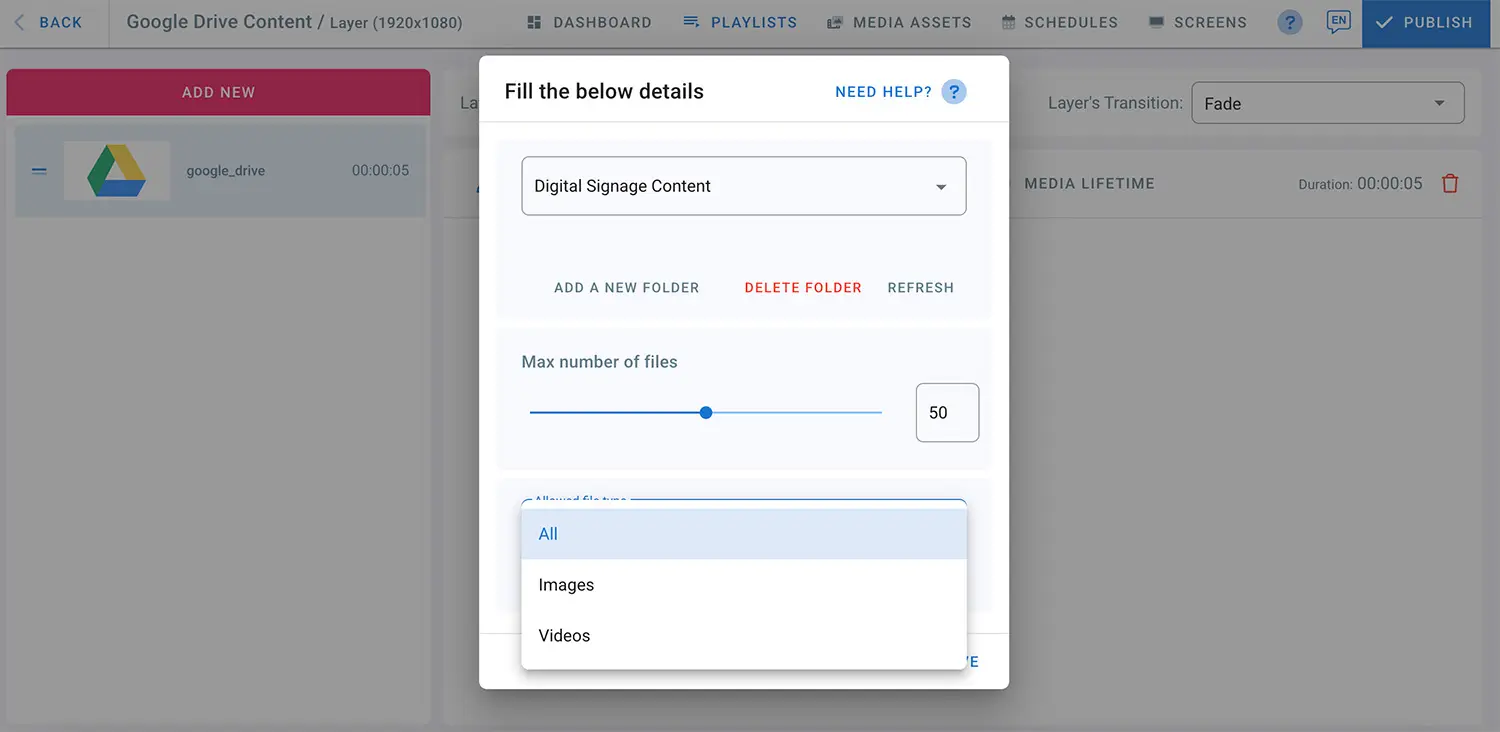
- The files will now be sourced directly from your Google Drive folder.
- Click PUBLISH to display the content on the screen.
- Any updates made to the Google Drive folder will automatically sync with your digital signage.
To add more Google Drive folders, click EDIT next to the playlist name.
- Click ADD A NEW FOLDER and repeat the steps above.
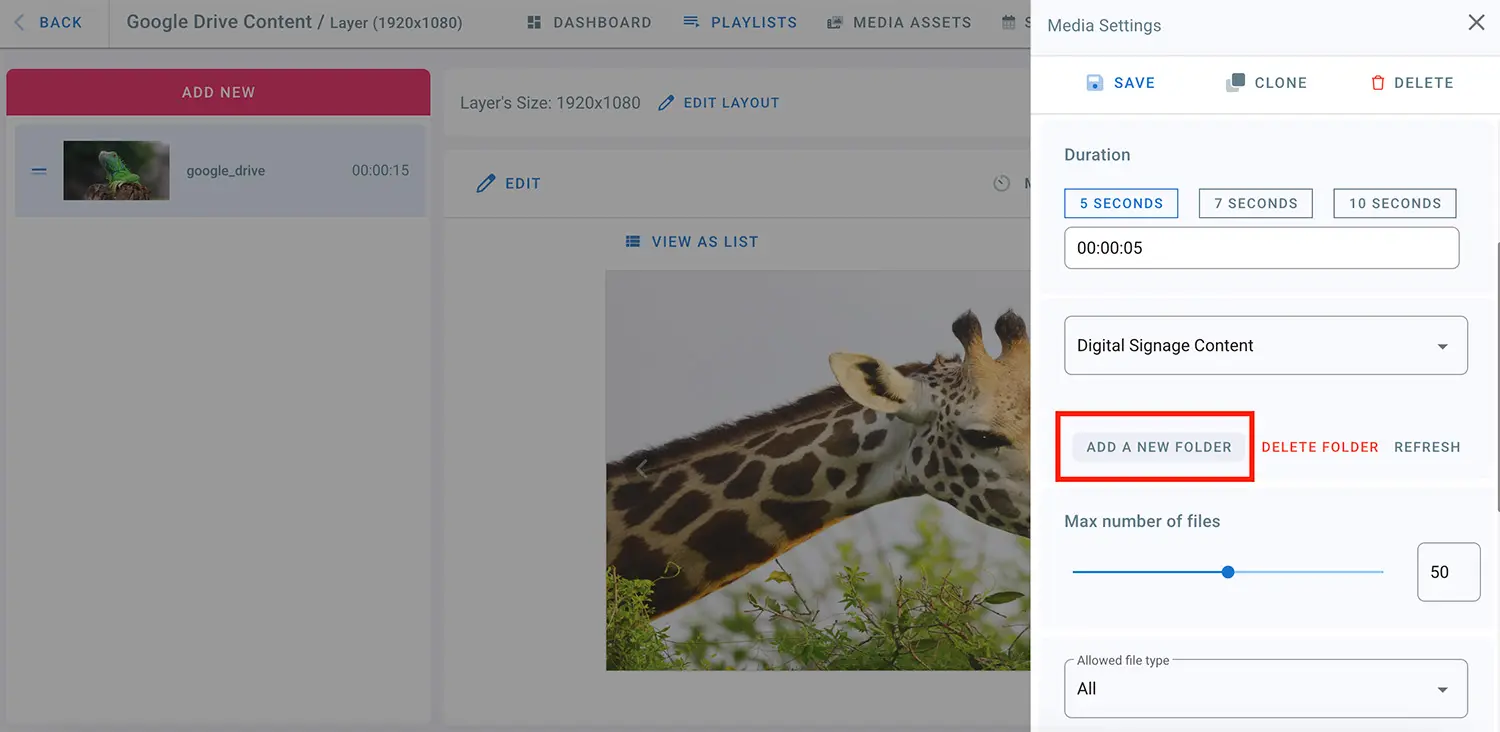
- You can select which Google Drive folder to display by choosing it from the drop-down list.
- Select the file name, click Refresh, then click Save.
You can also add Google Drive folders as separate layers in the playlist:
- Click ADD NEW > Google Apps > Google Drive
- Select the desired folder from the drop-down list
Additional Google Drive folders can be managed from this section.
Auto Sync Behaviour (Important)
For Google Drive auto sync to work correctly, the folder must first be published to a screen.
To enable auto sync:
- Add a Google Drive folder to a playlist
- Assign this playlist to a player
- Click PUBLISH
Once published, EasySignage automatically checks for updates and syncs changes from the linked Google Drive folder every 2 minutes.
Important note:
If the playlist is not published at least once, the Google Drive folder will not sync. Auto sync only starts after the initial publish action.
This ensures content is intentionally approved before being displayed on screens.
Large Files & Sync Recommendations
When working with large media files, especially videos, following these recommendations will help ensure reliable syncing.
Large video files
- For video files larger than 100 MB, avoid uploading multiple files at the same time.
- Upload large files one at a time, leaving 2–3 minutes between uploads.
- This allows Google Drive and EasySignage enough time to fully process each file and ensures the folder sync runs correctly.
Uploading multiple large files simultaneously may delay or interrupt the sync process.
What to Do If a Folder Is Not Syncing
If your Google Drive folder does not sync within 2 minutes, follow these steps:
Make a small change in the Google Drive folder
- Add a new file, or
- Delete an existing file
Wait 2 minutes to allow the sync process to run.
If the content still does not update:
- Go to your playlist
- Click Edit on the Google Drive item
- Click Refresh
If the changes still do not appear:
- Click Publish after the refresh is completed
If the folder still does not sync after completing all the steps above, please contact the EasySignage support team for assistance.
These steps resolve most sync-related issues and safely re-trigger the folder update process.