Players with an HDMI input can show live video from another device, such as a TV receiver, a camera, a computer or a media player, inside your playlist. The video can fill the screen or play in a smaller layer next to your other content (picture in picture, or PiP).
- Supported Players
- Set Up the Player
- Add External Video Source to a Playlist
- Switch Between Full Screen and PiP
Supported Players
- Android digital signage player with HDMI input and 4G LTE (APC390K)
- Giada Android digital signage player with HDMI input
- BrightSign XT-series players, the only BrightSign models with an HDMI input:
- Series 5: XT1145, XT2145
- Series 4: XT1144, XT1144-T, XT2144
- Series 3: XT1143
Set Up the Player
- Connect the player to power, and connect the video source to its HDMI IN port.
- Connect the player’s HDMI OUT port to the screen.
- Connect the player to the internet and open the digital signage app.
- Add the screen with its screen ID. See Add a Screen.
Add External Video Source to a Playlist
- Open the playlist, then click the layer for the video. Use a full-screen layer, or a smaller layer for picture in picture. See Playlist Media Management.
- If the layer is empty, the content apps open. If it already has media, click Add New.
- Click Video Apps, then External video source.

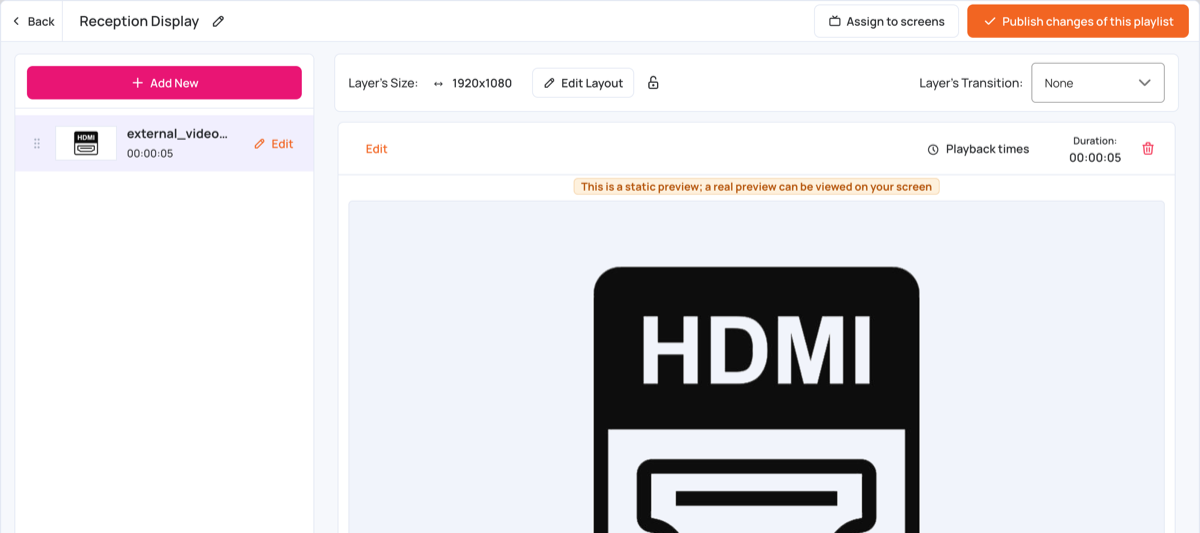
- The app is added to the layer straight away. The CMS shows an HDMI icon as a static preview; the live video shows on the screen.
- Click Publish changes of this playlist, and assign the playlist to the player. See Playlist Management.
Switch Between Full Screen and PiP
To switch between full screen and Picture in Picture (PiP):
- Create two playlists: one with the external video in a full-screen layer, and one with the video in a small layer next to your other content.
- Create a Channel.
- Add both playlists to the channel and assign the channel to the player. See Channels.