Show a live Canva design on your screens. When you change the design in Canva, your screens update by themselves.
Copy the Embed Link from Canva
- Open your design in Canva.
- Click Share at the top right.
- Choose Embed, then click Embed again.
- Click Copy next to Smart embed link.
Add Dynamic Canva to a Playlist
- Open the playlist, then click the layer. See Playlist Media Management.
- If the layer is empty, the content apps open. If it already has media, click Add New.
- Click General Apps, then Dynamic Canva.

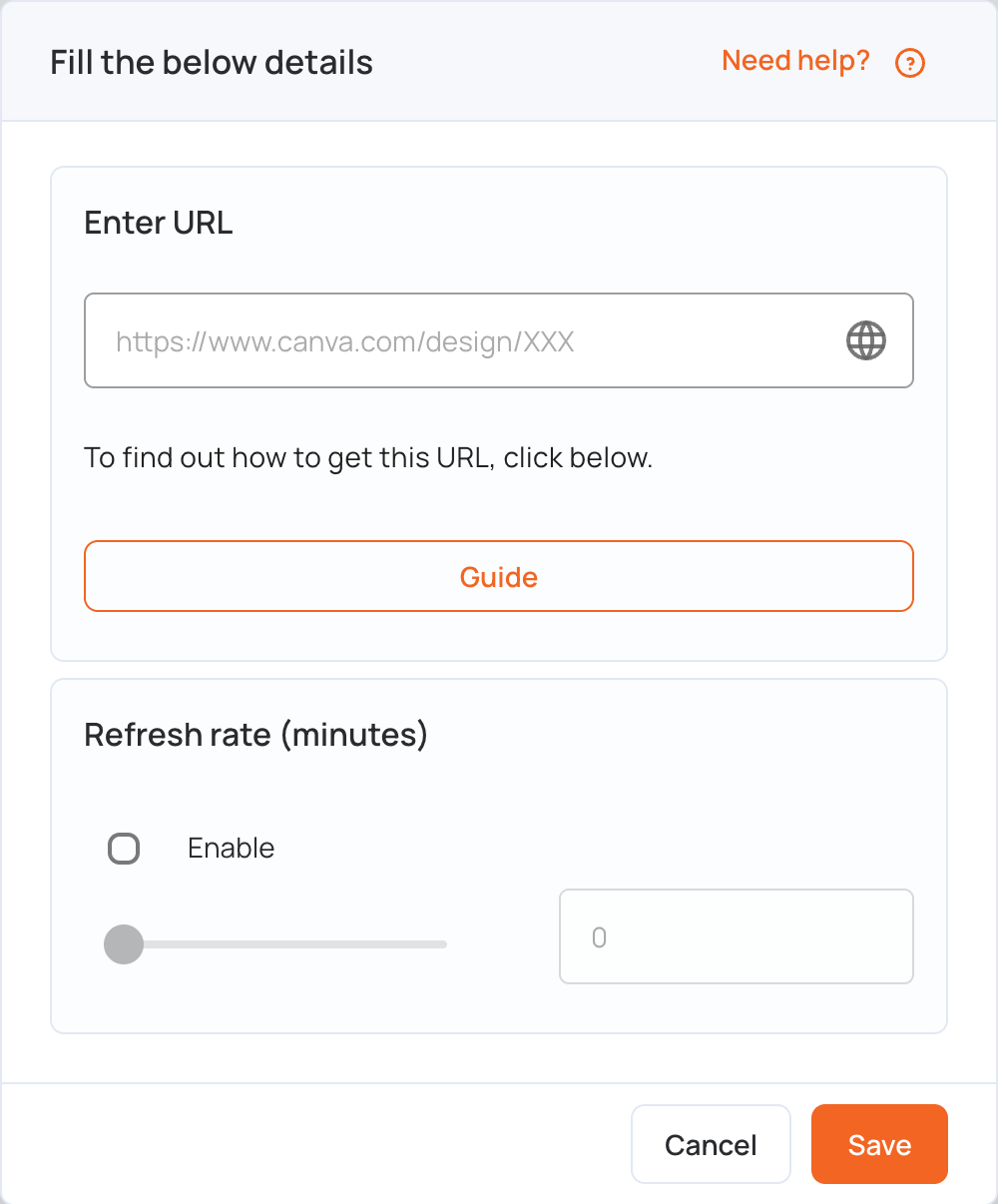
- In Enter URL, paste the embed link.
- Under Refresh rate (minutes), tick Enable and set how often the screen reloads the design, in minutes (up to 90).
- Click Save.
- Click Publish changes of this playlist to send it to your screens.
Your screens now show the latest version of the design each time they reload it.
Note: Dynamic Canva needs an internet connection on the screen. It does not play offline.
Dynamic Canva or the Canva App?
- Dynamic Canva shows a live Canva link. Edits you make in Canva reach your screens at the next refresh, with no need to publish the playlist again.
- The Canva app adds your design to the playlist as an image or a video. After you edit it, you publish the playlist again to update your screens. It also plays offline.