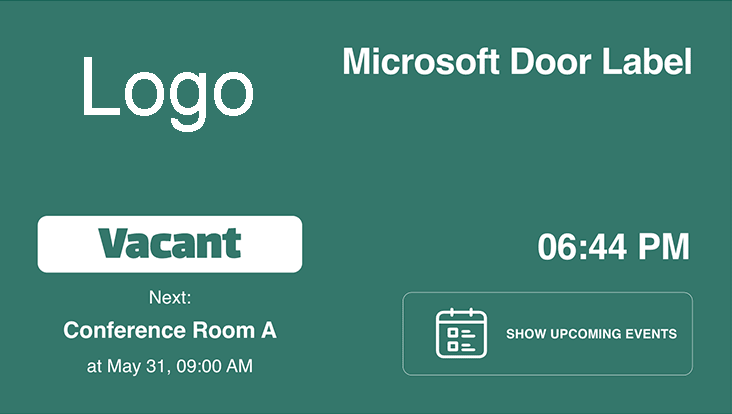
The Door Label app turns a screen next to a meeting room into a room sign. It shows whether the room is Vacant or Occupied, the current meeting and the next one, from a Microsoft or Google calendar.
Add a Door Label
Door labels need a full-screen horizontal layer: use Layout 1 in a horizontal playlist. They are not offered on other layers, or once you resize the layer with Edit Layout.
- Create a horizontal playlist and choose Layout 1. See Playlist Management.
- Click the layer. If it already has media, click Add New.
- Click Calendars, then Microsoft Door Label or Google Door Label.

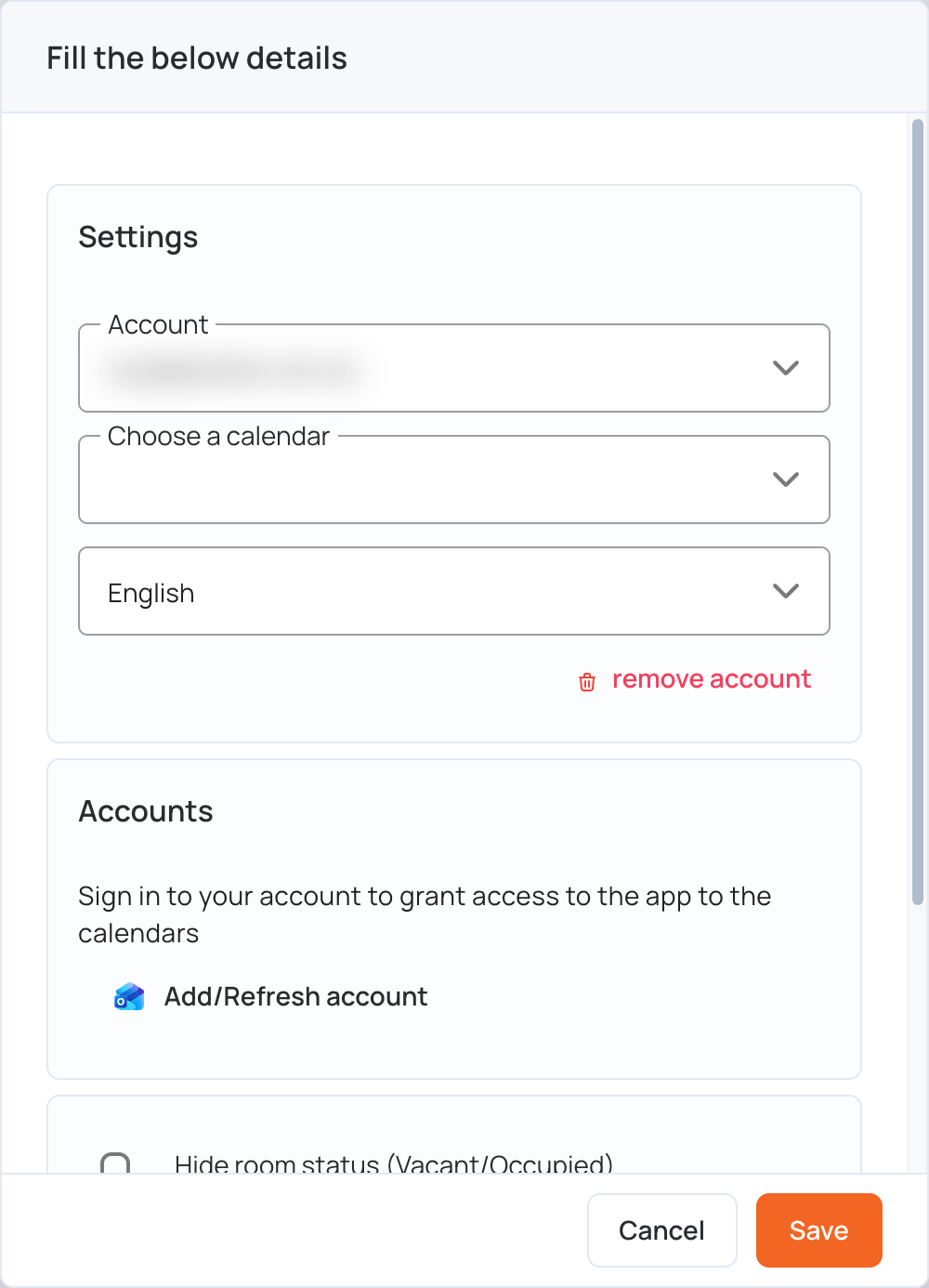
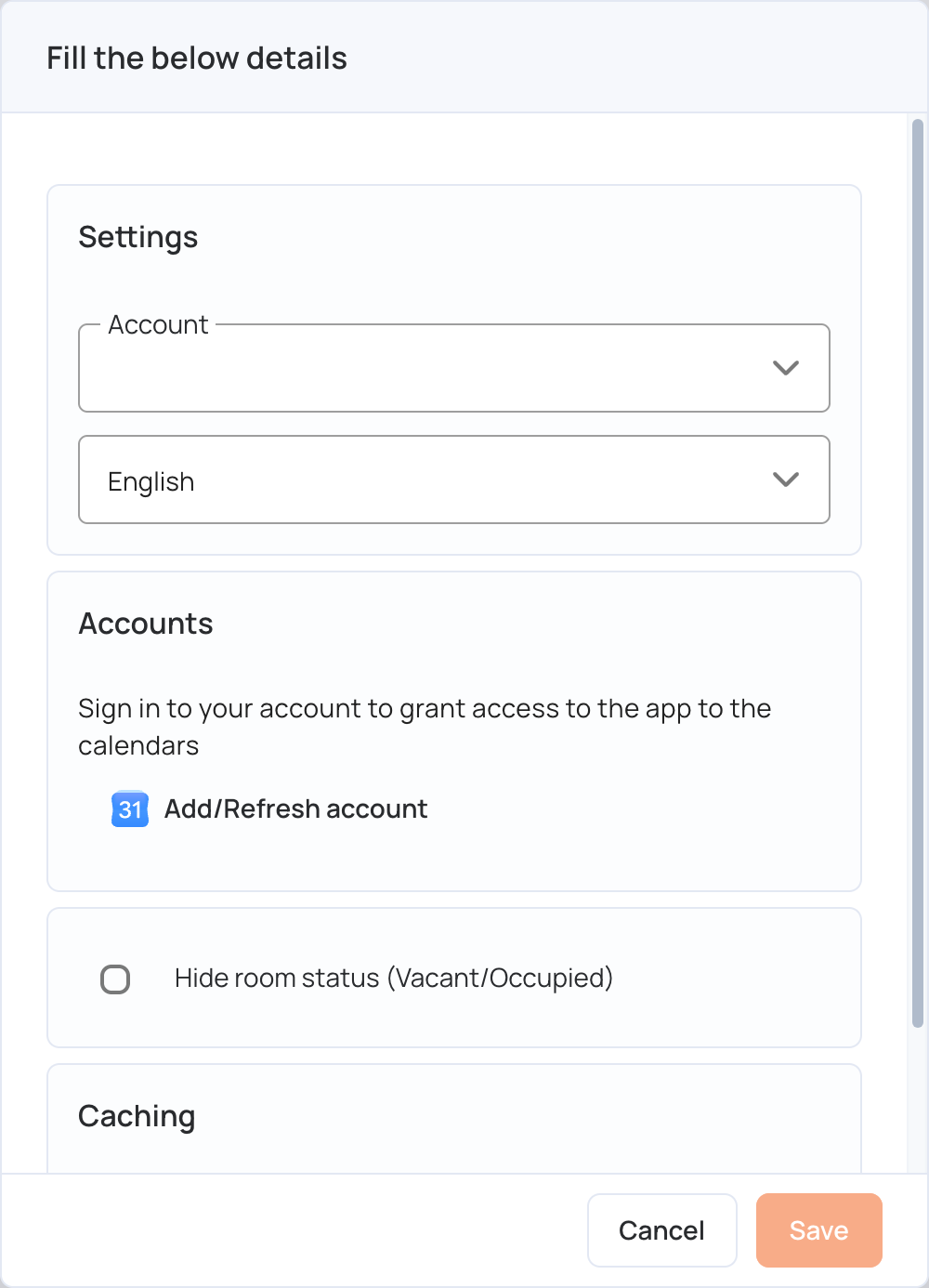
- The Fill the below details window opens. Under Accounts, click Add/Refresh account and sign in to your Microsoft or Google account. Allow access to your calendars when asked.
- Under Settings, choose:
- Account: the connected account to use
- Choose a calendar: the room’s calendar
- Optional: tick Hide room status (Vacant/Occupied) to show the meetings without the room status.
- Click Save.
- Click Publish changes of this playlist, and assign the playlist to the screen at the room. See Playlist Management.
On the Screen
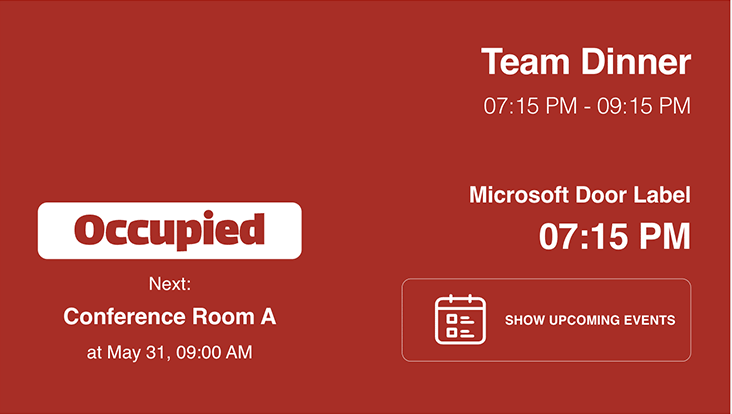
When a meeting starts, the status changes from Vacant to Occupied and shows the meeting and its time.
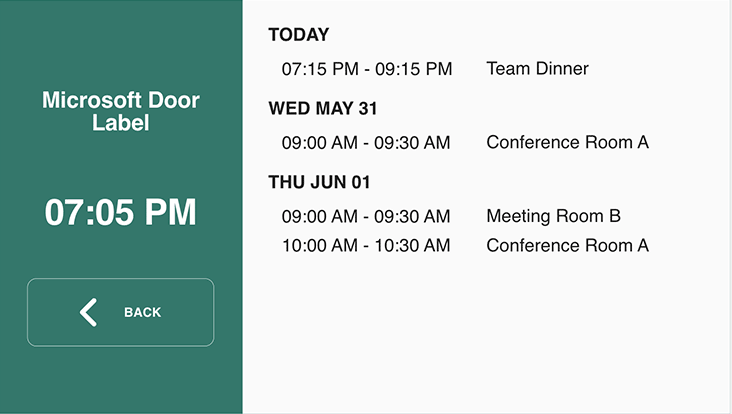
On a touch screen, tap Show Upcoming Events to list the next meetings.
Manage Accounts
Click Edit next to the door label in the layer to open its settings.
Add another account:
Microsoft Account:
- Sign out from your Microsoft account.
- Click Add/Refresh account.
- Sign in with the other Microsoft account.
- Enter the email Address and password and then click Sign in.
- Select a Calendar for the new Microsoft Account added.
Google Account:
- Click Add/Refresh account and sign in with the other account.
- Enter the email address and password and then click Continue.
- Click on “Allow” to allow digital signage to see and download the Google Calendar.
- Select a Calendar for the new Google Account added.
Refresh an account:
If the door label stops showing calendar changes, click Add/Refresh account and sign in again.
Remove an account:
Choose it in Account and click remove account.
Add Your Logo
- Go to Settings > Calendars.
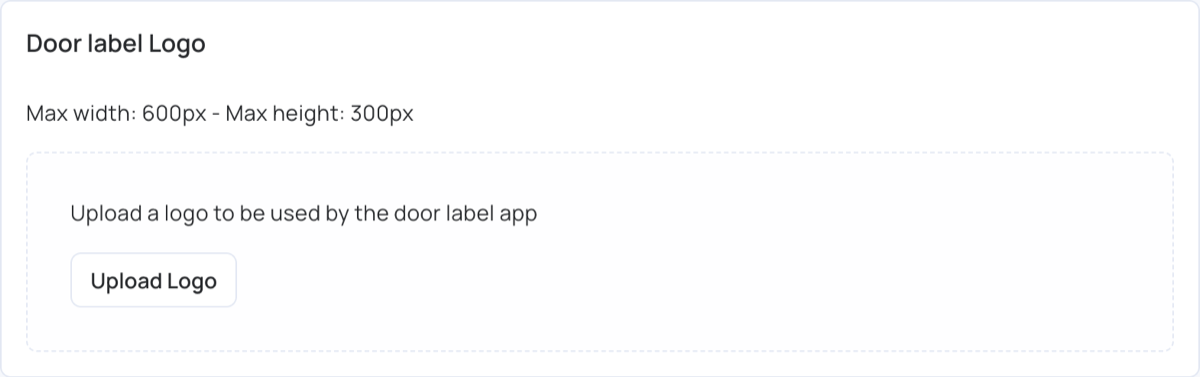
- Under Door label Logo, click Upload Logo and choose your logo. The logo can be up to 600 px wide and 300 px high.
- To change it later, click Edit. To remove it, click Delete.
Caching
The door label remembers the room’s last known schedule, so a sign that has just been switched on can show whether the room is free straight away instead of waiting. That is what makes the status appear quickly, and it is why Disable cache is switched off to begin with. If the sign has been off for a while it waits for fresh data anyway, rather than showing an out-of-date status.
Turn it on only if one screen shows more than one calendar and they get mixed up — for example, a door label briefly showing another room’s meetings. The sign will then always wait for its own events, which takes a little longer to appear on the screen.
- Click Edit next to the door label in the layer.
- Under Caching, tick Disable cache (always wait for fresh calendar data).
- Click Save, then Publish changes of this playlist.