Show the current date and time, or a countdown to an event, on your screens.
Note: The Date and time apps are only offered for layers of a built-in layout that suit them, for example the 300 x 120 corner layer of Layout 2. They are not offered once you resize the layer with Edit Layout.
How to Add a Date and Time App
- Open the playlist, then click the layer. See Playlist Media Management.
- If the layer is empty, the content apps open. If it already has media, click Add New.
- Click Date and time apps, then choose one:
- Date and Time (24Hrs) or Date and Time: the time and the date
- Digital Clock (24Hrs) or Digital Clock: the time only
- Countdown: the time left until a date and time you set

Date and Time, and Digital Clock
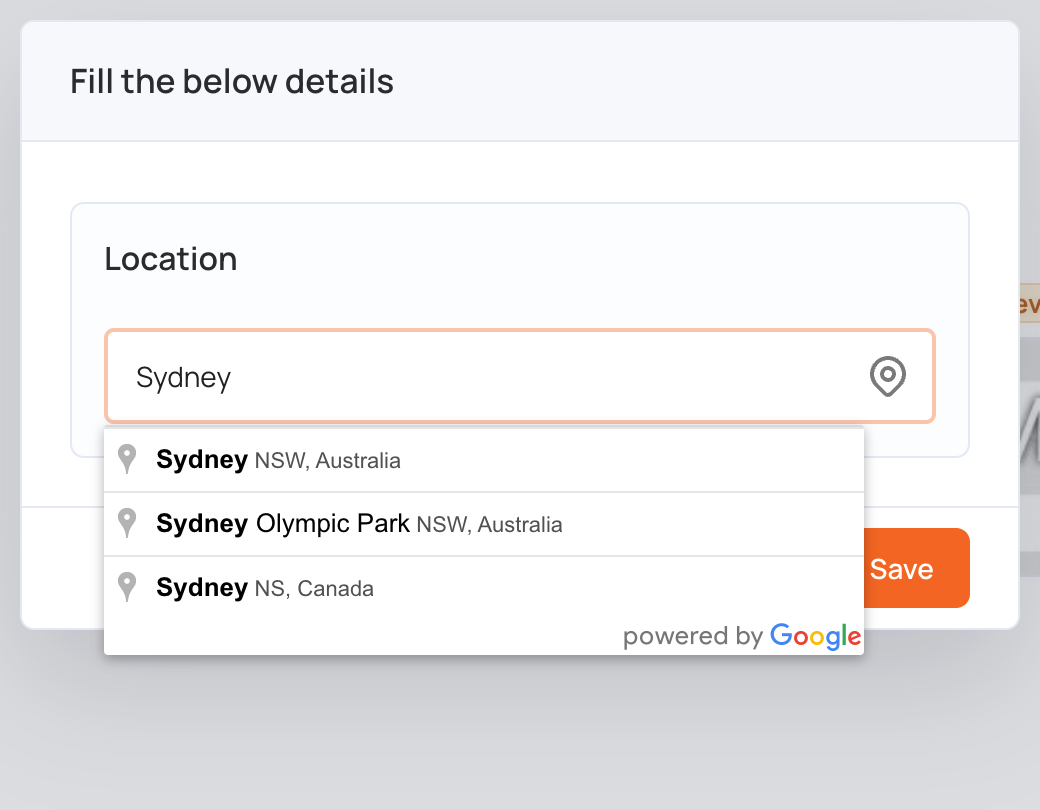
- In Location, start typing a city or address, then choose it from the list. The app shows the local time at that location.
- Click Save.
- The layer shows a static preview. The live time shows on your screens.
- Click Publish changes of this playlist to send it to your screens.
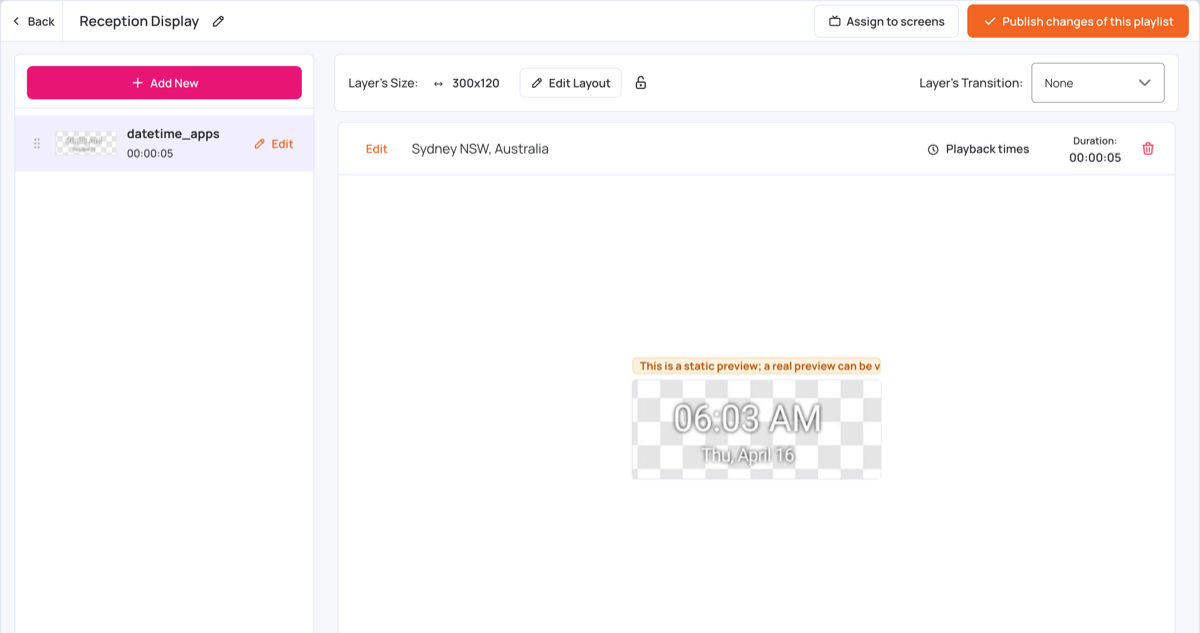
To change the location later, click Edit next to the app in the layer.
Countdown
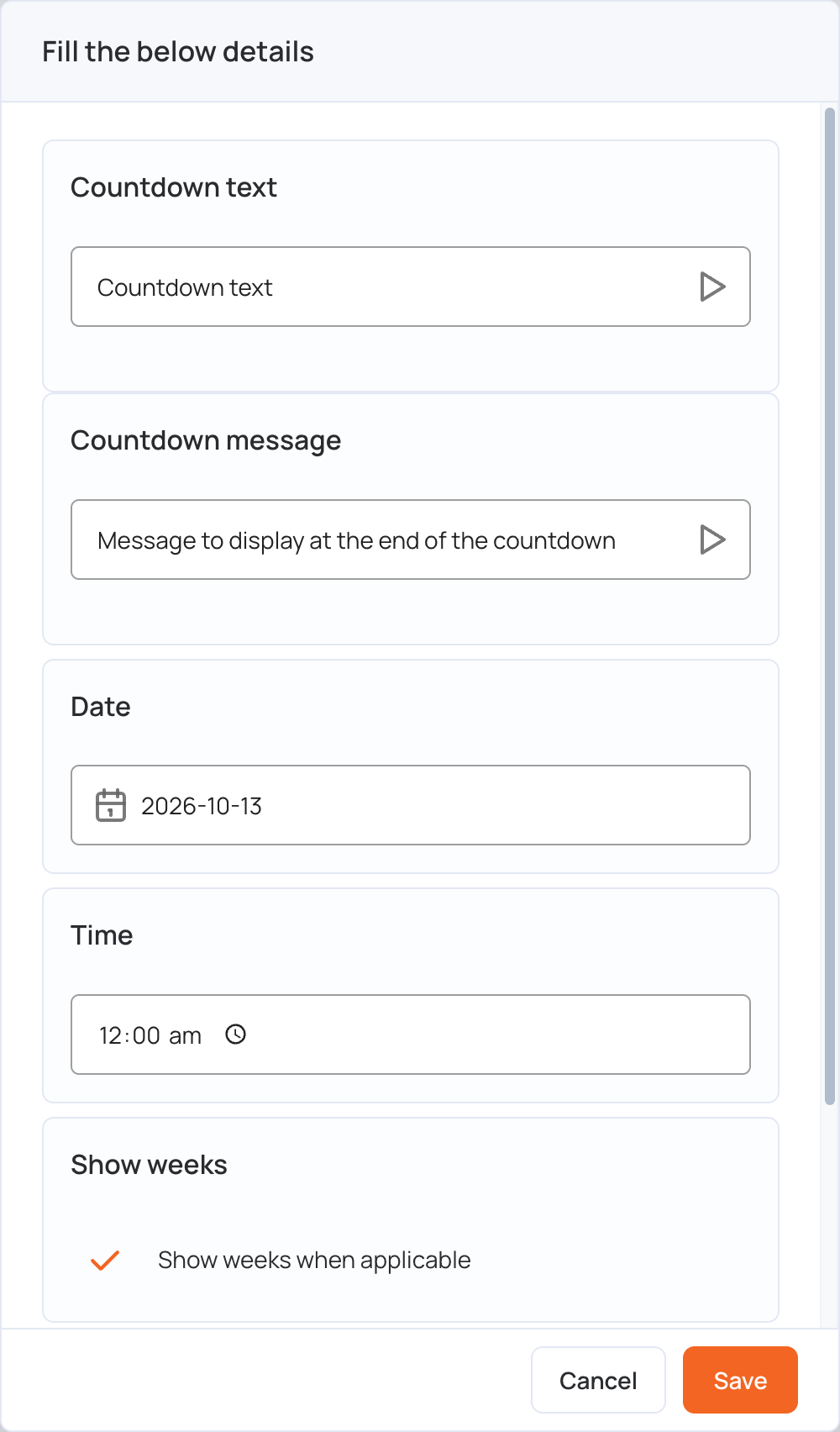
- Fill in the details:
- Countdown text: the text shown with the countdown
- Countdown message: the message shown when the countdown ends
- Date and Time: when the countdown ends
- Show weeks when applicable: counts in weeks as well as days, hours, minutes and seconds. Clear it to count in days, hours, minutes and seconds only.
- Location: the countdown uses the time zone of this location
- Click Save.
- Click Publish changes of this playlist to send it to your screens.