Show a Google Data Studio report or dashboard on your screens. Data Studio was called Looker Studio before.
Step 1: Share the Report
- Open the report in Looker Studio.
- Click Share at the top right.
- Under link settings, choose Public (viewer).
- Click Save, then Close.
Step 2: Copy the Embed Link
- Click Edit to edit the report.
- Click File > Embed report.
- Tick Enable embedding.
- Choose Embed URL and click Copy to clipboard.
If embedding is already on, click the arrow next to Share, choose Embed report, then Embed URL > Copy to clipboard.
Step 3: Add the Report to a Playlist
- Open the playlist, then click the layer. See Playlist Media Management.
- If the layer is empty, the content apps open. If it already has media, click Add New.
- Click business Intelligence, then Google Data Studio.

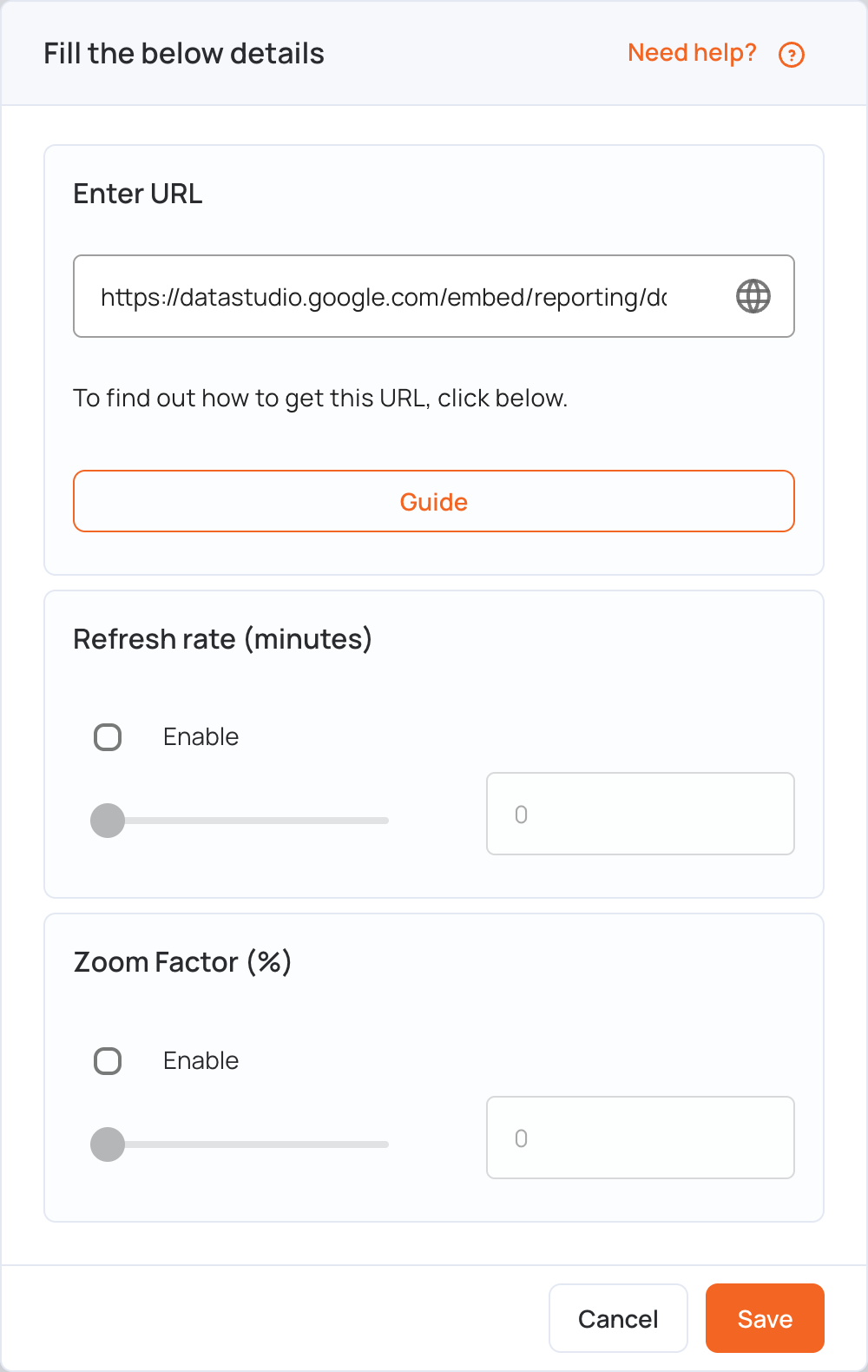
- Paste the embed link in Enter URL.
- Optional settings:
- Refresh rate (minutes): tick Enable and set how often the screen reloads the report (up to 90 minutes).
- Zoom Factor (%): tick Enable and set the zoom (up to 200%) to fit the report to your screen.
- Click Save. The layer shows a preview of the report.
- Click Publish changes of this playlist to send it to your screens.
Note: The screen needs an internet connection to show the report.