Design content in Canva and add it straight to a playlist layer. You can create a new design, or open an image from your playlist in Canva and edit it.
1. Add a Canva Design to a Playlist
1. Add a Canva Design to a Playlist
- Open the playlist, then click the layer. See Playlist Media Management.
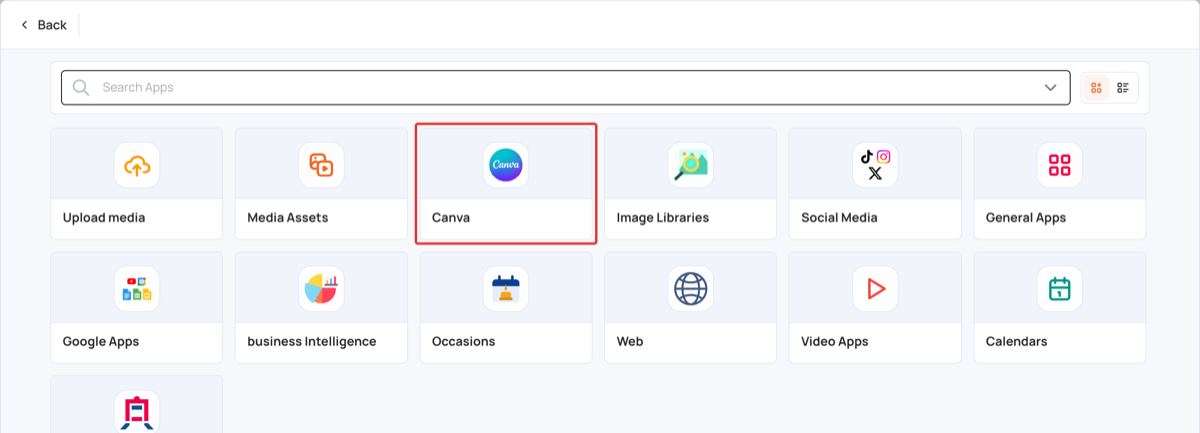
- If the layer is empty, the content apps open. If it already has media, click Add New.
- Click Canva.
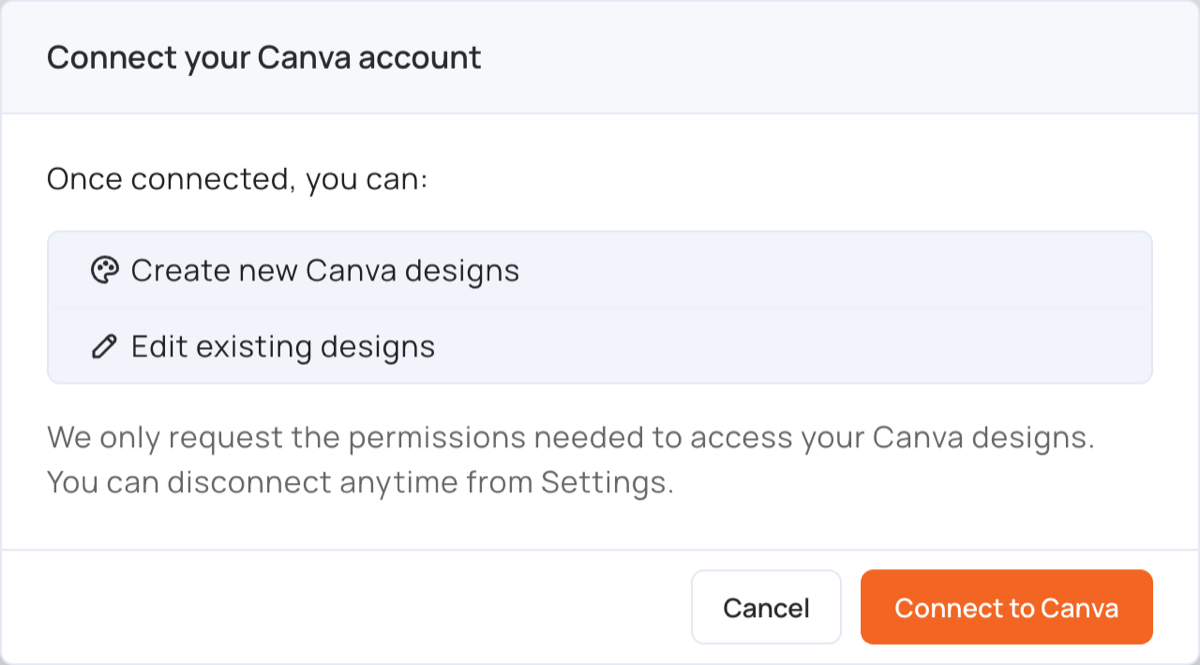
- The first time, the Connect your Canva account window opens. Click Connect to Canva and sign in to your Canva account.
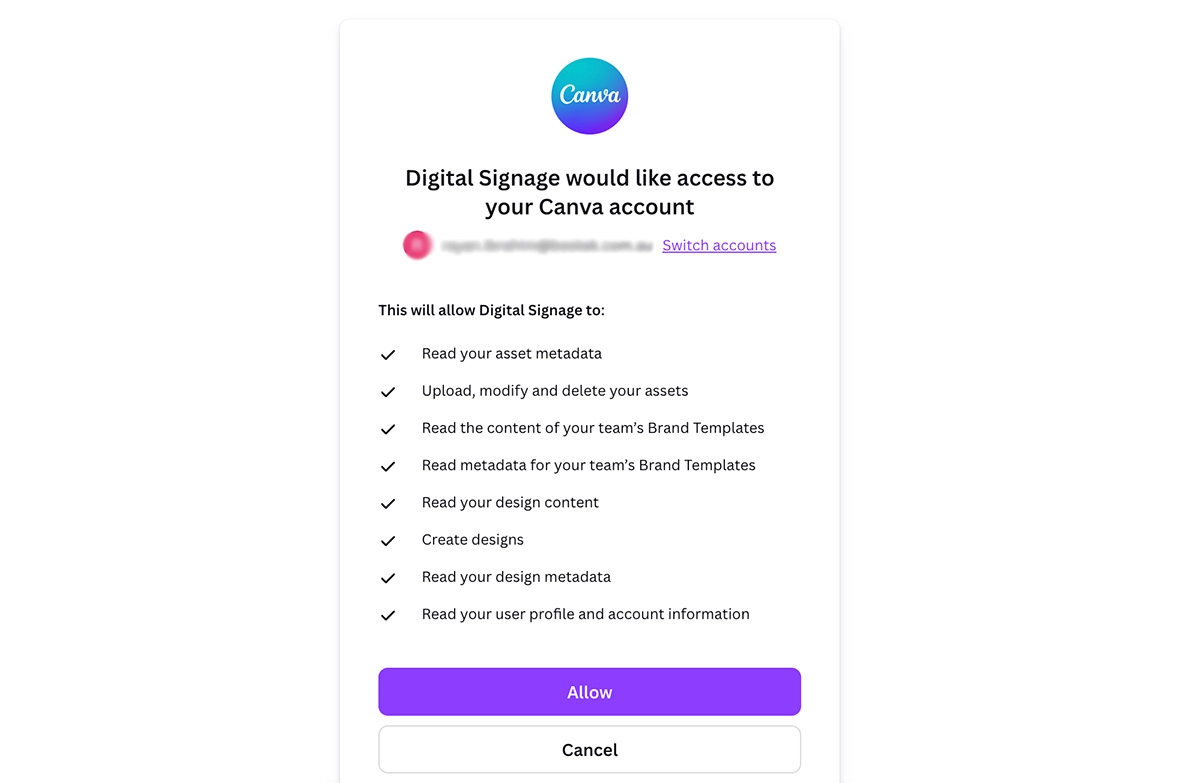
- Click Allow to give the CMS access to your Canva designs.
- Canva opens in a new browser tab with a new design that matches the size of the layer. Create your design.
- When it is ready, click Return to Digital Signage at the top right.
- Choose the export type:
- Video: for designs with video or animations
- Image: for static designs
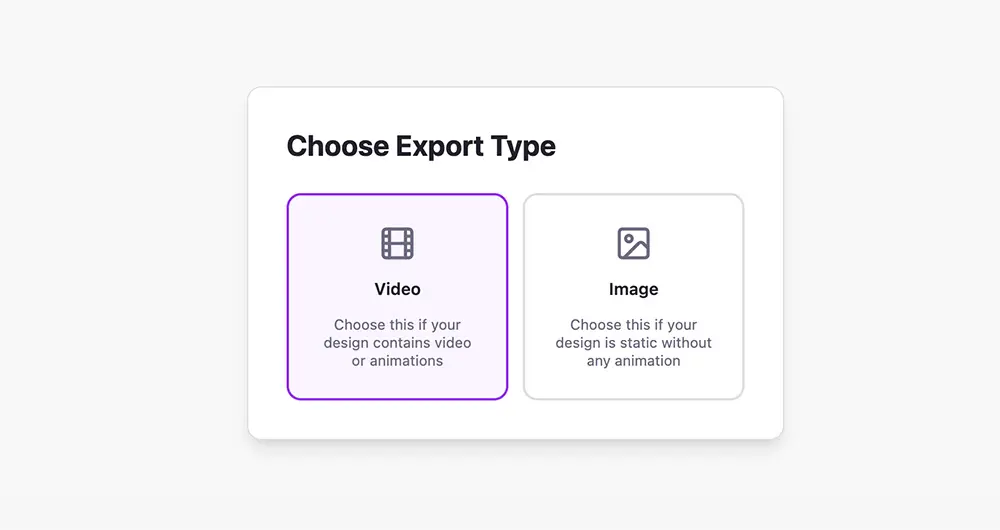
- Wait for the export to finish. The design is added to the layer as an image or a video.
- Click Publish changes of this playlist to send it to your screens.
Note: Keep the playlist open in the CMS tab while you design. The design is added to the layer that was open when you clicked Canva.
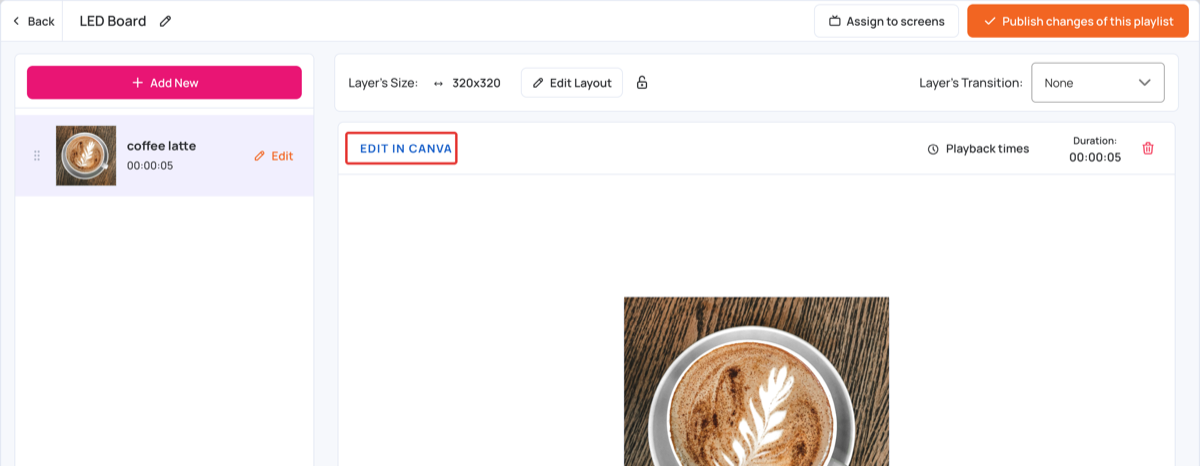
To change the design later, select it in the layer and click Edit in Canva.
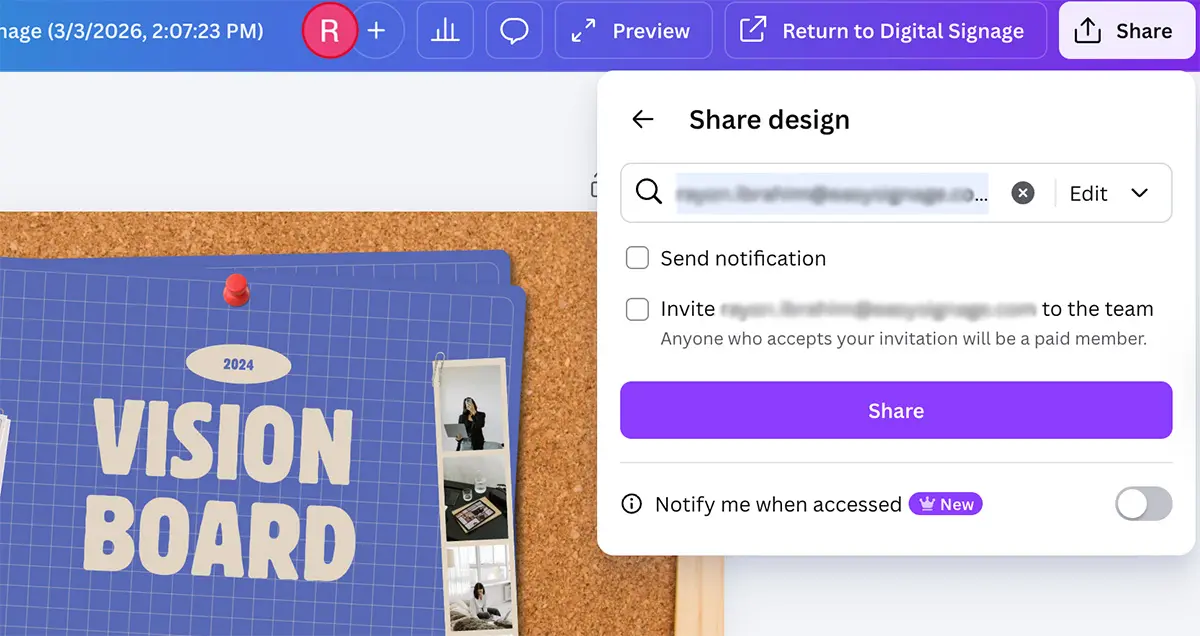
Give sub-users access to your Canva design
Designs belong to your Canva account. To let a sub-user edit one, share it with them in Canva:
- Open the design in Canva.
- Click Share at the top right.
- Enter the sub-user’s email address.
- Choose whether they can edit or only view the design.
- Click Share.
Disconnect your Canva account
Go to Settings > Canva and click Sign out. See Canva Settings.
2. Edit an Image with Canva
You can open any image in a playlist in Canva, even one that was not made in Canva. Use Canva’s tools to add text, remove the background, resize or add effects.
- Open the playlist, then click the layer.
- Add the image if it is not there yet: upload it, or add it from Media Assets. See Upload Media.
- Select the image in the layer and click Edit in Canva.
- If you are not connected to Canva yet, click Connect to Canva, sign in and click Allow.
- The image opens in Canva in a new tab. Edit it.
- Click Return to Digital Signage. The edited image replaces the original in the layer.
- Click Publish changes of this playlist to send it to your screens.
Note: Edit in Canva shows for images only.