This help page explains how to connect Canva with digital signage so you can design and publish visual content directly from Canva into your signage playlists.
Canva offers over 250,000 free templates with stunning graphics.
1. How to Use Canva in Digital Signage
2. How to Edit an Image with Canva
1. How to Use Canva in Digital Signage
- Go to the Management Console.
- Click on the playlist then the layer where you want to add the Canva app.
- If the layer has no media, the apps dialog will open. Otherwise, click on Add New.
- Choose Canva.
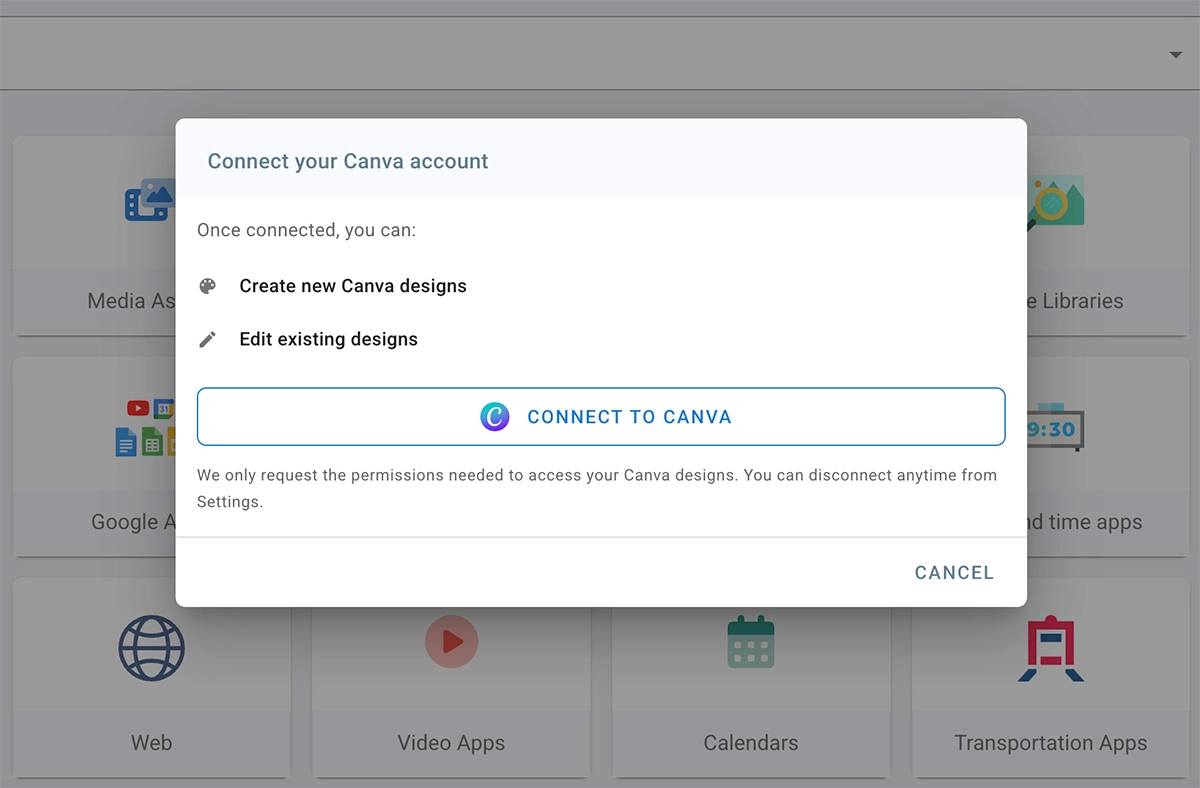
- Click CONNECT TO CANVA to log in to your canva account.
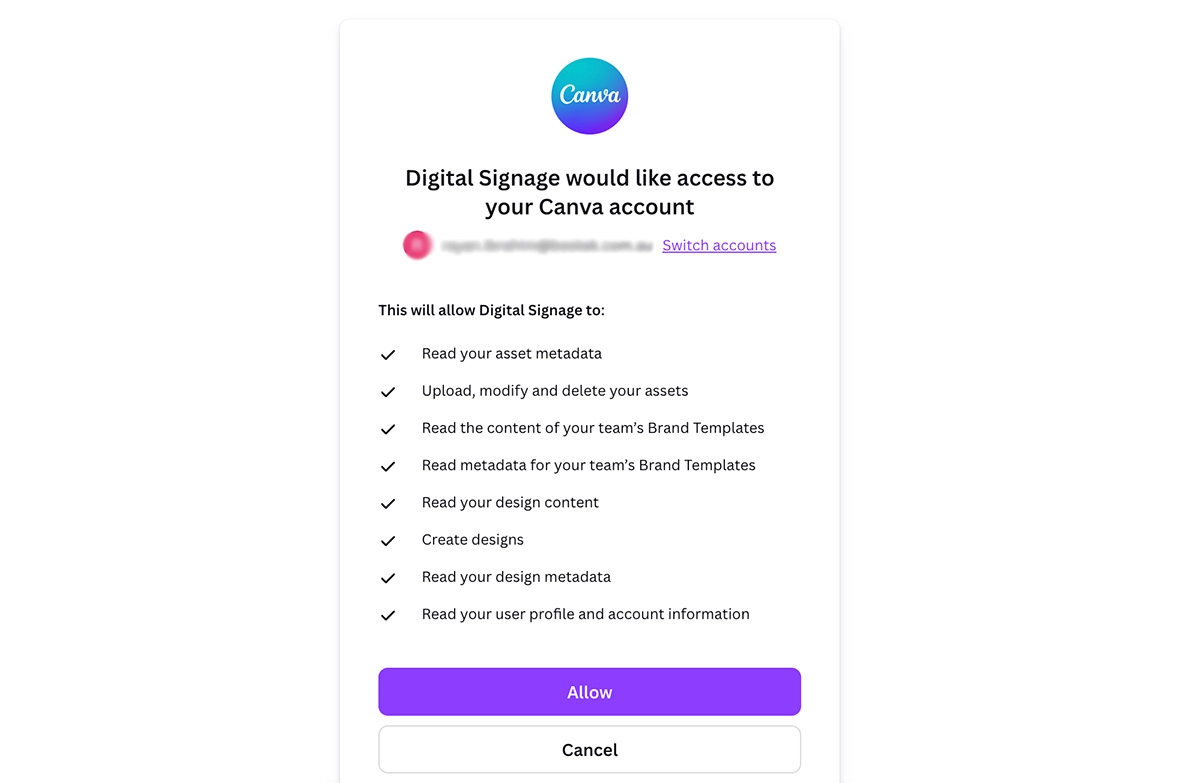
- Click on Allow to grant access to your Canva account.
- Explore the different templates and prepare your design.
- Once ready click on Return to Digital Signage on the top right corner.
- Choose how you want to export your design. Types: “Video” or “image”.
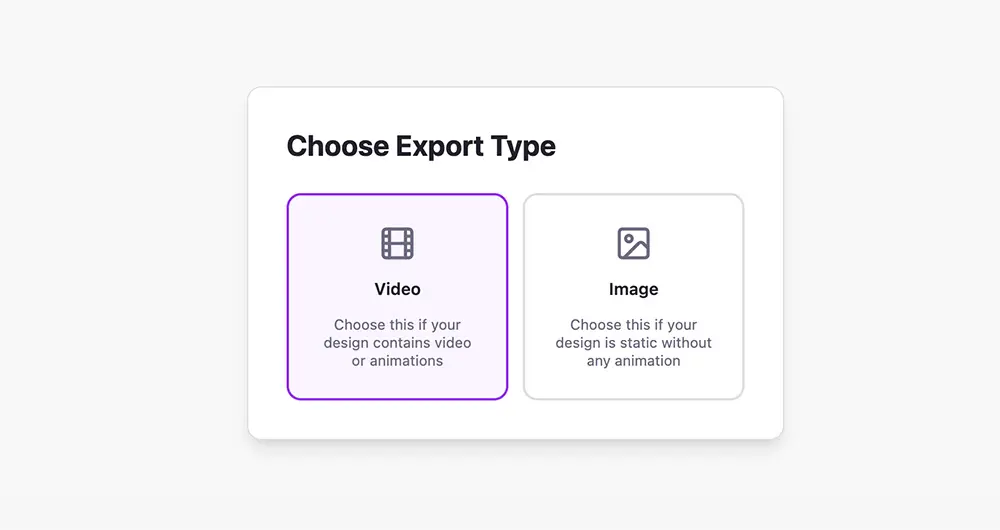
- Wait for the export process to finish.
- Your Canva template will be imported to your digital signage playlist.
- If you need to edit again, click on Edit in Canva.
Grant sub-users access to your Canva design
For a sub-user to access and manage your Canva design, the admin must grant them permission.
- Go to your Canva design.
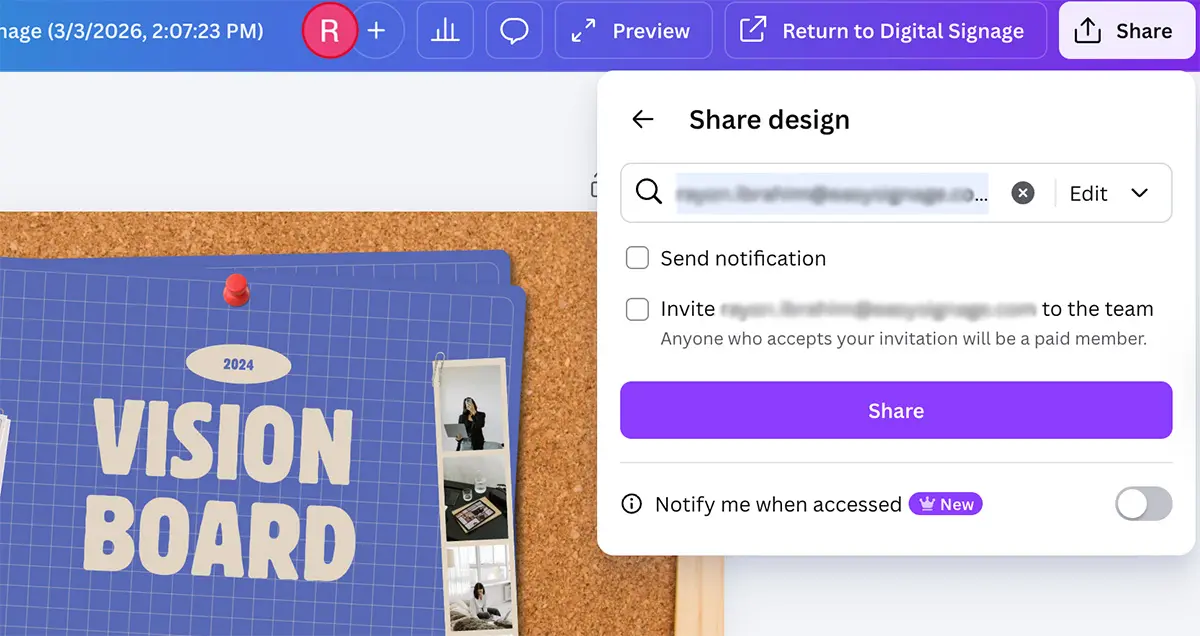
- Click on “Share” in the top right corner.
- Enter the sub-user ’s email address in the designated field to provide access.
- Decide whether to allow the user to edit or only view your design.
- Click “Share”.
Now, the sub-user will be able to access and edit your Canva design.
How to delete your Canva account
To remove access and delete your Canva account, follow these steps:
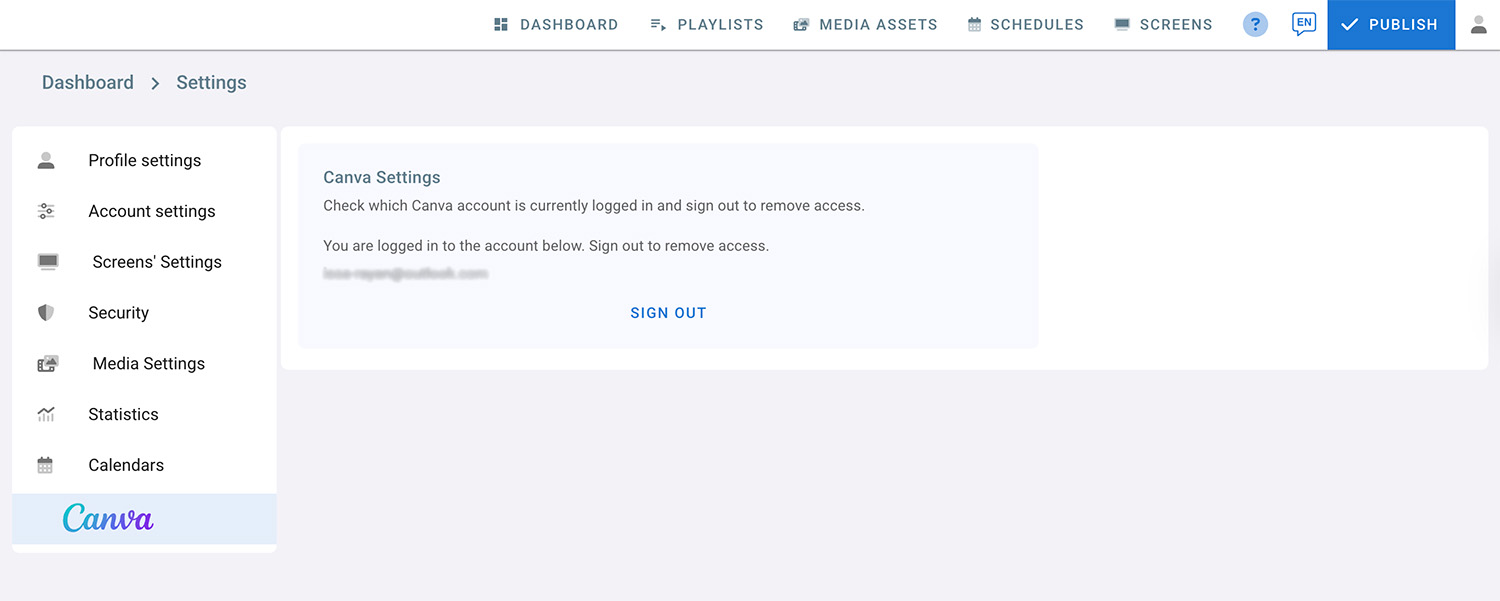
- Click on the profile icon located in the top right corner.
- Select Settings from the menu.
- Choose Canva Settings.
- You will see the Canva account that is currently logged in. Click on Sign out to remove access.
2. How to Edit an Image with Canva
You can now edit almost any image directly in Canva, even if it wasn’t created there. Simply upload your image and use Canva’s built-in tools to add text, remove backgrounds, resize elements, or apply effects.
This makes it easy to update existing graphics and repurpose images without needing the original design file.
- Click on the playlist, then select the layer where you want to add the image.
- upload an image from your device or choose one from the media assets if it is already available.
- Click on Edit in Canva.
- If you are not signed in, click Connect to Canva.
- Allow access to your canva account.
- The image will open in the Canva app, where you can redesign it.
- When you finish designing, click on Return to Digital Signage.
- Choose Image as the export type.
Your new design will now appear on the dashboard.