Play background music on your screens by adding MP3 files to a layer of a playlist. The music plays on the screen, but the layer itself stays empty: it does not show anything.
How to Add Background Music
- Open the playlist, then click the layer you want to use for the music. See Playlist Media Management.
- If the layer is empty, the content apps open. If it already has media, click Add New.
- Click Upload media.
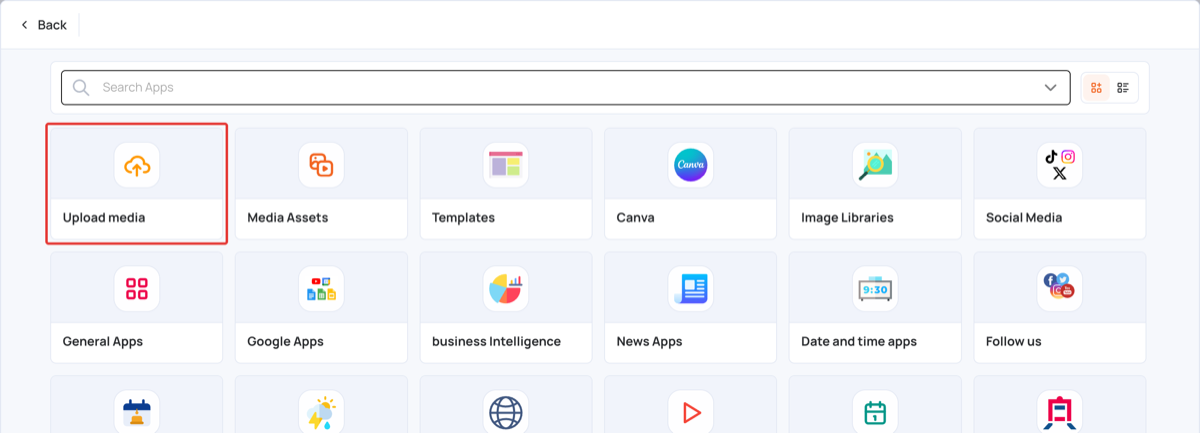
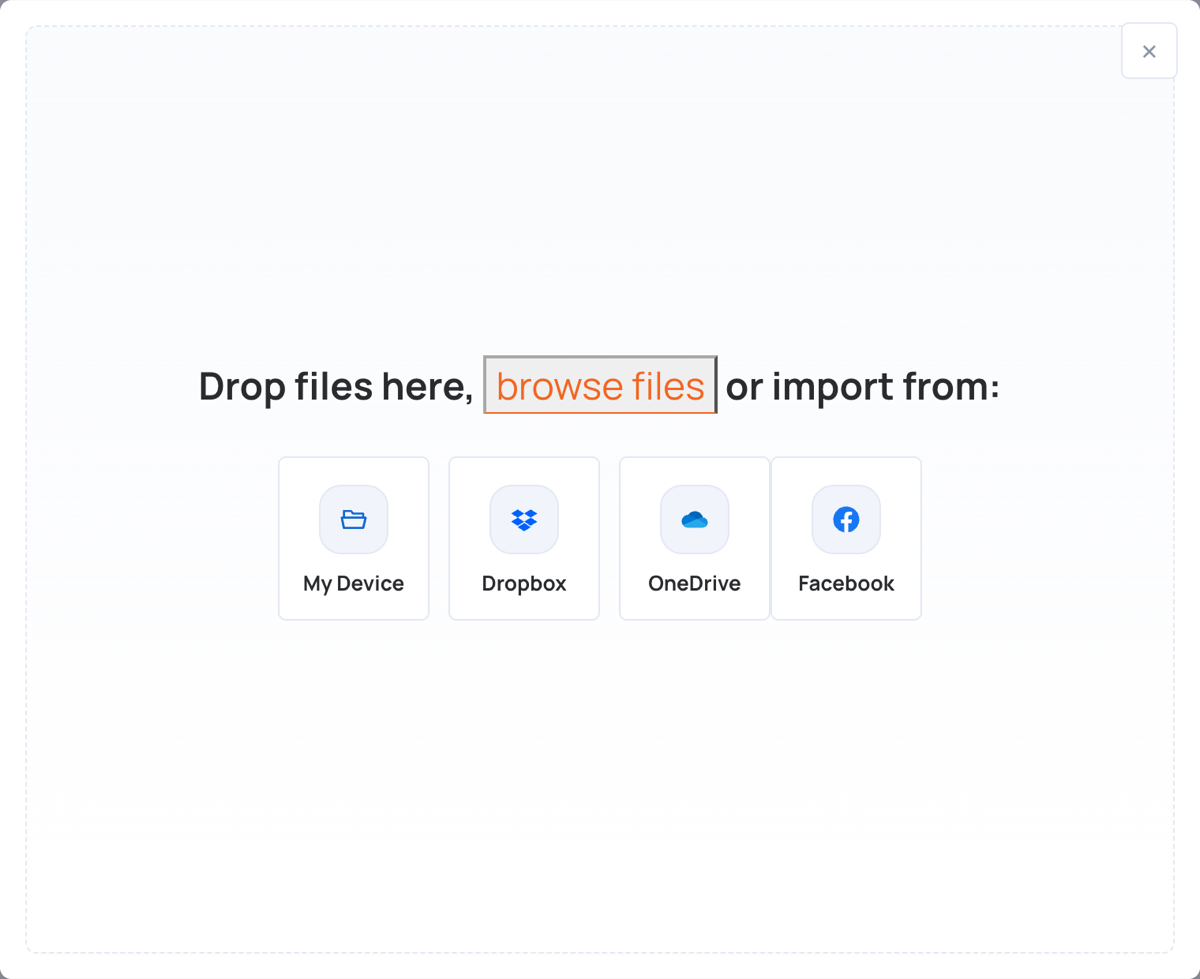
- Add your music files in one of these ways. The upload starts as soon as you add a file.
Note: Music files must be MP3. You can upload up to 20 files at a time.
From your computer
- Click My Device, or drag the files onto the window.
- Select your MP3 files.
- When the upload finishes, click Done.
From Dropbox
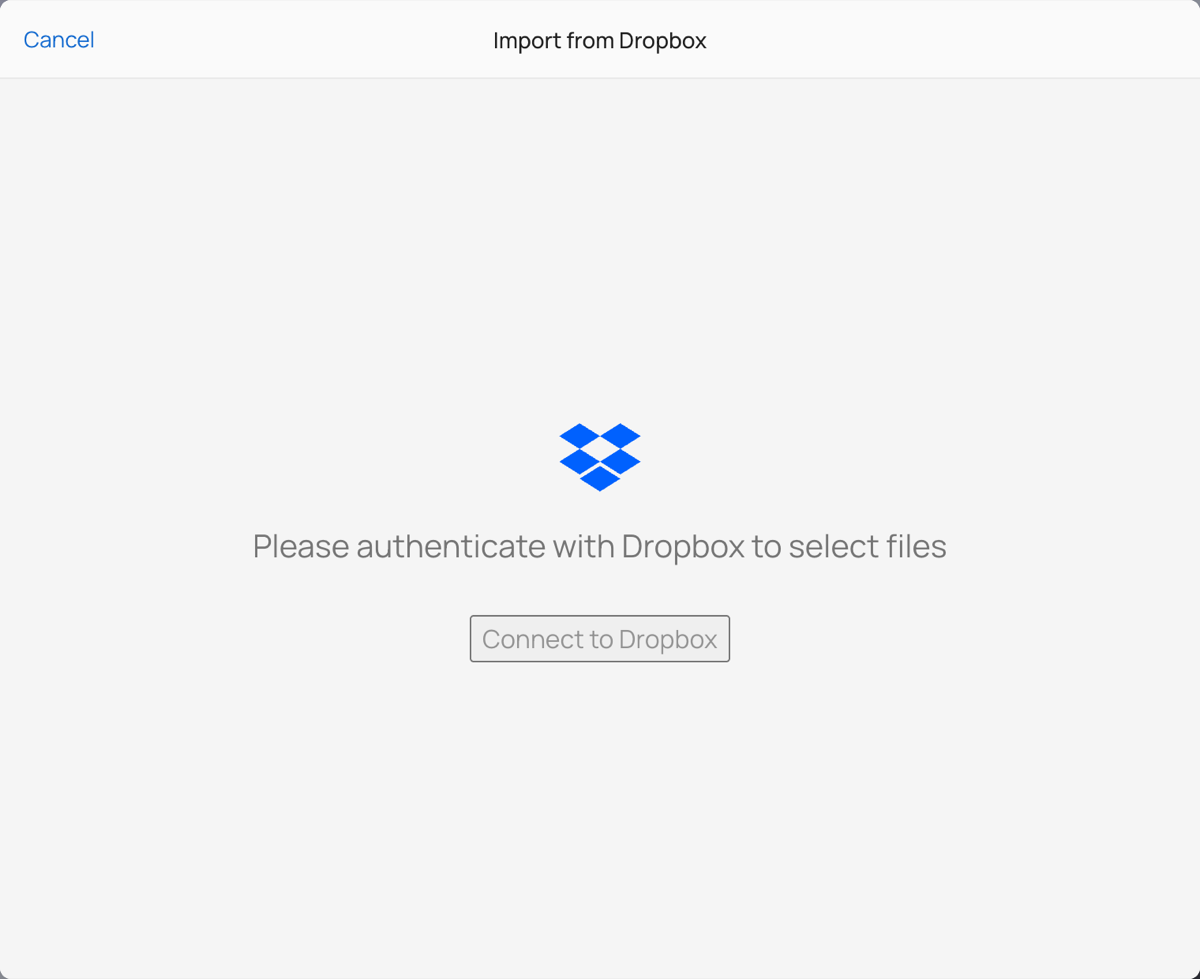
- Click Dropbox.
- Click Connect to Dropbox and sign in to your Dropbox account.
- Select your MP3 files, then click Select.
- When the upload finishes, click Done.
From OneDrive
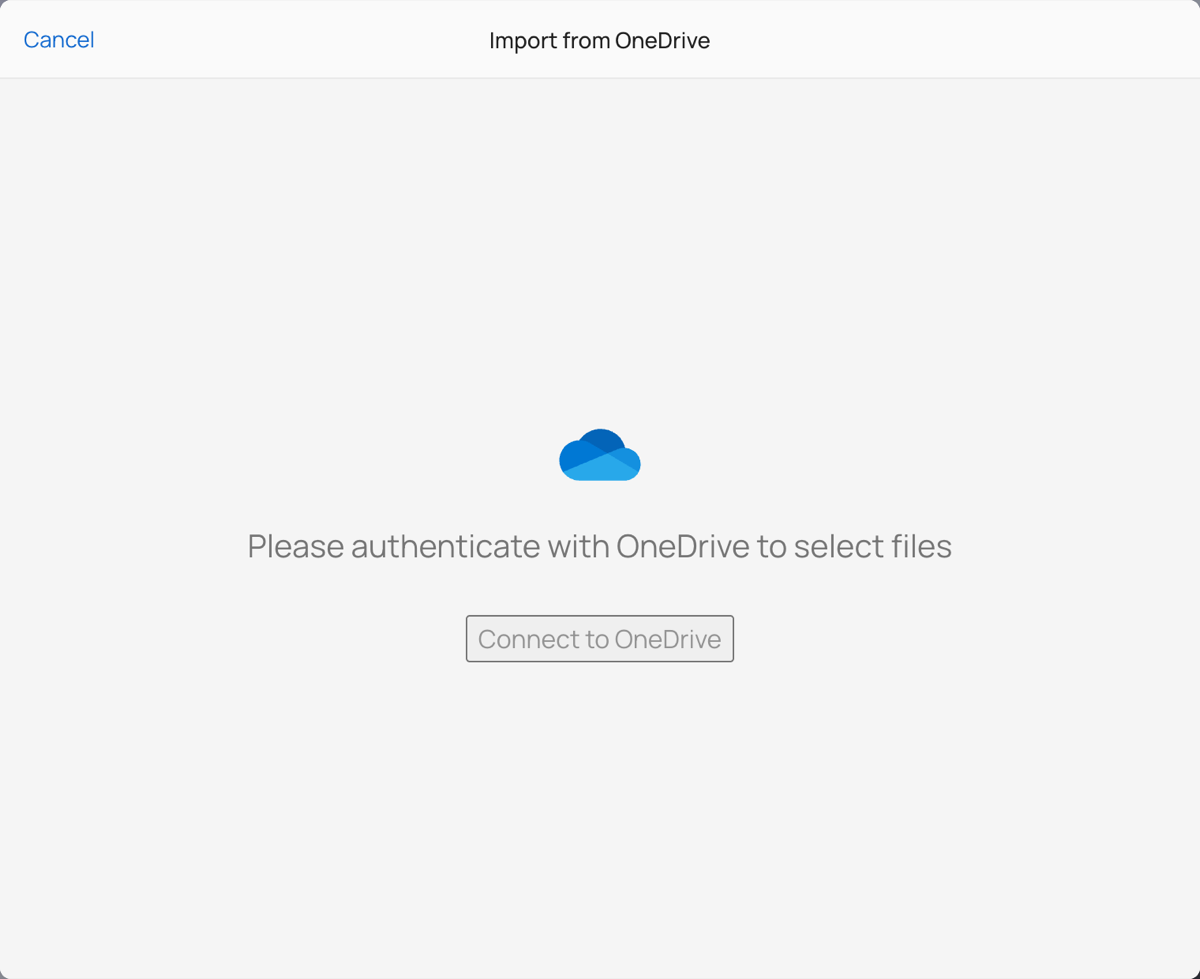
- Click OneDrive.
- Click Connect to OneDrive and sign in to your Microsoft account.
- Select your MP3 files, then click Select.
- When the upload finishes, click Done.
Check and Publish
The music files are listed in the layer, each with its playback duration. Drag them up or down to change the order they play in.
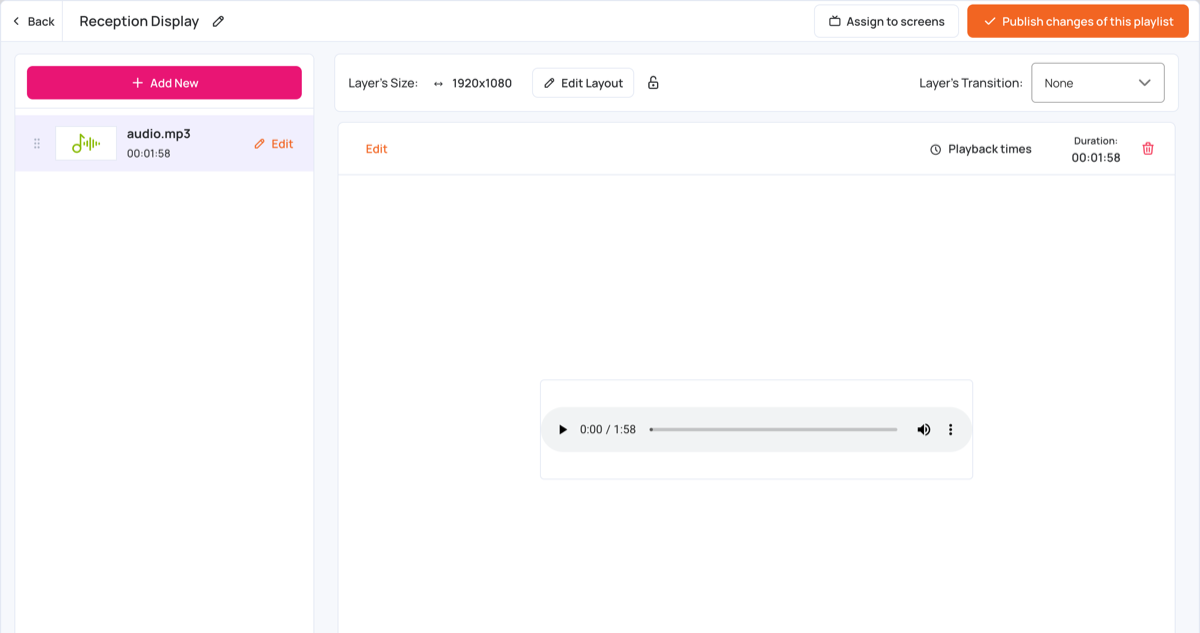
Click Publish changes of this playlist to send the music to your screens.
Note: The layer still appears in the layout in the CMS, but on the screen it shows nothing. Only the music plays.
Tip: You can also add MP3 files that are already in Media Assets. Click Add New > Media Assets, select the files, then click Add Selected.